Forgetting your own phone password is a strange kind of frustration. The device is right there in your hand, full of your photos, contacts, and accounts, yet completely closed off.
Android does provide legitimate ways back into a device you own, though they have become stricter over the years. Modern phones protect your data properly, which is good news for security and inconvenient in this moment.
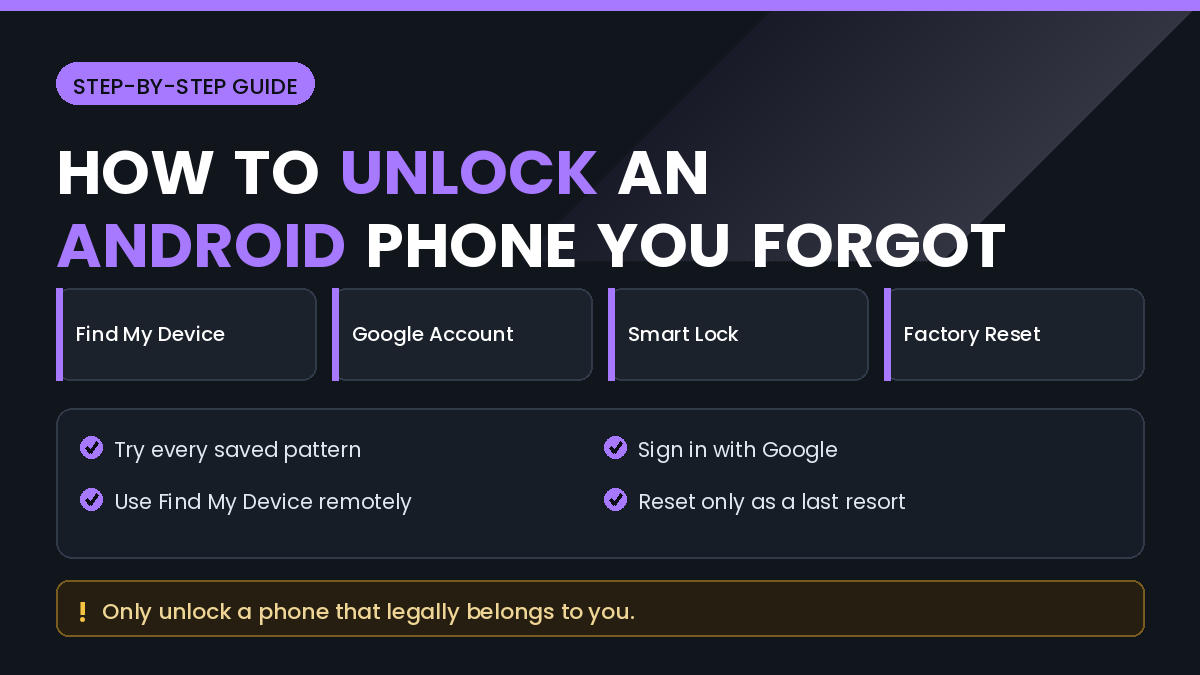
In this guide, you will learn How to Unlock an Android Phone When You Forgot the Password, which official options still exist, and how to avoid the reset that wipes everything unless you truly have no alternative.
Important: These steps apply only to a phone that belongs to you and is registered to your own Google account. Unlocking someone else’s device is illegal in most countries, and the methods below will not work without the owner’s account credentials.
Quick Answer
Start by trying every lock pattern, PIN, and password you have realistically used. Many people succeed here after a short pause, because muscle memory returns once the panic fades.
Next, check whether your phone offers a Forgot pattern or Forgot PIN option after several failed attempts. Older Android versions allow a Google account sign-in to reset the lock.
If your phone has an alternative unlock method still active, such as a fingerprint, face unlock, or a trusted Bluetooth device through Smart Lock, use that instead.
If nothing works, a factory reset through Find My Device is the remaining route. This erases the phone, so treat it as a last resort rather than a first move.
Why Unlocking Is Harder Than It Used to Be
Older Android phones stored data in a way that allowed simple lock bypasses. That convenience was also a security hole, and it has been closed.
Current Android versions tie the screen lock to full device encryption. Without the correct credential, the data itself cannot be read, even by removing the storage chip.
Factory Reset Protection adds a second layer. After a reset, the phone requires the Google account that was signed in before, which blocks a stolen phone from being wiped and resold.
This is genuinely good protection, but it means the honest owner needs their Google account details to recover a locked device.
How to Unlock an Android Phone When You Forgot the Password
Work through these in order, since the early options preserve your data and the later ones do not.
Method 1: Try Every Realistic Credential First
Before anything technical, slow down and think systematically.
- Old PINs you have used on other devices
- Patterns based on your initials or a simple shape
- Dates such as birthdays or anniversaries
- A password you set recently and may have mistyped consistently
- The possibility that the keyboard language changed
Wait out any lockout timer rather than continuing to guess rapidly. Repeated failures on some phones trigger longer delays or an automatic wipe if that setting was enabled.
Check whether the phone is displaying a work profile prompt. Managed devices sometimes require a company credential instead of your personal one.
Method 2: Use an Alternative Unlock Method
Your phone may still accept something other than the password.
Biometrics
Fingerprint and face unlock often remain active. Note that most phones require the PIN after a restart or after several failed biometric attempts, so try biometrics before restarting the device.
Smart Lock
If Smart Lock was configured, the phone may unlock automatically in a trusted place or near a trusted Bluetooth device.
Step by Step
- Take the phone to a location you marked as trusted, such as home.
- Turn on a paired Bluetooth device like a watch, car system, or earbuds.
- Wait for the phone to detect the trusted signal.
- Watch for the lock icon to change to an unlocked state.
- Swipe up without entering a code.
Once inside, immediately set a new lock you will remember and write it down somewhere safe.
Method 3: Use the Forgot Pattern Option
Older Android versions offer a direct account-based reset after failed attempts.
Step by Step
- Enter an incorrect pattern or PIN several times.
- Look for a Forgot pattern or Forgot PIN link on screen.
- Tap it.
- Sign in with the Google account linked to the phone.
- Follow the prompts to set a new screen lock.
This option was removed from newer Android versions. If you do not see the link, your phone is too recent for this route.
Method 4: Reset Through Find My Device
Google’s Find My Device can erase a phone remotely. This is the standard route for a modern locked device, and it removes all data.
Before You Reset
- Confirm you know your Google account email and password
- Confirm you can receive any two-step verification code
- Accept that photos and files not backed up will be lost
- Check whether Google Photos or Drive already holds copies
Step by Step
- On another device, open the Find My Device service and sign in.
- Select the locked phone from your device list.
- Choose the erase option.
- Confirm the action.
- Wait for the phone to receive the command, which requires it to be online.
- Set the phone up again and sign in with the same Google account.
The phone must be powered on and connected to mobile data or Wi-Fi to receive the command. A device that is offline will process it when it next connects.
Method 5: Manufacturer Account Recovery
Some brands offer their own unlock service tied to a manufacturer account rather than Google.
Check whether you have an active account with:
- Samsung, through their find-my-mobile service
- Xiaomi, through their cloud account
- Other manufacturers with a registered device account
Samsung’s service in particular can sometimes unlock a phone remotely without erasing it, provided the feature was enabled beforehand.
This route only works if you registered the device and enabled remote controls before you were locked out.
Method 6: Recovery Mode Factory Reset
If the phone cannot connect to the internet, a hardware-button reset is the remaining option.
The exact key combination varies by manufacturer, but the general approach is to power the phone off, then hold the power and volume keys together until a recovery menu appears.
From that menu, you can select the wipe option using the volume keys to navigate and the power key to confirm.
After the reset, the phone will ask for the Google account that was previously signed in. Without those credentials, the device stays locked, so make sure you have them before starting.
Things to Check Before Resetting
Check What Is Already Backed Up
Sign in to Google Photos, Drive, and Contacts on a computer. If your important data is already synced, a reset is much less painful.
Confirm Google Account Access
Test that you can sign in to your Google account on another device first. Discovering an account problem after the reset is a far worse position.
Consider Whether the Phone Is Managed
Work phones may be controlled by an employer. In that case, contact your IT department rather than resetting, since they can often unlock it directly.
Common Mistakes to Avoid
Do Not Guess Endlessly
Some devices are configured to wipe automatically after a set number of failed attempts. Pause and think rather than repeating attempts rapidly.
Do Not Reset Before Checking Backups
A reset is irreversible. Spend ten minutes confirming what is safely stored elsewhere first.
Do Not Trust Unlock Tools or Services
Be sceptical of software claiming to remove any Android lock instantly or bypass Factory Reset Protection. These commonly install malware, and bypassing protection on a device you do not own is illegal.
Do Not Share Your Google Credentials
Never give your Google account password to a shop or online service offering to unlock the phone for you. That account controls your email and far more.
Do Not Assume a Repair Shop Can Bypass It
Legitimate shops cannot bypass Factory Reset Protection either. Anyone claiming otherwise is likely working outside the law.
When to Get Professional Help
Some cases genuinely need a manufacturer service centre.
Consider official support when:
- The phone is under warranty and behaving abnormally
- The touchscreen is damaged and you cannot enter your code
- You have proof of purchase and are locked out by Factory Reset Protection
- The device is a work phone under company management
- The phone will not enter recovery mode at all
An authorised service centre can help when you can prove ownership with an original purchase receipt and matching identification. Bring both, since proof of ownership is what makes official help possible.
Frequently Asked Questions
Can I unlock an Android phone without losing data?
Sometimes. Smart Lock, biometrics, or a manufacturer remote unlock can preserve data. Once you reach a factory reset, data is lost.
Does Find My Device unlock a phone?
It does not unlock the phone. It can erase it remotely, after which you set the device up again from scratch.
Will a factory reset remove Google account protection?
No. Factory Reset Protection requires the previously signed-in Google account after the reset completes.
What if I forgot my Google password too?
Recover the Google account first from a computer using account recovery. The phone cannot be recovered until the account is.
Can a shop unlock my phone?
An authorised service centre can help with proof of ownership. Unofficial bypass services should be avoided.
Does removing the SIM card help?
No. The screen lock is tied to the device, not the SIM.
How many attempts do I get before lockout?
It varies by manufacturer. Most phones introduce increasing delays, and some can be configured to erase after repeated failures.
Can I recover photos from a locked phone before resetting?
Only if they were backed up. Encrypted storage prevents extraction from a locked modern Android device.
Final Thoughts
Working out How to Unlock an Android Phone When You Forgot the Password is really a sequence from least to most destructive.
Try every credential you can think of, then look for biometrics or Smart Lock, then check whether your manufacturer account offers a remote unlock.
Only when those fail should you consider a reset, and only after confirming your Google account access and checking what is already backed up.
Be wary of anything promising an instant bypass. Those tools rarely work on modern devices and frequently cause more harm than the original lockout.
Afterwards, set a lock you will actually remember, enable backup for your photos and contacts, and register the device with your manufacturer so remote options are available next time.