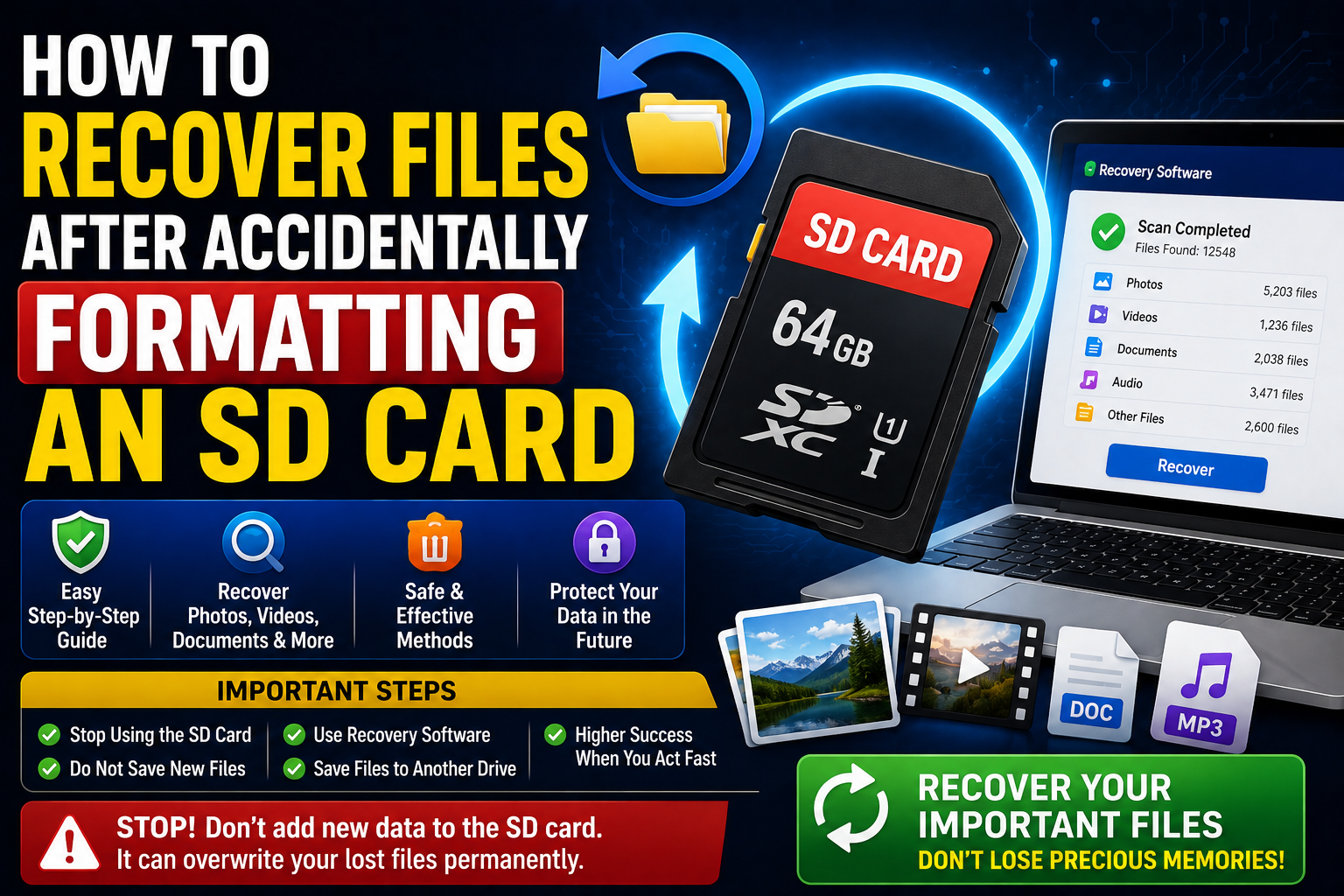
Accidentally formatting an SD card can be frightening, especially when it contains important photos, videos, documents, recordings, or other personal files. The good news is that formatting does not always mean your files are permanently gone.
If you act quickly, there may still be a good chance of recovering some or all of the data. The most important thing is to stop using the formatted SD card immediately. New photos, videos, downloads, or other files can overwrite the space where your old data was stored, making recovery much more difficult.
In this guide, you will learn How to Recover Files After Accidentally Formatting an SD Card, what happens during formatting, which recovery methods you can try, how Windows and Android differ, and when professional data recovery is a better choice.
Quick Answer
To recover files after accidentally formatting an SD card, stop writing anything to the card and do not format it again. Remove it from your phone, camera, or other device and connect it to a computer using a reliable card reader.
If the card is still detected, use reputable data recovery software to scan it. Recovery programs may be able to find files even when the normal file system no longer shows them. Save recovered files to your computer or another storage device, not back onto the formatted SD card.
Your chances of recovery depend on what type of format was performed, whether new data has overwritten the old data, the condition of the SD card, and the file system involved. If the card contains extremely important information or is physically failing, stop experimenting and consider professional data recovery.
Why Files Can Sometimes Be Recovered After Formatting
When you format an SD card, the operating system or device prepares its storage for use with a file system.
Depending on the type of formatting and device, formatting may remove or replace information that tells the operating system where individual files are located. The actual file contents may remain on the storage until that space is reused.
This is why a formatted card can sometimes still contain recoverable data.
For example, imagine an SD card contains 32 GB of photos. After formatting, the card may appear empty, but some of the underlying data may still exist until new files are written over it.
However, recovery is not guaranteed.
Quick Format vs. More Destructive Operations
A quick format generally changes file-system information without immediately writing over every sector of the card. This can leave recoverable data behind.
A full format or other operation that writes extensively to the storage can reduce recovery possibilities.
The exact behavior can also vary depending on the operating system, device, file system, and formatting process.
Why New Data Is Dangerous
Suppose you formatted your SD card and then took 200 new photos.
Those new photos may use storage space that previously contained your deleted files.
Once old data has been overwritten, ordinary software recovery becomes much more difficult and, in many cases, impossible.
That is why the first step in How to Recover Files After Accidentally Formatting an SD Card is always to stop using the card.
How to Recover Files After Accidentally Formatting an SD Card
The safest recovery process is to work from the least risky option to more advanced methods.
Method 1: Stop Using the SD Card Immediately
This is the most important step.
As soon as you realize the card was formatted accidentally:
- Stop taking photos or recording videos.
- Do not download files onto the card.
- Do not install recovery software on the card.
- Do not format the card again.
- Do not copy files back to it.
- Remove it from the phone, camera, or other device.
- Keep the card in a safe place until you are ready to attempt recovery.
If the SD card was used in a camera, turn the camera off before removing the card if the camera’s instructions require it.
The less you write to the card after formatting, the better your chances may be.
Method 2: Check for an Existing Backup
Before using recovery software, check whether your files already exist somewhere else.
This is often safer and faster than attempting recovery.
Check:
- Google Photos
- Google Drive
- OneDrive
- iCloud, where applicable
- Computer backups
- External hard drives
- Camera or phone backup services
- NAS storage
- Previous copies transferred to a laptop
- Messaging or cloud applications
For photos, open the relevant cloud photo service and search by date or album.
If your files are already backed up, download copies to another storage device instead of modifying the formatted SD card.
Method 3: Use Data Recovery Software on Windows
If no backup exists and the SD card is still detected, a Windows computer can be useful for recovery.
Several reputable recovery tools support removable storage, but their interfaces and capabilities vary by version.
Examples of commonly used recovery utilities include:
- Recuva
- PhotoRec
- TestDisk
- Windows File Recovery
Do not assume that every recovery program can recover every formatted card. Different tools use different recovery techniques.
Important Rule: Install the Software on Your Computer
Never install recovery software onto the formatted SD card.
Install the program on your computer’s internal drive or another separate storage device.
If the recovery program writes its own installation files to the SD card, it could overwrite some of the data you are trying to recover.
General Recovery Procedure
The exact steps depend on the software, but the process usually looks like this:
- Insert the SD card into a reliable card reader.
- Connect the card reader to your Windows computer.
- Confirm that Windows detects the card.
- Install your recovery software on the computer.
- Select the SD card as the source.
- Choose a deep or thorough scan when appropriate.
- Allow the scan to finish.
- Preview the files if the software supports previews.
- Select the files you need.
- Save the recovered files to another drive.
The recovery scan can take time, especially when the card is large or the software is examining the storage thoroughly.
Method 4: Try Windows File Recovery
Microsoft provides Windows File Recovery, a command-line recovery utility available for Windows systems through Microsoft’s official distribution channels.
It is designed for recovering files that cannot be restored through the normal Recycle Bin process and can work with certain local storage situations.
Because it is a command-line tool, it may be less convenient for beginners than graphical recovery applications.
If you use it, pay close attention to the source and destination drives.
Never use the formatted SD card as the recovery destination.
The destination should be another drive with sufficient free space.
Recovery capabilities depend on the file system and situation, so Windows File Recovery should not be treated as a guaranteed solution for every formatted SD card.
Method 5: Use PhotoRec for Difficult Recovery Cases
PhotoRec is a file-recovery utility designed to recover files from various storage devices.
It uses file signatures to search for recognizable file data rather than relying entirely on the damaged or missing file system.
This can make it useful when a formatted SD card’s directory structure is no longer available.
However, there is an important trade-off.
When recovering files based primarily on signatures, the original filenames and folder structure may not always be preserved.
You might recover files with generic names that need to be sorted afterward.
PhotoRec is particularly useful when conventional recovery methods cannot find the expected files.
Method 6: Create a Disk Image Before Repeated Recovery Attempts
If the data is extremely important, consider creating an image of the SD card before repeatedly scanning it.
A disk image is a sector-by-sector copy of the available storage that can be used as a working copy.
The advantage is that you can perform recovery attempts against the image instead of repeatedly accessing the original card.
This approach is more advanced and requires enough storage space for the image.
It can be particularly valuable if the SD card is unstable or showing signs of physical failure.
If you are uncomfortable with disk imaging, professional data recovery may be safer.
How to Recover Photos and Videos From a Formatted SD Card
Photos and videos are among the most commonly lost files after accidental formatting.
If you primarily need multimedia files, recovery software that supports common image and video formats may be able to locate them.
Possible file types include:
- JPG
- JPEG
- PNG
- RAW camera files
- MP4
- MOV
- AVI
- WAV
- MP3
Camera-specific RAW formats can be more difficult depending on the recovery software.
Recover Files to Another Drive
This rule is extremely important.
If the SD card is drive E:, do not recover the files to drive E:.
Instead, save them to:
- Your computer’s internal drive
- Another SD card
- An external hard drive
- A USB drive
- A network storage device
The recovery destination must have enough free space for the files being recovered.
Android-Specific Solutions
If you formatted an SD card using an Android phone, the situation can be more complicated.
Android devices may use SD cards as either portable storage or, on supported devices, adoptable/internal storage.
These modes behave differently.
If the Card Was Portable Storage
If the SD card was being used as portable storage, it may be possible to remove it and connect it directly to a computer.
Use a card reader rather than repeatedly inserting and removing it from the phone.
If the Card Was Used as Internal or Adoptable Storage
This situation can be significantly more complicated.
Some Android configurations associate the card with the phone and may use encryption or other mechanisms.
A computer may not simply recognize the data as ordinary photos and folders.
If the card contained important data and was configured as internal/adoptable storage, avoid experimenting with repeated formatting or repartitioning.
Consider professional recovery if the data is particularly valuable.
Check Google Photos Before Recovery
If your Android phone automatically backed up photos, you may not need SD card recovery at all.
Open Google Photos and check:
- Your photo library.
- Recently added items.
- Albums.
- Trash.
- The correct Google Account.
- Backup settings.
Sometimes users believe their photos were stored only on the SD card when copies were already backed up online.
Camera-Specific SD Card Recovery
Accidentally formatting an SD card inside a camera is a common scenario.
If this happens, stop using the camera.
Do not take new pictures “just to test whether the card works.”
Every new photo or video can potentially overwrite recoverable data.
Remove the card and connect it to a computer using a compatible card reader.
If the camera previously used a standard photo file system and the card remains readable, recovery software may be able to locate the old files.
Things to Check Before Trying Advanced Solutions
Before starting a deep recovery scan, check the following.
Is the SD Card Detected?
Insert the card into your computer.
If Windows detects it, note the drive letter.
Do not initialize or format the card if Windows displays a prompt asking you to do so.
Is the Card Showing the Correct Capacity?
If a 64 GB card suddenly appears with an unusual capacity, the card may have a partition, file-system, controller, or hardware problem.
This can require more advanced recovery.
Is the Card Physically Damaged?
Look for:
- Cracks
- Bent contacts
- Broken plastic
- Water damage
- Signs of overheating
Do not attempt to repair physical damage yourself if the data is important.
Does the Card Disconnect Repeatedly?
A card that repeatedly disappears from Windows can indicate a failing card, reader, adapter, or connection.
Repeatedly scanning a physically unstable card can make the situation worse.
Common Mistakes to Avoid
Formatting the Card Again
Do not format the SD card again simply because Windows or Android asks you to.
If you are trying to recover files, formatting again is usually the opposite of what you want.
Taking New Photos
Do not keep using the card after accidental formatting.
New data can overwrite old information.
Recovering Files to the Same SD Card
This can overwrite other recoverable files.
Always choose another storage location.
Installing Recovery Software on the SD Card
Recovery software must be installed somewhere other than the card you are trying to recover.
Running Disk Repair Without Understanding the Risk
Windows or another operating system may offer to repair a damaged file system.
Repair tools can sometimes modify file-system structures.
If the card contains important lost data, consider recovering the data first rather than immediately modifying the original storage.
Trusting Every Recovery Tool
Be cautious with software that promises “100% recovery” or claims that every formatted SD card can be restored.
No legitimate recovery process can guarantee recovery in every situation.
What If the SD Card Is Not Detected?
If the computer does not detect the card at all, software recovery becomes more difficult.
Try basic hardware checks first:
- Try a different card reader.
- Try another USB port.
- Try another computer.
- Check whether the adapter is faulty.
- If using a microSD card, try another compatible adapter.
- Check whether the card appears in Windows Disk Management.
Do not immediately format or initialize the card if Windows asks you to.
If the card is not detected anywhere, the problem may involve the card’s controller or physical hardware rather than simply a damaged file system.
When to Get Professional Help
Professional data recovery becomes more appropriate when the files are extremely important or the SD card appears physically or electronically damaged.
Consider professional help if:
- The SD card is not detected by multiple devices.
- The card repeatedly disconnects.
- The card is physically damaged.
- Recovery software causes errors or freezes.
- The card has important business records.
- The card contains irreplaceable family photographs.
- You have already tried several recovery methods without success.
- The card was formatted and then heavily used.
- The data has significant financial or legal importance.
A professional laboratory may have specialized hardware and techniques that are unavailable through ordinary consumer software.
If the data is valuable, avoid repeatedly experimenting with the original card before contacting a professional.
Frequently Asked Questions
Can I recover files after accidentally formatting an SD card?
Yes, recovery may be possible if the original data has not been overwritten and the SD card is still functioning. Stop using the card immediately and scan it with reputable recovery software from a computer. Recovery is not guaranteed.
Does formatting an SD card delete everything permanently?
Not necessarily. A quick format may remove or replace file-system information while leaving some underlying data available for recovery. However, new data can overwrite that information. More extensive formatting or other storage operations can reduce recovery chances.
Can I recover photos from a formatted SD card?
Yes, photos can sometimes be recovered after formatting. Use recovery software that supports image files and save recovered photos to another drive. Do not take additional pictures or save files to the formatted card.
What should I do immediately after formatting an SD card by mistake?
Stop using it immediately. Remove it from the phone, camera, or other device, and do not format it again. Check your cloud and computer backups before attempting recovery. If no backup exists, connect the card to a computer using a reliable card reader and use a suitable recovery method.
Can I recover files from a formatted SD card without software?
If you have a backup, you can restore your files without recovery software. For example, copies may exist in Google Photos, cloud storage, a computer backup, or another storage device. If there is no backup, specialized recovery software is usually needed to search the formatted storage.
Can I recover files from an SD card after using it again?
Possibly, but your chances may be lower. New photos, videos, and other files can overwrite the old data. Stop using the card as soon as you realize the mistake and begin recovery from the original card.
Why does my computer ask me to format the SD card?
Windows may display a format prompt when it cannot properly read the card’s file system. If the card contains lost files, do not automatically accept the prompt. Formatting can make recovery more difficult.
Should I recover files to the same SD card?
No. Recovered files should be saved to a different drive or storage device. Saving them to the same card can overwrite other data that recovery software has not yet recovered.
Is professional SD card recovery worth it?
It can be worth considering when the data is irreplaceable or the card is physically damaged, repeatedly disconnecting, or completely undetected. Professional recovery can be expensive, but it may be preferable to repeatedly experimenting with valuable data.
Final Thoughts
Knowing How to Recover Files After Accidentally Formatting an SD Card can make the difference between a successful recovery attempt and permanent data loss.
The most important rule is simple: stop using the formatted SD card immediately. Do not take new photos, copy files to it, format it again, or install recovery software onto it.
First, check Google Photos, cloud storage, computer backups, and other locations where copies of your files may exist. If no backup is available and the card is still detected, use reputable recovery software from a computer and save recovered files to a separate drive.
For more difficult cases, consider creating a disk image or using a recovery utility such as PhotoRec. If the SD card is physically damaged, repeatedly disconnects, or contains irreplaceable information, professional data recovery is often the safer choice.
Most importantly, avoid promises of guaranteed recovery. Whether files can be restored depends on the type of formatting, the file system, the condition of the card, and whether the original data has been overwritten.
Once you recover your files, create a backup system so an accidental format or damaged SD card does not become a permanent data-loss event.