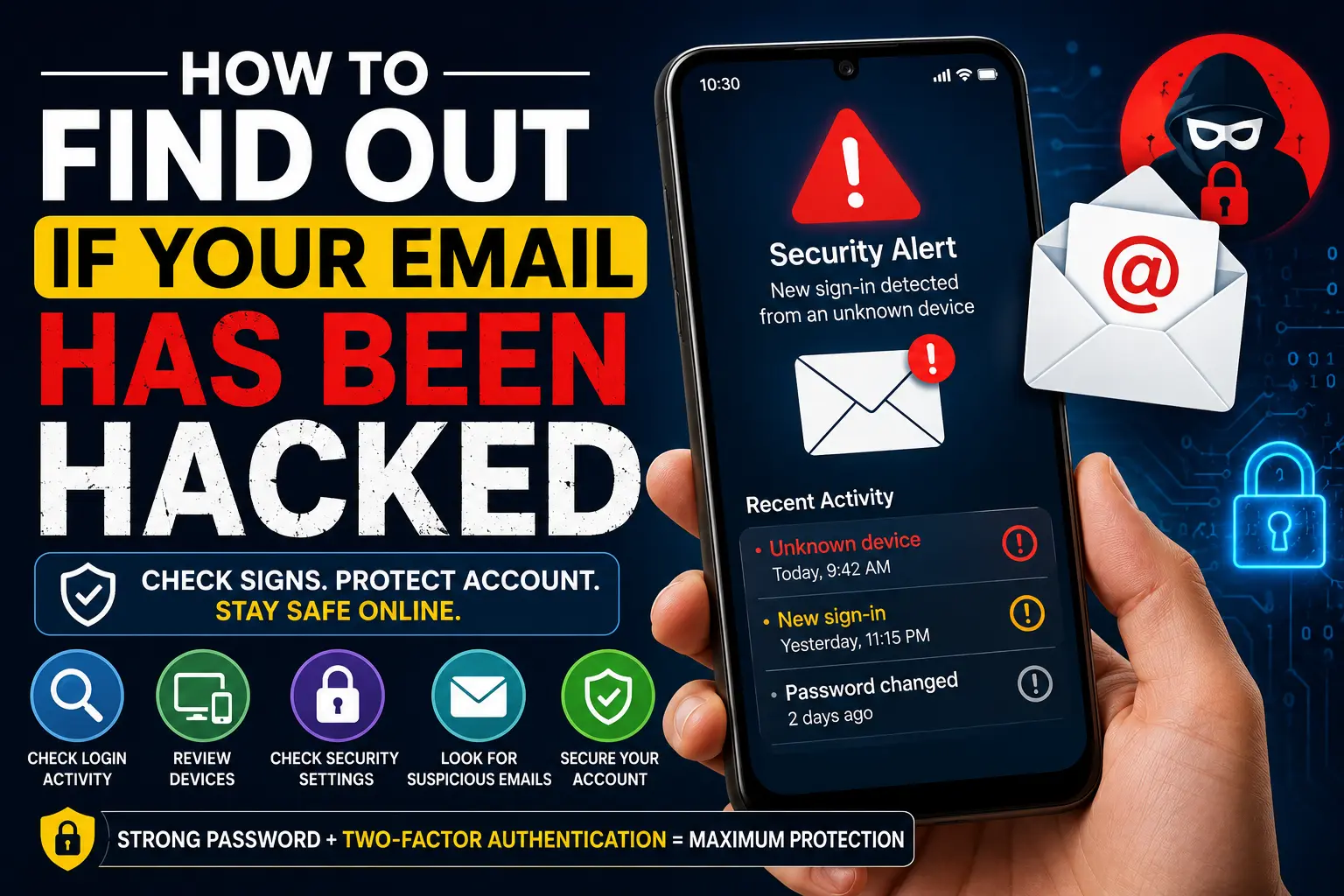
Your email account is often the gateway to many other online accounts. It may be connected to social media, banking notifications, shopping accounts, cloud storage, password resets, and important personal documents. That is why discovering unusual activity in your inbox can be worrying.
If you have noticed unfamiliar login alerts, password-reset emails you did not request, messages sent from your account, or security notifications from places you do not recognize, you may be wondering How to Find Out if Your Email Has Been Hacked.
The good news is that there are several practical ways to check. You can review recent account activity, look for unfamiliar devices and locations, inspect your sent messages and forwarding rules, check for data breaches, and test whether your password is still secure.
This guide explains how to investigate an email account carefully and what to do if you find evidence that someone else has accessed it.
Quick Answer
The fastest way to find out if your email has been hacked is to check your email provider’s recent security activity and account sessions. Look for unfamiliar devices, locations, login times, password changes, recovery-email changes, or security alerts that you did not initiate.
You should also inspect your Sent folder, deleted messages, account settings, email forwarding rules, filters, connected apps, and recovery information. An attacker may access an account without immediately changing the password, so unusual activity can be an important warning sign.
If your email provider reports suspicious activity, or you discover that someone has changed your security settings, change your password immediately from a trusted device, enable two-factor authentication, remove unfamiliar sessions and connected applications, and secure other accounts that used the same password.
Why Email Accounts Get Hacked
Before checking your account, it helps to understand how unauthorized access can happen.
An email account can be compromised in several ways. In many cases, the attacker does not “break into” the email provider directly. Instead, they obtain your password or authentication information through another method.
Reused Passwords
Using the same password on multiple websites creates a significant security risk.
Suppose you use the same password for an online forum and your email account. If the forum suffers a data breach and the password becomes available to attackers, they may try that same combination against your email account.
This is one reason every important account should have a unique password.
Phishing
Phishing is a common technique where criminals create fake emails, websites, or messages designed to trick you into providing your password.
A phishing message may claim that:
- Your account has been locked.
- Your password is about to expire.
- Someone attempted to sign in.
- You need to verify your identity.
- Your payment failed.
- Your account requires security confirmation.
The message may contain a link leading to a fake login page.
Malware and Information-Stealing Software
Malicious software can sometimes capture passwords, browser information, or other sensitive data.
This is particularly concerning if you installed an application, browser extension, or program from an untrusted source before noticing suspicious account activity.
Stolen Session Information
In some situations, an attacker may obtain information that allows them to access an account without simply knowing the password.
This is one reason signing out of unfamiliar sessions and reviewing active devices is important.
Weak Account Security
Accounts without strong passwords and additional authentication protections can be easier targets.
A unique password combined with two-factor authentication provides significantly more protection than relying on a password alone.
How to Find Out if Your Email Has Been Hacked
There is no single test that can prove an email account has never been compromised.
Instead, look for multiple indicators and review your account’s security information.
Method 1: Check Recent Login and Security Activity
One of the most useful checks is your email provider’s account activity.
If you use Gmail, for example, you can review Google Account security information and recent device activity.
Start by:
- Sign in to your email account directly through the official website or app.
- Open your account’s Security settings.
- Look for sections related to recent security activity, devices, or your recent sign-ins.
- Review the devices listed on the account.
- Check for unfamiliar devices, locations, or activity.
- Investigate anything you do not recognize.
The exact menu names can change depending on the provider and its current interface.
Microsoft Outlook, Yahoo Mail, Apple, and other providers have their own account-security pages.
What Counts as Suspicious Activity?
An unfamiliar device can be a warning sign, but do not automatically assume that every unfamiliar location means your account was hacked.
Location information can sometimes be approximate, and mobile networks, VPNs, proxies, and changing IP addresses can make the displayed location different from your physical location.
Pay closer attention when several signs appear together, such as:
- An unfamiliar device
- An unfamiliar login time
- A password change you did not make
- A new recovery email
- A new phone number
- Unexpected security alerts
- Messages you did not send
If you see several of these at once, treat the account as potentially compromised.
Method 2: Check Your Sent Folder
An attacker may use your email account to send phishing messages to your contacts.
Open your Sent folder and look for emails that you do not remember sending.
Pay particular attention to:
- Messages sent to unknown recipients
- Password-reset links
- Investment offers
- Cryptocurrency messages
- Requests for money
- Fake invoices
- Messages containing suspicious links
- Strange messages sent to your contacts
Also check other folders if your email provider has an unusual-activity or security section.
Finding an unfamiliar sent message does not always prove that someone logged into your account. Some malicious software or spoofing techniques can make emails appear to come from your address without giving the sender access to your mailbox.
However, unexpected messages in your actual Sent folder deserve investigation.
Method 3: Check Your Inbox for Security Alerts
Search your email for security-related messages.
Useful search terms include:
- Password changed
- New sign-in
- New device
- Security alert
- Recovery email
- Recovery phone
- Verification
- Account activity
- Two-step verification
Look for notifications that you did not trigger.
For example, if you receive a message saying your password was changed and you did not change it, take action immediately.
Do not click links in suspicious security emails. Instead, open your email provider’s official website or application manually and check your account security settings.
Method 4: Check Your Account Recovery Information
Attackers may attempt to change the recovery information associated with an account.
Check whether your:
- Recovery email address
- Recovery phone number
- Backup contact information
- Authentication methods
are still correct.
If an unfamiliar recovery email or phone number has been added, your account may have been compromised.
Warning: Do not remove your legitimate recovery options without first ensuring that you have another secure way to recover the account.
Method 5: Check Email Forwarding Rules
Email forwarding is an important setting that many users overlook.
An attacker who gains access to your email may create a forwarding rule so that copies of your incoming messages are sent to another address.
Check your email settings for:
- Forwarding
- Mail forwarding
- Automatic forwarding
- Filters
- Rules
- Delegation
- Connected accounts
Look for addresses or rules that you did not create.
If you find an unfamiliar forwarding address, remove it after securing your account.
Method 6: Check Filters and Rules
Attackers can sometimes use email filters or rules to hide security notifications.
For example, a rule could automatically move certain messages to another folder, archive them, or mark them as read.
Review your email rules carefully.
Look for rules that:
- Automatically delete messages
- Archive security emails
- Forward messages
- Move messages to unfamiliar folders
- Mark messages as read
- Target password-reset or security notifications
Remove rules you did not create.
Method 7: Review Connected Apps and Services
Your email account may be connected to other applications and websites.
For example, you may have previously allowed an application to access certain account information.
Review the account’s third-party apps, connected apps, or app permissions section.
Remove access for applications you do not recognize or no longer use.
Be careful not to remove access from an application you still need without understanding what the connection does.
Method 8: Check Whether Your Email Appeared in a Data Breach
Another useful way to investigate your email address is to check whether it has appeared in known data breaches.
Services such as Have I Been Pwned allow users to check whether an email address appears in certain known breach datasets.
A breach result does not automatically mean that your email account itself was hacked.
For example, your email address might appear in a breach involving an online shopping site you used years ago. The exposed information could be unrelated to your email password.
However, if you reused the same password on that service and your email account, change the email password immediately.
Method 9: Look for Password-Reset Emails You Did Not Request
Unexpected password-reset messages are another warning sign.
You might receive emails saying that someone requested a password reset for:
- Your social media account
- Online shopping account
- Cloud storage
- Gaming account
- Financial service
- Work account
One unexpected password-reset email does not necessarily mean your email was hacked. Someone may simply have entered your email address by mistake.
However, a large number of unexpected reset requests can indicate that someone is attempting to take control of your accounts.
Secure the email account first because attackers often target email specifically to intercept password-reset messages.
Signs That Your Email May Have Been Hacked
There are several warning signs worth taking seriously.
1. Your Password No Longer Works
If your password suddenly stops working and you did not change it, someone may have changed it.
However, first make sure you are using the correct password and official login page.
2. Recovery Information Has Changed
An unfamiliar recovery email or phone number is a serious warning sign.
3. Emails Were Sent Without Your Permission
Unexpected messages in your Sent folder can indicate unauthorized access.
4. Your Contacts Receive Strange Messages
Friends, family, coworkers, or customers may tell you that they received suspicious emails from your account.
5. Unknown Devices Appear
An unfamiliar device in your account’s security dashboard can indicate unauthorized access, especially if you do not recognize the device or activity.
6. Security Notifications Appear Unexpectedly
Password-change, recovery-change, or new-login alerts that you did not initiate should be investigated.
7. Your Inbox Behaves Differently
Missing messages, unfamiliar filters, strange forwarding rules, or unexpected folders can be signs that someone changed your account settings.
What to Do If Your Email Has Been Hacked
If your checks suggest that someone has accessed your email, act quickly.
Method 1: Change Your Email Password
Warning: If you believe the device you are using is infected with malware, avoid entering your new password on that device until you have secured it.
Use a trusted device if possible.
Then:
- Open your email provider’s official website or application.
- Go to account security settings.
- Change your password.
- Create a strong, unique password.
- Do not reuse the new password on another website.
- Save it in a reputable password manager if appropriate.
If you cannot sign in, use the provider’s official account-recovery process.
Method 2: Sign Out of Unrecognized Devices
After changing your password, review active sessions and devices.
Sign out of devices you do not recognize.
Some providers may allow you to sign out of multiple sessions at once.
Method 3: Enable Two-Factor Authentication
Two-factor authentication, often called 2FA, adds another verification step after your password.
Depending on the provider, this may involve:
- An authenticator app
- A security key
- A verification prompt
- Another supported authentication method
Use the strongest practical option available to you.
Remember that you should never share authentication codes with someone who contacts you unexpectedly.
Method 4: Remove Suspicious Account Changes
Review and correct:
- Recovery email
- Recovery phone
- Forwarding addresses
- Filters
- Mail rules
- Delegates
- Connected applications
- Unknown devices
- Authentication methods
This step is important because changing the password alone may not remove every unauthorized account change.
Method 5: Secure Other Accounts
If you reused your email password elsewhere, change those passwords too.
Start with your most important accounts, such as:
- Banking and financial services
- Cloud storage
- Social media
- Shopping accounts
- Work accounts
- Password managers
- Government-related services
Use a different password for every important account.
Google Account and Gmail Checks
If your email is Gmail, your Google Account contains several important security controls.
Go to your Google Account through the official Google website or use the Google Account settings available on your device.
Review:
- Recent security activity
- Your devices
- Password
- Recovery phone
- Recovery email
- Two-step verification
- Third-party connections
- Passkeys or other sign-in methods, if enabled
If Google reports suspicious activity, follow the security prompts carefully.
Gmail Web Activity
Gmail also provides account activity information that can help you investigate unusual access.
When reviewing activity, consider the possibility that IP locations can be approximate.
Do not assume that an unfamiliar city automatically means someone hacked your account. Compare the time, device, browser, and other details with your own activity.
Android: Check Your Email Account Security
If you use Gmail on Android, you can manage much of your account security from your phone.
Open the Google Account settings associated with your Gmail account and review the Security section.
Check:
- Recent security activity.
- Devices where your account is signed in.
- Recovery information.
- Two-step verification.
- Connected apps and services.
- Password-related alerts.
If you use another email provider, use that provider’s official Android application or website.
Important Android Warning
If you installed an unknown APK, modified application, or suspicious app shortly before your email account became compromised, consider that application a possible security risk.
Do not simply change your password repeatedly without investigating the device.
Remove suspicious applications and update Android and your important apps. If you believe the phone is seriously compromised, back up important personal data and consider professional assistance before performing a factory reset.
Windows 10 and Windows 11: Check Your Email Security
If you use your email through a Windows computer, investigate both the account and the computer.
Check Browser Extensions
Unknown or suspicious browser extensions can create privacy and security problems.
Open your browser’s extension settings and review installed extensions.
Remove extensions you do not recognize or no longer need.
Check Recently Installed Programs
Think about whether you recently installed software from an untrusted website.
Be especially cautious with:
- Pirated applications
- Unknown browser tools
- Fake updates
- Cracked software
- Suspicious downloads
If you suspect malware, run a security scan using your trusted security software before continuing to use the computer for sensitive account activity.
Things to Check Before Trying Advanced Solutions
Before assuming that your email has been hacked, perform these simple checks.
Confirm the Email Address
Make sure you are checking the correct email account.
People sometimes mistake an old account notification for activity on their current account.
Check Your Own Devices
Review your phones, tablets, computers, and browsers.
An unfamiliar-looking device may actually be a device you own but have forgotten about.
Check Family or Shared Devices
If you share a computer or tablet with someone, determine whether the unfamiliar activity could have come from that device.
Check Password Managers
If you use a password manager, confirm whether the stored password has changed unexpectedly.
Do not share your password with anyone while investigating.
Check for Spoofing
A spoofed email can appear to come from your address without your account actually being hacked.
This is another reason to check the actual Sent folder and account activity rather than relying only on messages reported by other people.
Common Mistakes to Avoid
Mistake 1: Changing Only the Email Password
Changing the password is important, but it may not be enough.
Also review active sessions, forwarding rules, recovery settings, filters, connected applications, and authentication methods.
Mistake 2: Using the Same New Password Everywhere
Never replace an old reused password with another password that you use on multiple websites.
Your email should have a unique password.
Mistake 3: Clicking a Security Email Link
If you receive a suspicious “your account was hacked” message, do not automatically click its link.
Open the provider’s official website yourself.
Mistake 4: Ignoring Unexpected Recovery Changes
An unfamiliar recovery email or phone number should be investigated immediately.
Mistake 5: Assuming Every Unknown Login Is a Hacker
Location and device information can sometimes be misleading.
Check the full context before concluding that an account was compromised.
Mistake 6: Forgetting About Other Accounts
If your email password was reused elsewhere, those accounts may also be at risk.
Secure them after protecting your email account.
When to Get Professional Help
You can usually secure a normal compromised email account yourself if you still have access to it.
Professional help becomes more appropriate when:
- You cannot recover the account.
- The attacker keeps regaining access.
- Your computer or phone may contain malware.
- Multiple accounts have been compromised.
- Financial accounts are involved.
- Your identity appears to be used fraudulently.
- Your work or business email has been compromised.
- You suspect sensitive files were accessed.
For a work email account, contact your organization’s IT or security team immediately rather than trying to investigate everything yourself.
If financial fraud has occurred, contact the affected financial institution through its official contact method.
Frequently Asked Questions
How can I tell if my email has been hacked?
Check recent account activity, unfamiliar devices, security alerts, password changes, recovery settings, forwarding rules, filters, connected applications, and your Sent folder.
One unusual sign does not always prove an account was hacked, but several unexpected changes together should be treated seriously.
Can someone hack my email without changing the password?
Yes. Unauthorized access does not necessarily involve an immediate password change.
An attacker may access messages, create forwarding rules, add account connections, or use an existing session. That is why reviewing account activity and settings is important.
How do I know if someone is reading my emails?
Look for unfamiliar login sessions, devices, forwarding addresses, filters, delegates, or other account changes.
If you find suspicious activity, change your password, sign out of unknown sessions, and enable two-factor authentication.
Can I check if my email was involved in a data breach?
Yes. Services such as Have I Been Pwned can show whether an email address appears in certain known breach datasets.
A breach listing does not necessarily mean your email account itself was hacked. It means your information appeared in a known security incident and should prompt you to review password reuse and account security.
What should I do first if my email has been hacked?
Secure the email account first.
Change the password using a trusted device, sign out of unfamiliar sessions, verify your recovery information, remove suspicious access, and enable two-factor authentication.
Then change reused passwords on other important accounts.
Should I delete my hacked email account?
Usually, no.
If you can recover and secure the account, keeping it may be more practical than deleting it.
Deleting an email account can cause loss of messages, contacts, account access, and recovery options for other services.
Can a hacked email account hack my phone?
A compromised email account does not automatically mean your phone has been hacked.
However, email access can be used to reset passwords for other accounts. If your phone also shows signs of malware or unauthorized applications, investigate the device separately.
Can hackers read deleted emails?
It depends on the email provider, retention policies, and how the messages were deleted. Do not assume that deleting a message immediately eliminates every possible copy.
If an account has been compromised, focus first on securing the account and reviewing its activity.
Final Thoughts
Knowing How to Find Out if Your Email Has Been Hacked is less about finding one magic warning and more about checking several important parts of your account.
Start with recent security activity and unfamiliar devices. Then inspect your Sent folder, password-reset alerts, recovery information, forwarding rules, filters, connected apps, and authentication settings. If your email address appears in a known data breach, check whether you reused the affected password anywhere else.
If you find convincing evidence of unauthorized access, act quickly. Change the password from a trusted device, sign out of unfamiliar sessions, remove suspicious account changes, enable two-factor authentication, and secure other accounts that shared the same password.
Most importantly, do not panic when you see one unfamiliar location or security notification. Investigate the details carefully. At the same time, never ignore multiple unexplained changes to your account.
Your email account is one of the most important pieces of your online identity. Keeping it protected with a unique password, strong authentication, updated devices, and careful phishing awareness can greatly reduce the damage caused by an attempted or successful account compromise.