Text messages still carry some of the most important information on a phone. Bank alerts, verification codes, delivery details, and conversations you meant to keep can all disappear with one careless swipe.
What surprises most people is that recovery is often possible directly on the phone, without connecting to a computer or installing questionable software.
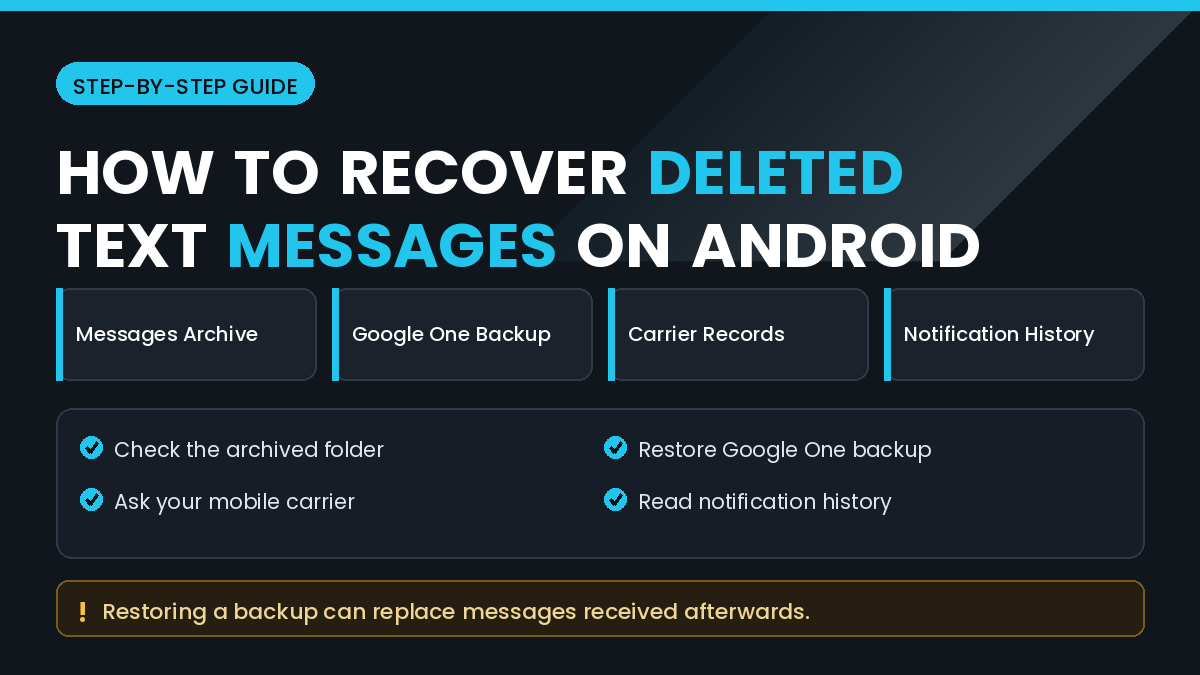
In this guide, you will learn How to Recover Deleted Text Messages on Android Without a Computer, covering archived folders, Google backups, carrier records, and the notification history trick that saves more people than any recovery app.
Quick Answer
First, check whether the message was archived rather than deleted. The Messages app has an archive folder that many people never open, and swiping in the message list often archives instead of deleting.
Second, check your Google One backup. Android includes SMS in its device backup, so restoring a backup can bring messages back, though this normally requires resetting the phone.
Third, check notification history, which stores recent notification text and often contains the full content of a message received in the last day.
Finally, remember that the other person still has their copy. Asking them is faster and more reliable than any technical method.
Why Deleted Messages Can Sometimes Be Recovered
Android stores SMS in a database on the device. Deleting a message removes its entry, but the space is not immediately cleared.
Alongside that, several systems keep independent copies. Google device backup includes SMS, notification history caches recent alerts, and your carrier keeps its own delivery records.
Each of these copies exists for a different reason, which is why one may survive when another does not.
The limitation is timing. Notification history covers only recent items, backups only capture what existed when they ran, and carrier records are limited in what they contain.
How to Recover Deleted Text Messages on Android Without a Computer
Method 1: Check the Archived Folder
This is the most overlooked step and the one that solves the largest share of cases.
Step by Step
- Open the Messages app.
- Tap your profile icon or the menu button.
- Select Archived.
- Look through the conversations stored there.
- Open the one you need.
- Use the unarchive option to return it to your inbox.
Some manufacturers label this differently, using terms such as hidden conversations or a recycle bin. Samsung’s Messages app includes a Trash folder that keeps deleted conversations for a limited period.
Check both if your phone has them, since they are separate features.
Method 2: Check the Messages App Trash
Several messaging apps now include a recycle bin similar to a gallery trash.
Where available, deleted conversations sit there for around thirty days before being purged. Restoring is usually a single tap.
Look for a Trash, Bin, or Recently Deleted entry in the app menu or settings. If you cannot find one, your app version does not include the feature.
Do not empty this folder while you are still searching for a message.
Method 3: Restore a Google Backup
Android backs up SMS to your Google account when device backup is enabled.
Before You Try This
Warning: Restoring a device backup normally requires a factory reset, which erases everything currently on the phone. This is a serious step and should only be used when the missing messages genuinely matter.
Check Whether a Backup Exists
- Open Settings.
- Go to Google, then Backup.
- Check the date of the last backup.
- Confirm that SMS is included in the backup contents.
- Note whether the backup predates the deletion.
A backup made after you deleted the messages will not contain them. The date is the critical detail here.
If a suitable backup exists and you decide to proceed, back up your current photos and files first, then reset the phone and choose to restore during setup.
Method 4: Check Notification History
Android keeps a log of recent notifications, and message notifications usually include the message text.
Step by Step
- Open Settings.
- Go to Notifications.
- Select Notification history.
- Enable it if it is switched off.
- Scroll through recent entries for the message.
- Copy any text you need before it expires.
Notification history only holds recent items, usually about twenty four hours. It also only works if it was already enabled before the message arrived.
Turning it on now will not recover past messages, but it protects you next time. Enabling it takes seconds and costs nothing.
Method 5: Check Linked and Synced Apps
Your messages may exist in more than one place.
Worth checking:
- Messages for web, if you ever paired a browser session
- A tablet or second phone signed in to the same account
- A smartwatch that mirrors notifications
- A car system that displayed messages
- A manufacturer cloud service with message sync
Samsung Cloud, for example, can hold a message backup separate from Google. Sign in to the relevant account and look for a messages section.
Method 6: Request Records from Your Carrier
Mobile networks keep records of messages sent and received on their systems.
What carriers typically provide:
- Dates and times of messages
- The numbers involved
- Billing-related details
What they usually do not provide:
- The actual message content
- Records going back more than a limited period
- Anything for a number not registered to you
Message content is rarely released except through a formal legal process. If you need proof that a message existed rather than its wording, carrier records can still help.
Contact customer service and ask what records are available for your account. Be prepared to verify your identity.
Things to Check Before Trying Advanced Solutions
Confirm the Message Was Actually Deleted
Use the search function inside your Messages app and search for a distinctive word. Conversations sometimes move rather than disappear.
Check Whether You Have Two Messaging Apps
Many phones ship with both a manufacturer app and Google Messages. A conversation missing from one may still be visible in the other.
Ask the Other Person
If you only need the information rather than the record itself, ask the sender to forward or screenshot it. This is instant and completely reliable.
Common Mistakes to Avoid
Do Not Factory Reset Without a Verified Backup
Resetting in the hope that a backup exists is how people lose everything else too. Confirm the backup date first.
Do Not Install Random Recovery Apps
Many SMS recovery apps on the Play Store cannot access deleted message data at all on modern Android, yet request extensive permissions. Be cautious of anything asking for contacts and storage access to recover texts.
Do Not Trust Guaranteed Recovery Claims
Be sceptical of apps advertising that they can recover any deleted SMS from any Android phone. Storage restrictions make broad claims like this unrealistic.
Do Not Keep Using the Phone Heavily
If you plan to attempt any deeper recovery, reduce phone use. New data reduces the chance that deleted records survive.
Do Not Clear the Messages App Data
Clearing app data removes the message database entirely, including anything sitting in a trash folder.
When to Get Professional Help
Professional recovery for SMS is uncommon but occasionally justified.
Consider it when:
- The messages are needed for a legal or workplace matter
- The phone is damaged and will not start
- The content has genuine financial importance
- You need documentation that will be accepted as evidence
- Every on-device option has been exhausted
For legal matters, speak to a lawyer before attempting recovery yourself, as how the data is retrieved can affect whether it is usable. For hardware problems, choose an established recovery service and avoid websites promising guaranteed results.
Frequently Asked Questions
Can I recover deleted texts without a computer?
Yes. Archived folders, app trash, notification history, and Google backups all work directly on the phone.
How long do deleted messages stay recoverable?
Trash folders typically hold items for about thirty days. Notification history usually covers only the last day.
Does Google back up SMS automatically?
Usually yes, when device backup is enabled. Check the backup settings to confirm and note the last backup date.
Can I restore a backup without resetting my phone?
Generally no. Android restores backups during initial setup, which is why a reset is normally required.
Do SMS recovery apps work?
Rarely on modern Android. Storage restrictions prevent apps from scanning the message database without root access.
Can my carrier show me deleted message content?
Usually not. Carriers keep metadata such as time and number, but content is rarely available outside a legal process.
Are RCS chats recovered the same way?
Not always. RCS messages are handled differently from standard SMS and may not appear in the same backups.
What about messages deleted from WhatsApp?
Those follow a different process entirely, since WhatsApp keeps its own local and cloud backups separate from Android SMS.
Final Thoughts
Understanding How to Recover Deleted Text Messages on Android Without a Computer is mainly about knowing which copies exist and checking them in the right order.
The archived folder and app trash cost nothing to check and resolve most cases. Look there before anything else.
Notification history is the quiet hero for messages lost within the last day, and Google backup is powerful but expensive because of the reset it requires.
Recovery apps deserve real caution. Most cannot do what they advertise on current Android versions, and several ask for far more access than the task needs.
Going forward, enable notification history, confirm that device backup is running, and forward genuinely important messages to your email so a copy always exists outside the phone.