Switching from Android to iPhone used to mean losing years of WhatsApp history. Backups made on Android are stored in Google Drive, while iPhone backups live in iCloud, and the two systems were never designed to read each other.
An official transfer path now exists, but it is strict. It only works during specific conditions, and missing one requirement usually means starting the whole process again.
In this guide, you will learn How to Transfer WhatsApp Chats from Android to iPhone without losing your messages, which requirements actually matter, and what to check before you delete anything from your old phone.
Quick Answer
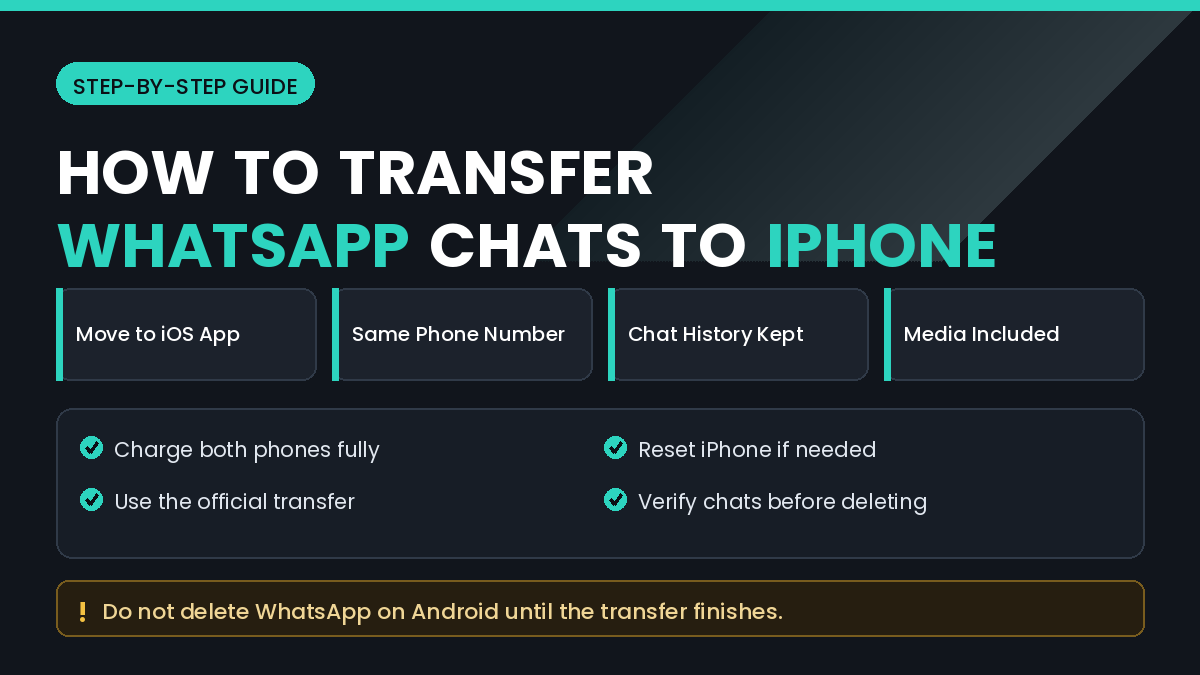
The reliable method is Apple’s Move to iOS app, which can carry WhatsApp chats across during the initial iPhone setup process.
The critical condition is that your iPhone must be at the setup screen. If the iPhone is already set up, you must erase it and start again, because the transfer cannot run on a configured device.
Both phones need to be charged, connected to power if possible, and kept close together on the same network throughout the transfer.
Do not uninstall WhatsApp from your Android phone until you have opened WhatsApp on the iPhone and confirmed that your conversations are actually there.
Why the Transfer Is More Complicated Than It Looks
WhatsApp stores chat history in a local database on the device, and it encrypts backups differently on each platform.
An Android backup sits in Google Drive in a format iPhone cannot read. An iPhone backup sits in iCloud in a format Android cannot read.
The official transfer works around this by moving the data directly between the two phones rather than through either cloud service. That is why both devices must be present and connected at the same time.
It also explains why the transfer must happen during setup. The process writes data into a fresh WhatsApp installation, and it cannot merge into an existing one.
What You Need Before Starting
Check every item below before you begin, because stopping midway is disruptive.
- An iPhone that is either brand new or fully erased
- The same phone number on both devices
- A reasonably current version of WhatsApp on Android
- A recent iOS version on the iPhone
- Enough free storage on the iPhone for your chat history
- Both phones charged above fifty percent
- A stable Wi-Fi connection
- Time set aside, since large histories take a while
If your history is very large, expect the process to take considerably longer than a normal phone setup.
How to Transfer WhatsApp Chats from Android to iPhone
Method 1: Use Move to iOS During Setup
This is the official supported route and the only one that reliably preserves full chat history.
Step by Step
- On your Android phone, install Move to iOS from the Play Store.
- Turn on the iPhone and proceed to the Apps & Data screen during setup.
- Select Move Data from Android.
- The iPhone displays a code.
- Open Move to iOS on Android and enter that code.
- Choose the data types to transfer and include WhatsApp.
- WhatsApp on Android prepares your data for export.
- Wait for the transfer to complete without touching either phone.
- Finish iPhone setup and install WhatsApp from the App Store.
- Open WhatsApp and sign in with the same phone number.
- Tap Start when prompted to import the transferred data.
- Wait for activation, then check your conversations.
Keep both phones unlocked and awake during the transfer. Screen timeout interruptions are a frequent cause of failure.
If Your iPhone Is Already Set Up
You have two options. Erase the iPhone and start setup again, or accept that chats will not transfer and use an export instead.
Before erasing, back up anything already on the iPhone. Erasing removes all existing content and settings.
Method 2: Export Individual Chats as a Fallback
If a full transfer is not possible, WhatsApp can export individual conversations as text files.
Step by Step
- Open the conversation on Android.
- Tap the menu, then More.
- Select Export chat.
- Choose whether to include media.
- Send the export to your email or a cloud folder.
- Open the file later from your iPhone.
This preserves a readable record but not a working chat. Exported conversations cannot be imported back into WhatsApp as normal threads.
Exports are still useful for the handful of conversations that genuinely matter, such as work records or important arrangements.
Method 3: Save Media Separately
Photos and videos deserve their own backup regardless of which transfer method you use.
On Android, WhatsApp media is stored in folders on internal storage, typically organised into images, video, audio, documents, voice notes, and stickers.
Copy those folders to a computer or upload them to cloud storage before switching phones. That way, media survives even if the chat transfer disappoints.
Google Photos may already hold many of these images if backup was enabled for WhatsApp folders.
Things to Check Before You Switch
Confirm Your Phone Number Situation
The transfer requires the same number on both devices. If you are also changing numbers, use WhatsApp’s change number feature on Android first, then transfer.
Check Storage on the iPhone
A chat history built over several years can be surprisingly large. If the iPhone runs out of space midway, the import fails.
Update Both Phones
Outdated versions of WhatsApp or iOS are a common cause of the transfer option not appearing at all.
Note Your Two-Step Verification PIN
If you enabled two-step verification, you will need that PIN when registering on the iPhone. Being locked out at this stage is frustrating and avoidable.
Common Mistakes to Avoid
Do Not Uninstall WhatsApp from Android Too Early
Keep the Android installation intact until the iPhone shows your full history. It is your only fallback if something goes wrong.
Do Not Skip Setup and Transfer Later
Completing iPhone setup first removes the transfer option entirely. Many people discover this only after finishing setup.
Do Not Use the Phones During Transfer
Opening other apps, taking calls, or locking either screen can interrupt the process and force a restart.
Do Not Trust Paid Tools Promising Instant Transfer
Be cautious of desktop programs claiming to move WhatsApp between platforms with one click. Results are inconsistent and some require handing over account credentials.
Do Not Rely on Google Drive Backup
An iPhone cannot restore from a Google Drive WhatsApp backup. Making a fresh Google Drive backup before switching does not help the transfer at all.
When to Get Professional Help
Most people complete this transfer without assistance, but some situations are worth handing to a technician.
Consider help when:
- The Android phone has a damaged screen and cannot be operated
- The transfer fails repeatedly despite meeting every requirement
- The chat history has legal or business importance
- You are managing a business WhatsApp account with linked systems
- You are not comfortable erasing and re-setting up the iPhone
Use a reputable local service rather than a random online provider. Never share your WhatsApp verification code with a technician, since that code alone can hand over your account.
Frequently Asked Questions
Can I transfer WhatsApp chats to an iPhone that is already set up?
Not with the official method. The iPhone must be erased and taken back to the setup screen for the transfer to be offered.
Does the transfer include photos and videos?
Yes, media included in your chats transfers along with the messages, which is why the process can take a long time.
Do I need the same phone number?
Yes. The number on the iPhone must match the number used on Android for the imported history to activate.
How long does the transfer take?
Anywhere from a few minutes to well over an hour, depending on how much media your chat history contains.
Will my Android chats be deleted?
No. The transfer copies data rather than moving it, so your Android history stays until you remove WhatsApp yourself.
What if WhatsApp does not appear in the transfer list?
Update WhatsApp and iOS, then try again. An outdated version on either device is the usual cause.
Can I transfer chats using a computer instead?
Third-party tools advertise this, but results are inconsistent and some require credentials that you should not share.
Can I merge Android chats into an existing iPhone WhatsApp?
No. The import writes into a fresh installation and cannot merge with conversations already on the iPhone.
Final Thoughts
Working out How to Transfer WhatsApp Chats from Android to iPhone is mostly about preparation rather than technical skill.
The official Move to iOS route works well when the iPhone is at the setup screen, both phones are charged, and the same number is used on each device.
Meet those conditions and the transfer usually runs cleanly. Miss one and you will likely need to erase the iPhone and begin again, which is why the pre-flight checklist matters.
Keep your Android phone intact until you have confirmed the chats arrived, and export the few conversations you truly cannot lose as a safety net.
Once you are settled on iPhone, turn on iCloud backup for WhatsApp so your history is protected on the new platform from day one.