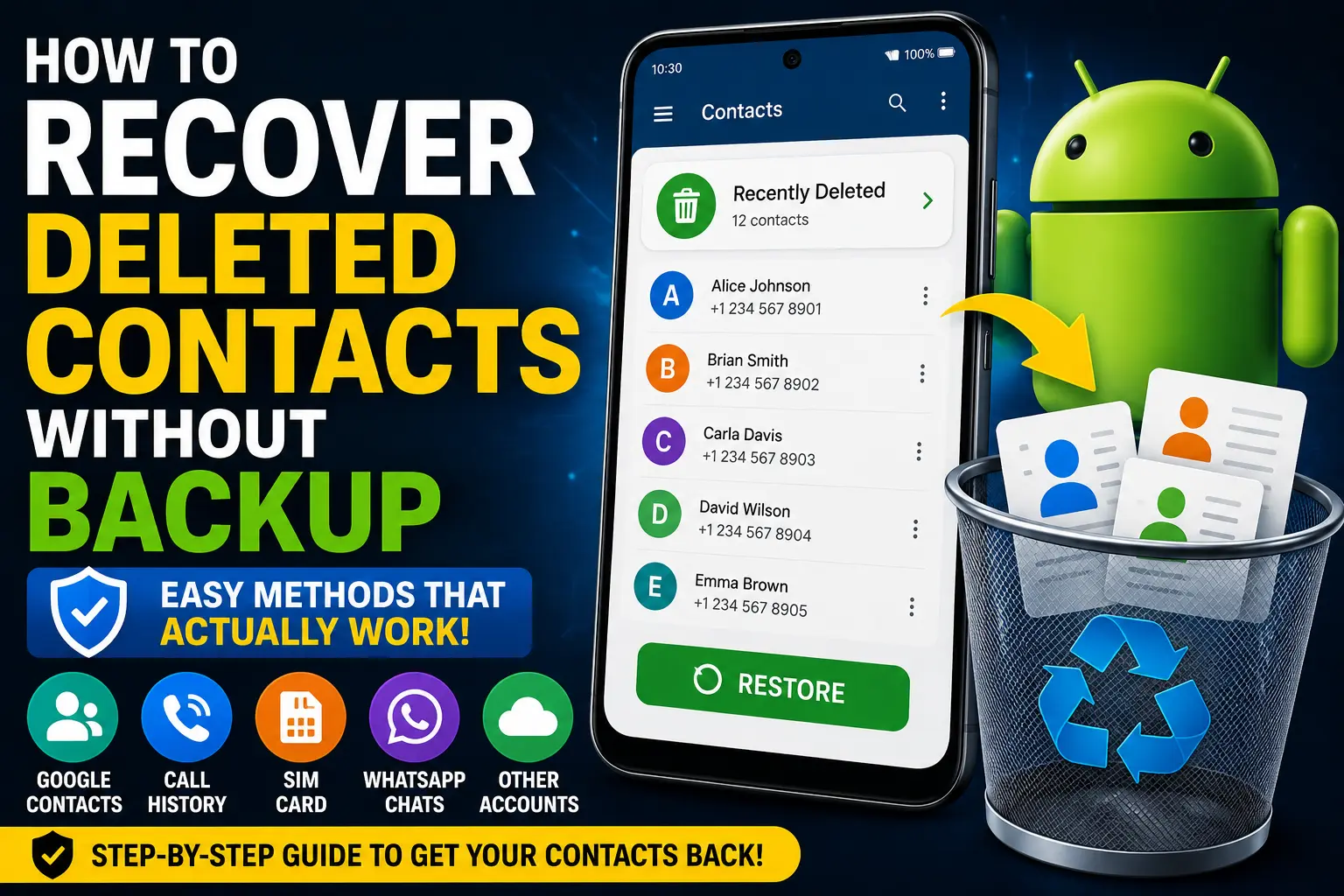
Accidentally deleting an important phone number can be stressful, especially when you believe there is no backup available. The good news is that how to recover deleted contacts without backup is not always a question of using specialized recovery software. In many cases, the contact may still exist in a synced Google Account, another account on the phone, a recently deleted section, an old device, a messaging application, or even your call history.
Before installing a contact recovery application or resetting your phone, check every location where Android or your contact service may have stored a copy. A contact that disappears from the Contacts app is not necessarily permanently lost.
This guide explains practical ways to recover deleted contacts without relying on a traditional backup. It covers Android phones, Google Contacts, Samsung devices, SIM cards, call history, messaging apps, old phones, and situations where the contact appears to be permanently deleted.
Quick Answer
The best way to recover deleted contacts without backup is to first check whether the contact was synchronized with a Google Account or another account. Open Google Contacts or the Contacts app and look for recently deleted contacts, account synchronization, or contact-management options. If the contact is still available there, restore it.
If that doesn’t work, check other accounts on your phone, SIM contacts, call history, WhatsApp or other messaging applications, email accounts, old phones, and contact exports. You may discover another copy of the number even though the original contact was deleted.
If the contact was saved only in your phone’s internal storage and has been permanently deleted, recovery becomes much more difficult. Modern Android phones use encrypted internal storage and flash memory, so third-party recovery apps cannot guarantee that a permanently deleted contact can be recovered.
Why Deleted Contacts May Still Be Recoverable
When you delete a contact, several things can happen depending on where that contact was originally saved.
A contact might have been stored in:
- Your Google Account
- Samsung account or another manufacturer account
- Another email account
- SIM card
- Phone storage
- Microsoft or other cloud account
- A messaging application
- An older phone
- A computer
- A manually exported contact file
This distinction is important.
For example, deleting a Google-synchronized contact from your phone is different from deleting a contact that existed only in local phone storage.
A cloud-synchronized contact may still be recoverable through the account’s contact management system, while a locally stored contact may have fewer recovery options.
Method 1: Check Google Contacts for Recently Deleted Contacts
If you use Android, checking Google Contacts should be one of your first steps.
Even if you think you never created a backup, your contacts may have been automatically synchronized with your Google Account.
Open the Google Contacts website or the Contacts app associated with your Google Account.
Then look for a Trash or Bin section.
If the deleted contact is there:
- Open Google Contacts.
- Make sure you are signed in to the correct Google Account.
- Open the Trash or Bin section if available.
- Look for the deleted contact.
- Select the contact.
- Use the available Recover or Restore option.
The exact interface can change as Google updates Contacts, so the menu names may differ slightly.
Check Every Google Account
Many Android users have multiple Google Accounts on one phone.
For example, you might have:
- A personal Gmail account
- A work account
- A school account
- An older Gmail account
The missing contact may belong to a different account.
Open your phone’s account settings and review the Google Accounts connected to the device.
Then check contacts for each relevant account.
Method 2: Check Google Contacts on the Web
If the contact is difficult to locate through your phone, use Google Contacts from a web browser.
Sign in with the Google Account you normally use for contacts.
Look through the contact list and recently deleted area.
This method is useful because it can help you determine whether the contact still exists in your Google Account independently of what is currently displayed on your phone.
What If the Contact Isn’t There?
Don’t immediately assume that it was never synchronized.
Check other Google Accounts first.
Also consider whether the contact was saved as a Phone, SIM, or another account contact rather than a Google contact.
Method 3: Check the Contacts App’s Deleted or Trash Section
Some Android phones or contact applications provide their own deleted-contact management.
Open the Contacts app and inspect its menus and settings.
Look for options such as:
- Trash
- Recycle Bin
- Recently Deleted
- Deleted Contacts
- Manage Contacts
The exact feature depends on your phone manufacturer, Android version, and Contacts application.
If you find the deleted contact, select it and use the restore option.
Samsung Phones
Samsung Galaxy devices can have contact-management features that differ from Google’s standard Contacts application.
Open Samsung Contacts and check its available menus for deleted or recently removed contacts.
The exact menu location can vary between One UI versions.
Method 4: Check Contact Synchronization
Sometimes a contact appears to be deleted because synchronization has been disabled or the wrong account is being displayed.
Before attempting recovery, check whether contact synchronization is active.
On Android:
- Open Settings.
- Go to Accounts, Passwords & accounts, or a similarly named section.
- Select your Google Account.
- Look for account synchronization.
- Check whether Contacts synchronization is enabled.
- Allow synchronization to complete.
- Reopen the Contacts app.
Menu names vary between Android versions and manufacturers.
If the contact was previously stored in your Google Account, synchronization may cause it to appear again.
Method 5: Check Other Accounts on Your Android Phone
Your missing contact may not have been stored in Google at all.
Android phones can store contacts through multiple accounts.
Check whether you have accounts connected for:
- Microsoft Outlook
- Exchange
- Yahoo
- Work email
- School email
- Manufacturer services
- Other contact providers
Open the Contacts app and check its account or contact-display settings.
You may discover that the missing contact is associated with an account that is currently hidden.
Why This Matters
Suppose you originally saved a colleague’s number to your work Microsoft account.
Later, you switch the Contacts app to display only Google contacts.
The contact may appear to have disappeared even though it still exists in the work account.
Changing which accounts are displayed can sometimes solve the problem without any recovery process.
Method 6: Check Your SIM Card Contacts
If you have used your SIM card to store contacts, check the SIM separately.
Some phones allow users to import contacts from a SIM card into the phone’s Contacts app.
The exact menu varies, but look for options such as:
Contacts → Manage contacts → Import/Export → SIM card
If the number still exists on the SIM:
- Open the Contacts app.
- Find the import option.
- Select the SIM card.
- Review available contacts.
- Import the required contact to your preferred account.
Be careful when changing SIM-related settings.
Do not erase or format anything simply because the contact is missing.
Method 7: Check Your Call History
Your phone’s call history can be extremely useful when trying to recover a deleted contact.
If you recently called or received a call from the person, their number may still appear in your recent calls.
Open the Phone app and check:
- Recent calls
- Incoming calls
- Outgoing calls
- Missed calls
If you find the number:
- Tap the number.
- Open the contact options.
- Choose Create new contact or Add to contacts.
- Enter the person’s name.
- Save the contact.
This doesn’t technically restore the original contact entry, but it can recover the most important information: the phone number.
What If Call History Was Cleared?
If the call history was also deleted, this method may not work.
However, check messaging applications and other records before giving up.
Method 8: Check WhatsApp for the Deleted Number
If you communicated with the person through WhatsApp, their number may still be accessible through the conversation.
Open WhatsApp and find the relevant chat.
Depending on the current account and chat state, you may be able to view the person’s phone number through their contact information.
You can then create a new contact using that number.
WhatsApp Groups Can Also Help
If the person is in a WhatsApp group with you:
- Open the group.
- Open the participant list.
- Find the person.
- Open their profile information.
- Check the available contact details.
- Save the number as a new contact if available.
This can be especially useful when the original phone contact was deleted but the WhatsApp conversation remains.
Method 9: Check Telegram, Messenger, and Other Apps
Don’t limit your search to WhatsApp.
Look through other applications where you may have communicated with the person.
Potential sources include:
- Telegram
- Facebook Messenger
- Signal
- SMS
- Microsoft Teams
- Slack
- Other communication apps
If you can identify the person’s number or email address, save the information as a new contact.
Method 10: Search Your SMS Messages
Your SMS history may contain the phone number you need.
Open your Messages application and search for the person’s name, business, or relevant conversation.
If the person previously sent you a text message, their phone number may still be visible.
Once you find it, create a new contact.
This is one of the safest ways to recover a number without using recovery software.
Method 11: Check Your Email
Email can also provide a surprising amount of contact information.
Search your Gmail, Outlook, or other email accounts for:
- The person’s name
- Company name
- Phone number
- Email address
- Previous conversations
- Email signatures
- Contact details
Business contacts often appear in email signatures even if the phone number was never formally saved to Contacts.
If you find the number, save it again.
Method 12: Check an Old Android Phone
If you’ve recently upgraded your phone, your old device may contain the missing contacts.
Do not immediately erase your old phone.
Check the Contacts application on the older device.
Also check whether it is still connected to your Google Account.
If the contact appears there, export or synchronize it to your current phone.
Important Warning
If the old phone contains important information, do not factory reset it until you have checked and transferred the data you need.
A factory reset can permanently erase information stored on the device.
Method 13: Check Contact Export Files
You may have previously exported contacts without realizing it.
Android contacts can be exported to a file, commonly using the VCF format.
Search your phone, computer, cloud storage, and Downloads folder for files ending in:
.vcf
A VCF file can contain one or more contacts.
If you find an old VCF file:
- Make a copy of the file.
- Open it using a compatible contacts application.
- Review the contact information.
- Import the required contacts.
Also check Google Drive, OneDrive, Dropbox, email attachments, and your computer for old contact exports.
Method 14: Check Your Computer for Contact Data
If you previously connected your Android phone to a Windows computer, you may have copied contacts or exported them there.
Search common folders such as:
- Downloads
- Documents
- Desktop
- Phone backups
- Google Drive folders
- OneDrive folders
- Old Android backup folders
Search for:
.vcf
You can also search for the person’s name.
If you find an old contact file, make a duplicate before importing or editing it.
Method 15: Use Google Contacts’ Contact Recovery Options Carefully
Google Contacts may provide tools for reverting contact changes or recovering recently deleted contacts.
However, be careful with options that restore a previous state.
A broad restoration can affect contact changes made after the point you choose.
For example, if you recently added several new contacts and then restore an older contact state, those newer changes could be affected.
Before using any broad recovery option:
- Review the available date or time.
- Consider which contacts were added afterward.
- Export or otherwise preserve important current contacts first.
- Use the recovery option only when you understand its effect.
This is particularly important when you have many contacts.
Can You Recover Permanently Deleted Contacts Without Backup?
This depends on where the contact was stored.
If it was synchronized with an online account, there may still be a recovery path even if you never manually created a backup.
If it existed only in local Android storage and was permanently deleted, recovery is much harder.
Modern Android phones use encryption and flash storage. Deleted information may not remain accessible in a form that ordinary recovery applications can reconstruct.
Therefore, there is no guaranteed method for recovering every permanently deleted local contact.
Are Contact Recovery Apps Safe?
Be careful with apps that promise to recover deleted contacts instantly.
Some applications may simply search existing contact databases, cached information, or synchronized accounts rather than recovering permanently deleted data.
Others may request access to:
- Contacts
- Call history
- SMS
- Files
- Photos
- Device information
Before installing a recovery application, ask whether it actually needs those permissions.
Avoid modified APK files and unknown websites.
Never give an unfamiliar application access to sensitive information just because it promises “100% recovery.”
Things to Check Before Trying Advanced Solutions
Before using recovery software, go through the following checklist.
Check All Google Accounts
Make sure the contact isn’t synchronized with another Google Account.
Check Other Contact Accounts
Look at Microsoft, Exchange, work, school, and other accounts.
Check the SIM Card
Older contacts may still be stored on the SIM.
Check Recent Calls
The number may still be visible in your call history.
Check SMS and Messaging Apps
Look through WhatsApp, Telegram, Messenger, and text messages.
Check Email
Search email conversations and signatures.
Check Old Devices
An older phone may still contain the contact.
Search for VCF Files
An exported contact file can restore contacts without needing a cloud backup.
Common Mistakes to Avoid
Mistake 1: Installing Recovery Apps Immediately
Don’t install several recovery apps before checking accounts, call history, messages, and old devices.
The easiest solution may already be available.
Mistake 2: Assuming No Backup Means No Recovery
A contact can be synchronized automatically even if you never manually created a backup.
Google Contacts, Microsoft accounts, and other services can maintain copies.
Mistake 3: Factory Resetting Your Phone
Never factory reset your phone while trying to recover deleted contacts.
A reset can erase remaining local information.
Mistake 4: Clearing Contacts App Data
Avoid clearing application data while troubleshooting a missing contact unless you understand exactly what will happen.
If contacts are synchronized, verify their online state before making changes.
Mistake 5: Ignoring Call History
A deleted contact may still be recoverable as a phone number from recent calls.
Mistake 6: Forgetting About Old Phones
An older Android device can sometimes be the simplest source of a missing number.
When to Get Professional Help
Professional data recovery is rarely the first choice for a deleted contact.
Try account recovery, contact synchronization, call history, messaging applications, old devices, and contact files first.
Professional assistance may become relevant when:
- The information is extremely important.
- The contact was stored locally.
- The phone has physical storage problems.
- The device cannot start normally.
- You have other important deleted data that also needs recovery.
Even professional services cannot guarantee recovery from modern encrypted smartphone storage.
If someone claims they can recover every permanently deleted contact from any Android phone, be cautious.
How to Prevent Losing Contacts in the Future
Once you’ve recovered your contact, protect it.
Keep Contacts Synchronized
If you use Google Contacts, make sure contact synchronization is configured correctly.
Use One Primary Contact Account
Avoid randomly saving contacts to Phone, SIM, and multiple accounts.
Choosing one primary account makes future recovery and device migration easier.
Export Important Contacts
For especially important contacts, periodically export them to a VCF file.
Store the file somewhere separate from your phone.
Keep a Second Copy
You can maintain an additional copy in a trusted cloud service or on your computer.
Check Synchronization After Changing Phones
After buying a new Android phone, verify that your contacts have actually synchronized before wiping your old device.
Frequently Asked Questions
Can I Recover Deleted Contacts Without Backup?
Yes, sometimes. Check Google Contacts Trash, contact synchronization, other accounts, SIM contacts, recent calls, SMS, WhatsApp, old phones, and VCF files. If the contact was permanently deleted from local storage and no other copy exists, recovery may not be possible.
How Can I Recover Deleted Contacts on Android Without Google Backup?
Check your phone’s Contacts app for Recently Deleted or Trash, then check your SIM card, call history, SMS messages, WhatsApp, other messaging apps, old devices, and exported VCF files. These methods don’t require a Google backup.
Can Google Contacts Recover a Deleted Number?
If the contact was synchronized with your Google Account and is still within the available recovery period, Google Contacts may allow you to restore it. The exact interface and recovery options can change, so check the current options in Google Contacts.
Can I Recover a Deleted Contact From Call History?
You may be able to recover the phone number rather than the original contact entry. If the person’s number is still in your recent calls, open the number and create a new contact.
Can I Recover a Deleted Contact From WhatsApp?
If you still have a WhatsApp conversation or group containing the person, you may be able to identify the person’s number and save it as a new contact. This depends on the current chat and profile information available to you.
Can I Recover Deleted Contacts From a SIM Card?
If the contacts were actually stored on the SIM and were not deleted, you may be able to import them through your phone’s Contacts settings. If they were permanently removed from the SIM, recovery is not guaranteed.
Do Contact Recovery Apps Really Work?
Some apps can find contacts that still exist in device storage, accounts, or databases, but permanently deleted contact recovery is much less certain. Avoid applications promising guaranteed recovery and be careful about granting access to sensitive personal information.
Does Factory Reset Help Recover Deleted Contacts?
No. A factory reset does not recover deleted contacts. It removes data and settings from the phone and can make local data recovery more difficult. Never factory reset a phone while trying to recover important data unless you have secured the information you need first.
Final Thoughts
If you’re searching for how to recover deleted contacts without backup, don’t assume that specialized recovery software is your only option.
Start with the safest methods. Check Google Contacts, recently deleted contacts, synchronization, other accounts, SIM storage, recent calls, SMS, WhatsApp, email, old phones, and VCF contact files. These sources can often provide the missing number without putting your phone or personal information at risk.
If the contact was permanently deleted from local Android storage and no other copy exists, recovery becomes much more difficult. Modern smartphone storage and encryption mean that third-party applications cannot guarantee recovery.
Once you recover the contact, save it to a properly synchronized account and consider keeping an additional contact export. Taking a few minutes to create reliable copies now can prevent the same problem from becoming much more serious later.