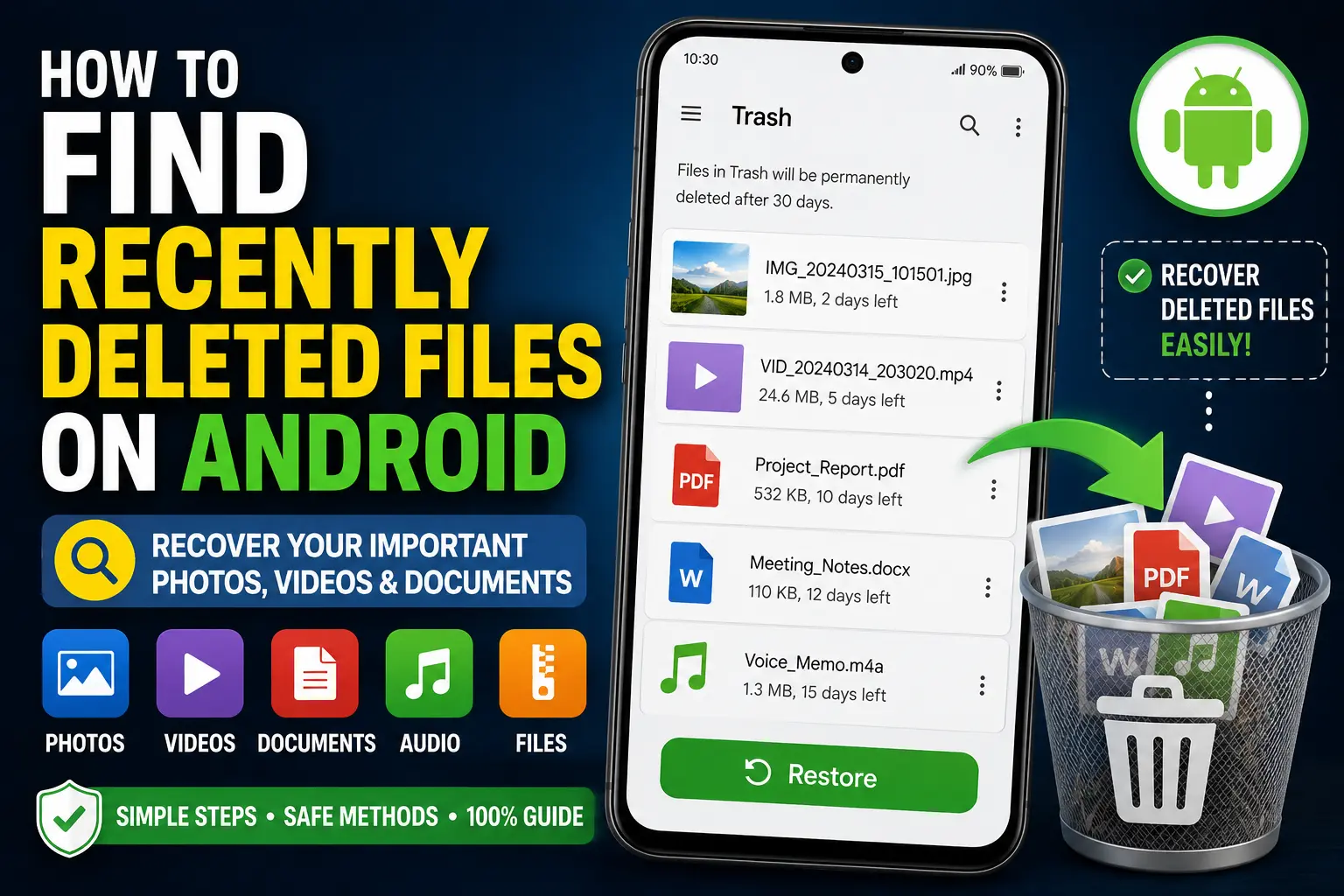
If you accidentally deleted a photo, video, document, PDF, download, or another important file from your Android phone, don’t panic. In many cases, the file may not be permanently gone yet. Android phones and individual apps often move deleted files to a temporary Trash, Recycle Bin, or Recently Deleted location before removing them permanently.
Knowing how to find recently deleted files on Android can help you recover important data without installing risky recovery applications. The exact location depends on your phone manufacturer, Android version, and the app you used to delete the file.
For example, Google Photos has its own Trash, Google Files has a Trash area, and Samsung devices can provide Recycle Bin features through Gallery and My Files. Other manufacturers may use different names and locations.
In this guide, you’ll learn where to look for recently deleted files on Android, how to restore photos and documents, what to do when the Trash folder is missing, and what options remain if the file has already been permanently deleted.
Quick Answer
The easiest way to find recently deleted files on Android is to check the Trash or Recycle Bin inside the app that originally stored the file.
Start with these locations:
- Google Photos: Check Trash for deleted photos and videos.
- Files by Google: Open the menu and check Trash.
- Samsung Gallery: Check Recycle Bin.
- Samsung My Files: Check Recycle Bin.
- Other Gallery or file-manager apps: Look for Recently Deleted, Trash, or Recycle Bin.
- Cloud storage apps: Check their individual Trash or Recently Deleted sections.
- SD card: If the file was stored on removable storage, recovery options can be different.
If the file is still in a Trash or Recycle Bin, select it and use Restore. If the file has already been permanently deleted, recovery becomes much more difficult. Stop unnecessary use of the storage and avoid installing random recovery applications until you understand your options.
Why Deleted Files May Still Be Available on Android
Deleting a file does not always mean that it disappears immediately.
Many Android applications use a temporary deletion system. Instead of permanently removing a file, they move it to a Trash or Recycle Bin where it can remain for a limited period.
This is useful because accidental deletion is common.
You might accidentally delete:
- Photos
- Videos
- Screenshots
- PDFs
- Word documents
- Downloaded files
- Audio recordings
- WhatsApp media
- Other personal files
However, there is an important distinction between an Android device’s storage and an individual application’s storage.
There is no single universal Android Trash folder that contains every deleted file from every app.
A photo deleted from Google Photos may be found in Google Photos Trash. A document deleted through Files by Google may appear in its Trash. A Samsung file may be handled by Samsung’s own Recycle Bin.
Therefore, the first step is to determine which app or location originally contained the file.
How to Find Recently Deleted Files on Android
Method 1: Check Files by Google Trash
If you use Files by Google to manage documents and other files, check its Trash first.
The exact interface can change with app updates, but the general process is:
- Open Files by Google.
- Tap the menu or navigation option.
- Look for Trash.
- Open the Trash section.
- Browse the deleted files.
- Select the file you want to recover.
- Tap Restore if the option is available.
If the file is still within the app’s retention period, it may be restored to its previous location.
What If You Cannot Find Trash?
Make sure you are using the current version of Files by Google.
Also remember that files deleted through another application may not appear in Files by Google’s Trash.
For example, deleting a photo through Google Photos does not necessarily mean you should expect it to appear in Files by Google’s Trash.
Method 2: Find Recently Deleted Photos in Google Photos
If you’re trying to recover pictures or videos, check Google Photos separately.
Open Google Photos and look for its Trash section. Depending on the current app interface, you may find it under Collections or another library-related menu.
Then:
- Open Google Photos.
- Go to the Trash section.
- Look for your deleted photo or video.
- Select the item.
- Tap Restore.
Google Photos has its own deletion and retention rules. Backed-up items and items that were not backed up can have different retention periods.
Because Google can change its product behavior, check the current information shown in Google Photos or Google’s official help documentation if the retention period is important to you.
Check the Correct Google Account
If you cannot find a deleted photo, verify that you’re using the Google Account that contained the original Google Photos library.
Many Android users have multiple Google Accounts.
Tap your profile picture in Google Photos and check the active account.
If you have more than one account, check the relevant accounts before assuming the photo has disappeared permanently.
Method 3: Check Samsung Gallery Recycle Bin
Samsung phones can provide a Recycle Bin for deleted pictures and videos.
If you have a Samsung Galaxy device, open the Gallery application and look for the Recycle Bin or Trash option.
The exact menu can vary depending on your One UI version.
A typical process is:
- Open Gallery.
- Open the menu.
- Look for Recycle Bin.
- Review recently deleted photos and videos.
- Select the file.
- Choose Restore.
Samsung’s available retention period and menu layout can change with software versions, so use the options displayed on your device.
Method 4: Check Samsung My Files Recycle Bin
Samsung’s My Files application can also have a Recycle Bin feature on supported devices.
This is particularly useful if you deleted a document, download, ZIP file, PDF, or another type of file rather than a photograph.
Open:
My Files → Recycle Bin
If your version provides the feature, you may see recently deleted files there.
Select the file and choose the restore option.
Remember that Samsung Gallery and Samsung My Files can handle different types of content, so check both when necessary.
Method 5: Check Your Phone’s Gallery App
If you don’t use Samsung, your Android manufacturer may provide its own Gallery application.
Look for options named:
- Recently Deleted
- Trash
- Recycle Bin
- Recently Removed
- Deleted Items
The location varies between manufacturers.
You may find the option inside the Gallery application’s settings or menu.
If you’re using a Xiaomi, Redmi, POCO, OnePlus, OPPO, Vivo, Realme, Motorola, or another Android device, don’t assume that Samsung or Google instructions will match your screen exactly.
The safest approach is to open the Gallery app you normally use and search its menus for a deleted-items section.
Method 6: Check Your Phone’s File Manager
If you deleted a document or download, open the file manager that came with your phone.
Look for:
- Trash
- Recycle Bin
- Deleted Files
- Recently Deleted
Some file managers do not have a Trash feature.
If your file manager does not provide one, the file may have been removed directly from storage rather than moved to a temporary location.
In that situation, check cloud backups or other copies before attempting advanced recovery.
Method 7: Check Google Drive Trash
If the deleted file was stored in Google Drive rather than your phone’s local storage, check Google Drive’s Trash.
Open the Google Drive app and navigate to its Trash area.
Then:
- Find the deleted file.
- Select it.
- Open the available menu.
- Choose Restore if available.
Google Drive has its own file-management system, separate from Google Photos.
Therefore, don’t assume that checking Google Photos will locate a deleted PDF or document stored in Drive.
Method 8: Check OneDrive or Other Cloud Storage
Many Android users automatically synchronize files with cloud services.
If you use:
- OneDrive
- Dropbox
- Google Drive
- Google Photos
- Amazon Photos
- Another manufacturer’s cloud service
check its Trash or Recently Deleted section.
A file that disappeared from your phone may still be available in the cloud.
Why Cloud Storage Can Help
Suppose you accidentally delete a PDF from your phone.
If the PDF was previously uploaded to OneDrive, you may be able to recover the cloud copy even if the local copy is gone.
This is why checking cloud accounts is an important step before trying data recovery software.
Method 9: Check WhatsApp and Other App-Specific Folders
If the deleted file came from WhatsApp, Telegram, Messenger, or another messaging application, the original media may still exist inside the conversation or app-specific storage.
For example, if you deleted a WhatsApp photo from your Gallery, open the original WhatsApp conversation and check whether the image is still available.
If it is, you may be able to save another copy.
Similarly, documents received through messaging apps may still exist inside the relevant chat.
Do not assume that deleting a file from your Gallery or file manager automatically removes every copy associated with an application.
Method 10: Search Android Storage Before Attempting Recovery
If you cannot find a Trash folder, search your phone carefully.
Use the built-in file manager and check common locations such as:
- DCIM
- Camera
- Pictures
- Downloads
- Documents
- Screenshots
- Movies
- Music
- WhatsApp Media
Search by filename if you remember it.
You can also search by file type or date where supported.
For example, if you’re trying to find a missing PDF, search for:
.pdf
For images, try:
.jpg
.jpeg
.png
.heic
The exact search capabilities depend on the file manager.
What If the Recently Deleted Folder Is Empty?
An empty Trash folder does not necessarily mean you have no recovery options.
First determine whether:
- The file was permanently deleted.
- The retention period expired.
- You are checking the wrong app.
- You are using the wrong Google or cloud account.
- The file still exists somewhere else.
- The file was never stored in that Trash system.
Check other storage locations before trying advanced recovery.
For example, a deleted image may still be present in Google Photos even if the local Gallery no longer shows it.
How to Recover Permanently Deleted Files on Android
This is where expectations need to be realistic.
If a file has been permanently deleted from the Android storage and there is no backup, recovery is not guaranteed.
Modern Android phones use technologies such as encryption and flash storage management that can make traditional deleted-file recovery difficult.
Check Backups First
Before trying recovery software, look for:
- Google Photos
- Google Drive
- OneDrive
- Dropbox
- Samsung cloud-related services where applicable
- Computer backups
- External storage
- SD card
- Messaging applications
A backup is usually safer and more reliable than trying to reconstruct deleted files from internal phone storage.
Recover Deleted Files From an SD Card
If your Android phone uses a microSD card and the deleted files were stored there, your recovery options may be better than with internal storage.
This is because an SD card is removable physical storage that can sometimes be examined using a computer and compatible recovery software.
Important Warning
If you believe a file was deleted from an SD card, stop writing new data to that card.
Avoid:
- Taking more photos to the card
- Downloading files
- Installing applications onto it
- Moving large files onto it
- Formatting it
New data can overwrite storage areas containing deleted information.
If the files are extremely important, consider creating a backup image of the card or contacting a professional data recovery service before experimenting.
Can Android Recovery Apps Recover Deleted Files?
Some recovery applications claim to recover deleted photos and files.
Results vary significantly.
Recovery may depend on:
- Android version
- Phone model
- Storage type
- Encryption
- Whether the data was overwritten
- Whether the file was stored on internal storage or SD card
- Permissions available to the recovery application
Do not trust an application simply because it promises “100% recovery.”
A recovery app cannot guarantee that it can restore every deleted file.
Be Careful With App Permissions
A file recovery application may request access to your photos, files, storage, or other information.
Before installing one, check:
- Developer reputation
- App reviews
- Permissions
- Privacy policy
- Download source
Avoid modified APK files from unknown websites.
How to Find Recently Deleted Files on Android Without an App
If you want to avoid third-party recovery tools, you have several options.
Start with the built-in features:
- Check Gallery Trash.
- Check Google Photos Trash.
- Check Files by Google Trash.
- Check Samsung Recycle Bin if applicable.
- Check your file manager.
- Check Google Drive.
- Check OneDrive or another cloud service.
- Check messaging apps.
- Check your computer.
- Check an SD card if applicable.
This approach is safer because you’re using storage locations that already belong to your device or accounts.
Things to Check Before Trying Advanced Solutions
Confirm the File Was Actually Deleted
Sometimes a file appears missing because it was moved to another folder.
Search your device before assuming deletion.
Check the File Extension
If you’re searching manually, make sure you know what type of file you’re looking for.
A document may be a PDF, DOCX, XLSX, ZIP, or another format.
Check Your Cloud Accounts
Use the same Google, Microsoft, Dropbox, or other account that was active when the file was created.
Check Your Storage
If your phone is almost full, some applications may behave differently when saving or synchronizing files.
Freeing storage can help with normal operation, but avoid deleting potentially useful files while investigating a recovery problem.
Don’t Reset the Phone
Warning: Do not factory-reset your Android phone while trying to recover deleted files.
A factory reset can erase remaining data and make recovery significantly more difficult.
Back up important information before performing any reset or major troubleshooting.
Common Mistakes to Avoid
Mistake 1: Assuming Android Has One Universal Trash Folder
Android does not have one universal Trash location containing every deleted file from every app.
Different applications can manage deleted files independently.
Mistake 2: Installing Recovery Apps Immediately
Installing software can write new data to internal storage.
If you are attempting local file recovery, unnecessary activity can potentially reduce recovery chances.
Mistake 3: Downloading Random APKs
Never install unknown recovery APKs just because they claim to restore permanently deleted files.
You could introduce malware or give an untrusted application access to personal data.
Mistake 4: Emptying Trash
If you find your missing file in Trash, restore it instead of emptying the folder.
Mistake 5: Ignoring Cloud Backups
A missing local file may still exist in Google Photos, Google Drive, OneDrive, Dropbox, or another service.
Mistake 6: Saving Recovered Files to the Same Storage
If you’re recovering data from an SD card, save recovered files to a different drive.
Otherwise, you risk overwriting other potentially recoverable files.
When to Get Professional Help
Professional data recovery may be appropriate if the deleted files are extremely important and were stored on physical storage that you control.
For example:
- An SD card containing family photos
- A USB drive
- A computer hard drive
- An external storage device
Professional help is especially useful when you do not want to risk making the situation worse.
For modern Android internal storage, recovery is more complicated. Encryption and flash storage behavior can limit what even professional services can recover.
Before paying anyone, ask what recovery method they will use and whether they guarantee recovery. Avoid services that promise impossible results.
How to Prevent Losing Android Files in the Future
The easiest way to deal with deleted files is to maintain backups before deletion happens.
Enable Google Photos Backup for Important Folders
If you mainly want to protect photos and videos, review Google Photos backup settings.
Remember that your Camera folder and other device folders may have separate backup controls.
Back Up Important Documents
For important PDFs, certificates, work documents, and other files, use a trusted cloud service or computer backup.
Keep a Second Copy
For irreplaceable data, use the 3-2-1 backup principle where practical:
- Keep multiple copies.
- Store copies on different types of storage.
- Keep at least one copy separate from your primary device.
You don’t need an elaborate backup system for everyday files, but important personal documents deserve more than one copy.
Check Your Backups
A backup is only useful if it actually contains your files.
Occasionally verify that important photos and documents can be opened from your backup.
Frequently Asked Questions
How Do I Find Recently Deleted Files on Android?
Start by checking the Trash or Recycle Bin in the app you used to manage the file. Check Google Photos for photos and videos, Files by Google for supported files, Samsung Gallery or My Files on supported Galaxy devices, and the Trash sections of cloud storage applications.
Does Android Have a Recently Deleted Folder?
There is not one universal Recently Deleted folder for every Android device and application. Individual apps and manufacturers can provide their own Trash, Recycle Bin, or Recently Deleted features.
Where Are Deleted Photos Stored on Android?
Depending on how they were deleted, photos may remain in a Gallery Trash, Google Photos Trash, a manufacturer’s Recycle Bin, an application-specific folder, cloud storage, or another backup. If permanently deleted from storage, they may no longer be directly accessible.
Can I Recover Permanently Deleted Files Without a Backup?
Sometimes recovery may be possible from certain physical storage, particularly removable SD cards, but there is no guarantee. Modern Android internal storage can be difficult to recover from because of encryption and flash-storage behavior. Always check existing backups first.
How Long Do Deleted Files Stay in Android Trash?
There is no single retention period for all Android devices and applications. The duration depends on the app, manufacturer, storage system, and current software version. Check the specific Trash or Recycle Bin you’re using.
Can Files by Google Recover Deleted Files?
If a deleted file is still available in Files by Google’s Trash, you can normally restore it using the app’s restore option. If it has already been permanently deleted from Trash, Files by Google does not provide a guaranteed way to recover it.
Can I Recover Deleted Photos From Google Photos on Android?
If the photos are still in Google Photos Trash, you can normally restore them. If they have been permanently deleted, check other backups and storage locations such as your Gallery, SD card, computer, or another cloud service.
Should I Factory Reset My Android Phone to Fix Missing Files?
No. A factory reset does not recover deleted files. It removes data and settings from the phone and can make data recovery more difficult. Do not reset the device while investigating a deleted-file problem unless you have already backed up important information.
Final Thoughts
Knowing how to find recently deleted files on Android can save you from unnecessary data recovery attempts. The most important thing is to check the correct location before assuming the file has been permanently deleted.
Start with the app that originally stored the file. Check Gallery Trash, Google Photos Trash, Files by Google Trash, Samsung Recycle Bin, your file manager, cloud storage, and messaging applications.
If the file isn’t there, look for another copy on an SD card, computer, external drive, or backup service. Avoid immediately installing random recovery applications or factory-resetting your phone.
For extremely important files stored on an SD card or another physical storage device, professional data recovery may be worth considering. For permanently deleted files from modern Android internal storage, however, recovery can be difficult and is never guaranteed.
The best long-term protection is simple: keep important files in more than one location. A good backup can turn a stressful deleted-file situation into a simple restore operation.