vIf your Android phone is already connected to a WiFi network but you have forgotten its password, you usually don’t need to reset the router or ask someone else for the password. Modern Android versions provide built-in options that can help you view or share the credentials for a saved WiFi network.
Learning How to Find Saved WiFi Password on Android is especially useful when you want to connect another phone, laptop, smart TV, printer, or other device to the same network. Depending on your Android version and phone manufacturer, you may be able to display the password directly or share the network through a QR code.
The exact steps are not identical on every Android phone. Samsung Galaxy, Google Pixel, Xiaomi, Redmi, OnePlus, OPPO, Vivo, Motorola, and other devices can use different menu names and layouts. This guide explains the safest built-in methods and what to do when the password isn’t displayed.
Quick Answer
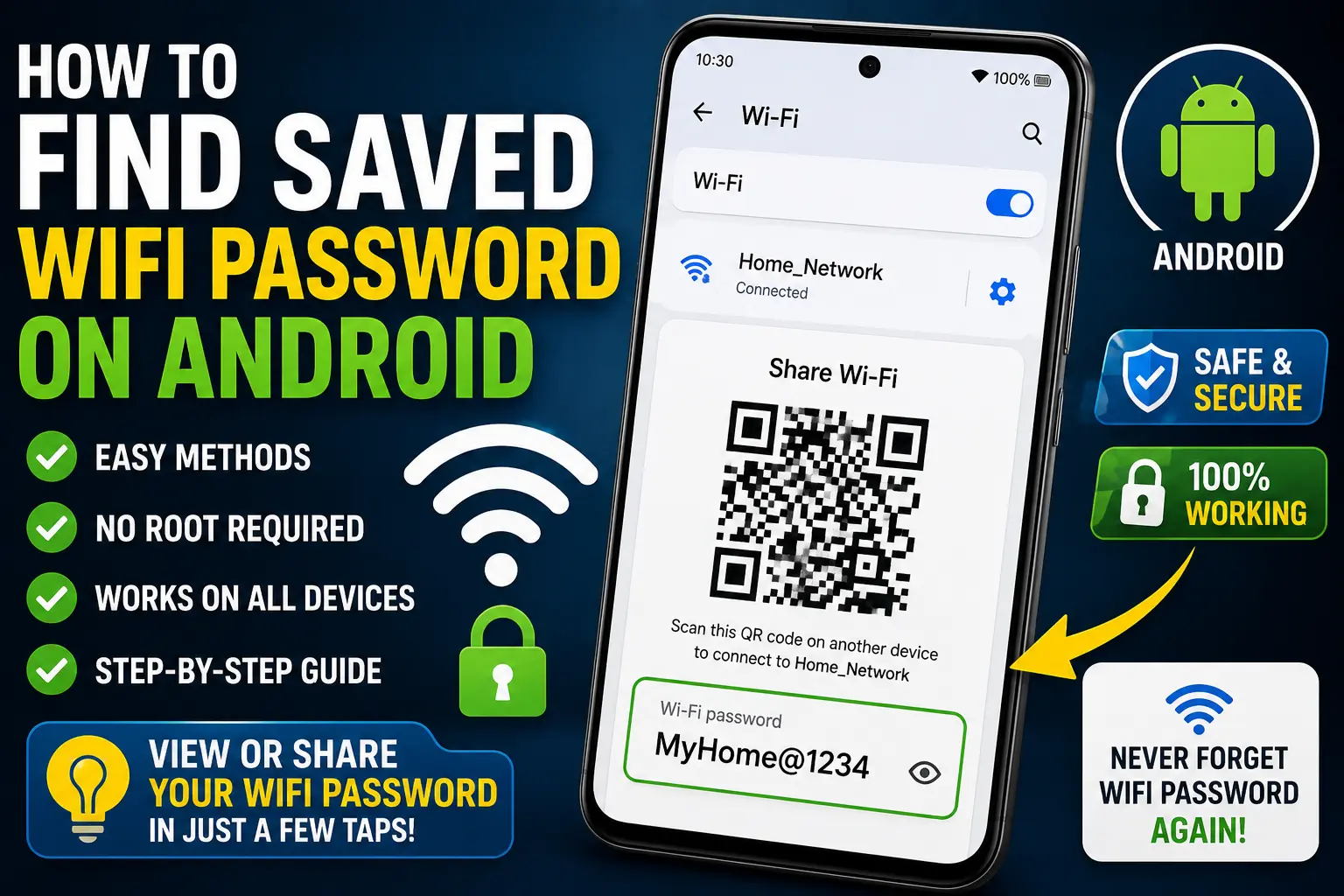
The easiest way to find saved WiFi password on Android is to open Settings → WiFi or Network & Internet, select the connected or saved network, and look for Share, QR Code, or a similar option. After confirming your identity with your PIN, password, fingerprint, or face unlock, some Android phones display the WiFi password below the QR code.
If your phone only shows a QR code, you can scan that code with another compatible phone to connect to the network. Some Android versions don’t display the password as readable text, but the QR code can still provide a convenient way to share the network.
If these options aren’t available, your phone manufacturer or Android version may use a different interface. In that situation, check the router’s settings, the router label, another device already connected to the network, or your internet provider’s documentation.
Why You May Want to Find a Saved WiFi Password
WiFi passwords are often created once and then forgotten because phones automatically reconnect to the network.
After several months, you may remember the WiFi name but have no idea what password was originally entered.
You may need the password when:
- Connecting a new Android phone
- Setting up a Windows laptop
- Connecting a smart TV
- Adding a printer
- Connecting a tablet
- Giving WiFi access to a family member
- Reconnecting a device after a reset
- Configuring a smart home device
- Troubleshooting a network connection
If your Android phone is already connected, checking its saved network information can be much easier than changing the router password.
How to Find Saved WiFi Password on Android
Method 1: Use Android’s Built-In WiFi Share Option
On many recent Android devices, the simplest method is through the WiFi settings.
The exact menu names vary, but the general process is:
- Open Settings on your Android phone.
- Tap WiFi, Network & Internet, Connections, or a similarly named option.
- Open the WiFi network you are currently connected to.
- Look for Share, QR Code, or Share WiFi.
- Confirm your identity using your screen lock, fingerprint, face authentication, or another available method.
- A QR code should appear.
- If your Android version displays the password, it may appear below the QR code.
- Use the password to connect another device.
This is generally the safest method because it uses Android’s built-in network-sharing functionality.
Why Android Requires Verification
WiFi credentials are sensitive information.
Your phone may require you to authenticate before revealing or sharing saved network details.
This prevents someone who casually picks up an unlocked or unattended phone from immediately accessing saved network information.
If your phone asks for your PIN or password, use the screen-lock credential you normally use to unlock the device.
Method 2: Find a Saved WiFi Password Using a QR Code
Some Android phones don’t show the WiFi password as plain text.
Instead, they provide a QR code.
This can still be extremely useful.
The QR code contains information that a compatible device can use to connect to the WiFi network.
How to Share WiFi With Another Phone
- Open Settings.
- Go to WiFi or Network & Internet.
- Select the connected WiFi network.
- Tap Share or QR Code.
- Authenticate if requested.
- Keep the QR code visible.
- Open the WiFi settings or QR scanner on the other phone.
- Scan the code.
- Follow the connection prompt.
The second phone may connect without you manually typing the password.
What If You Need the Actual Password?
If the QR screen does not display the password, your Android version may intentionally provide only the sharing mechanism.
In that situation, don’t assume the password is impossible to obtain.
You can check the router, another device, or the router’s administration interface.
Method 3: Find Saved WiFi Password on Samsung Galaxy
Samsung Galaxy phones use Samsung’s One UI, so the WiFi settings can look different from stock Android.
On many supported Galaxy devices, you can try:
- Open Settings.
- Tap Connections.
- Tap WiFi.
- Select the network you’re currently connected to.
- Look for QR code or Share.
- Authenticate if required.
- View or share the network information.
The exact wording and location can change between One UI versions.
If Samsung Only Shows a QR Code
Don’t worry if you don’t see a plain-text password.
The QR code may be enough to connect another device.
You can also use a compatible QR scanner to interpret the network information.
Avoid uploading screenshots of your WiFi QR code to random websites. Anyone who can obtain the network credentials may be able to connect to the network.
Method 4: Find Saved WiFi Password on Google Pixel
Google Pixel phones use a relatively clean Android interface, although the exact menu can change with Android updates.
Try the following:
- Open Settings.
- Tap Network & internet.
- Tap Internet.
- Select the connected WiFi network.
- Tap Share.
- Verify your identity if requested.
- View the QR code and any password information provided by your phone.
If the password is displayed, you can enter it on another device.
If only a QR code appears, use that code to share the connection.
Method 5: Check Saved WiFi Networks on Android
You may have several WiFi networks saved on your phone even though you’re not currently connected to all of them.
For example, your phone might remember:
- Home WiFi
- Office WiFi
- School WiFi
- A relative’s WiFi
- Previous apartment WiFi
- A travel hotspot
Android versions differ in how they display saved networks.
Look inside your WiFi settings for options such as:
- Saved networks
- Saved WiFi
- Manage networks
- Network preferences
- Previously connected networks
Select the network you’re interested in and check whether a Share or QR code option is available.
Important Limitation
Some phones allow you to share only the network you’re currently connected to.
If an old network appears in the saved list but doesn’t provide a password-sharing option, you may need to reconnect to that network before accessing its credentials.
Method 6: Use the Router to Find the WiFi Password
If Android doesn’t show the password, the router itself is another reliable place to check.
First, look at the router.
Many routers have a label containing information such as:
- WiFi name
- Network password
- SSID
- Wireless key
- Default security key
If the password was never changed from the factory setting, the label may contain the current password.
Check the Router Label Carefully
Don’t confuse the WiFi password with:
- Router login password
- Admin password
- Serial number
- WPS PIN
- Network name
The correct label may use terms such as WiFi Password, Wireless Key, WLAN Key, or Network Key.
If someone changed the WiFi password after the router was installed, the printed password may no longer be correct.
Method 7: Log In to Your Router’s Settings
If you have permission to manage the WiFi network, you may be able to view or change the wireless password through the router’s administration page.
The process varies considerably between router brands and internet providers.
Generally:
- Connect your Android phone to the router’s network.
- Open a web browser.
- Access the router’s management address.
- Sign in using the router administrator credentials.
- Open the wireless or WiFi settings.
- Look for the security or password field.
Some routers show the current password, while others may require you to create a new one.
Security Warning
Only access a router that you own or are authorized to manage.
Do not attempt to bypass administrator authentication or access someone else’s router.
Also avoid changing wireless settings unless you understand the consequences. Changing the WiFi password can disconnect every device currently using the network.
Method 8: Check Another Device Connected to the WiFi
If your Android phone cannot reveal the password, another device connected to the same network may help.
For example, you may have:
- Windows 10 or Windows 11 PC
- Mac
- Another Android phone
- iPhone or iPad
- Tablet
Some operating systems provide their own WiFi sharing or password-viewing features.
If another trusted device already has access to the network, check its network settings.
This can be easier than changing the router password.
Method 9: Use Android’s QR Code to Connect a Windows PC
If your Android phone provides a WiFi QR code, you can potentially use it to share the connection with another compatible device.
However, Windows computers don’t always offer the same QR-based WiFi sharing experience as Android phones.
If the Windows PC cannot scan the QR code directly, you can use the password displayed by your Android phone if available.
Alternatively, retrieve the password from the router or another authorized device.
Method 10: Check Your Internet Provider’s Router App
Some internet providers supply mobile applications that allow customers to manage their home network.
Depending on the provider and router model, the app may show:
- WiFi name
- WiFi password
- Connected devices
- Guest network
- Network security settings
- Router status
If your internet provider gave you the router, check whether its official application provides WiFi management.
Only download the app from an official app store or the provider’s official website.
What If Android Doesn’t Show the WiFi Password?
There are several possible reasons.
Your Android Version May Not Support Plain-Text Display
Some Android versions provide WiFi sharing through QR codes rather than showing the password directly.
Your Phone Manufacturer May Change the Interface
Samsung, Xiaomi, OnePlus, OPPO, Vivo, Motorola, and other manufacturers can modify Android’s settings.
You Are Checking a Saved but Inactive Network
Some devices provide fewer sharing options for networks that aren’t currently connected.
The Network Is Managed by an Organization
Workplace, school, hotel, or enterprise networks can use authentication methods that don’t work like a normal home WiFi password.
You Don’t Have Permission
Some networks intentionally restrict credential visibility or sharing.
Things to Check Before Trying Advanced Solutions
Confirm You Are Connected to the Correct Network
Open WiFi settings and check the network name.
It’s easy to confuse two networks with similar names.
Check Whether the Password Was Changed
If the router password was recently changed, your phone may have an old saved credential.
Check the Router Label
The original password may still be printed on the router.
Check Another Trusted Device
A laptop or another phone already connected to the network may provide an easier way to retrieve the credentials.
Check the Router’s Official App
Your ISP or router manufacturer may provide network management tools.
Don’t Reset the Router Immediately
Warning: Avoid pressing the router’s reset button simply because you forgot the WiFi password.
A factory reset can erase customized settings, including:
- WiFi name
- WiFi password
- Internet configuration
- Guest network settings
- Parental controls
- Port forwarding
- Other customized options
Only reset the router when necessary and when you know how to configure it again.
Common Mistakes to Avoid
Mistake 1: Installing Random WiFi Password Apps
You don’t normally need a special application to view a WiFi network your own Android phone is already authorized to access.
Many apps claiming to “hack WiFi passwords” are unnecessary and potentially risky.
Mistake 2: Rooting Your Phone Just to View a Password
Rooting can introduce security and stability risks and is generally unnecessary for ordinary WiFi password sharing.
Use Android’s built-in features first.
Mistake 3: Scanning an Unknown QR Code
A QR code can contain network credentials.
Only scan WiFi QR codes from trusted sources.
Mistake 4: Sharing Your WiFi QR Code Publicly
Anyone who obtains a valid WiFi sharing QR code may potentially retrieve or use the network credentials, depending on the format and device.
Don’t post your home WiFi QR code on social media or send it to people you don’t trust.
Mistake 5: Changing the Password When You Only Need to View It
Changing the router password can disconnect your existing devices.
If the current password can be retrieved safely, there is no reason to change it simply because you forgot it.
Mistake 6: Confusing WiFi Password With Router Admin Password
These are often two different credentials.
The WiFi password connects devices to the wireless network.
The router administrator password controls the router’s configuration.
Is It Safe to View a Saved WiFi Password on Android?
Yes, when you’re using your phone’s legitimate built-in WiFi sharing feature for a network you’re authorized to use.
The bigger concern is what you do with the password afterward.
Avoid:
- Posting it publicly
- Sending screenshots to strangers
- Uploading QR codes to unknown websites
- Installing untrusted WiFi recovery apps
- Sharing your router administrator credentials
If you suspect that someone unauthorized knows your WiFi password, change it through your router’s legitimate settings and reconnect your trusted devices.
When to Get Professional Help
Most people don’t need professional assistance just to retrieve a WiFi password.
However, you may want to contact your internet provider or router manufacturer if:
- You cannot access the router.
- The router configuration is unknown.
- Your internet connection stopped working after a settings change.
- You forgot the router administrator credentials.
- The ISP controls the router configuration.
- The network uses specialized enterprise authentication.
- You need help resetting and reconfiguring the router.
If the router belongs to a workplace, school, hotel, or another organization, contact the network administrator instead of attempting to bypass its security.
How to Change Your WiFi Password If You Can’t Recover It
Sometimes finding the old password simply isn’t possible.
If you’re the authorized router administrator, creating a new password may be the simplest solution.
Before changing it, make a list of important devices that need to reconnect.
These might include:
- Phones
- Laptops
- Smart TVs
- Printers
- Cameras
- Smart speakers
- Streaming devices
- Smart home equipment
After changing the password, update each device.
Choose a Strong WiFi Password
Use a password that is:
- Long enough
- Unique
- Difficult to guess
- Not based on your name or address
- Not reused on other important accounts
For additional security, use the strongest wireless security mode supported by your router and devices.
Frequently Asked Questions
How Can I Find Saved WiFi Password on Android?
Open Settings, go to WiFi or Network & Internet, select the connected network, and look for Share or QR Code. Depending on your Android version, the password may appear below the QR code.
Can I See a WiFi Password Without Rooting Android?
On many modern Android phones, yes. Built-in WiFi sharing features can provide a QR code and sometimes display the password without root access. The exact functionality depends on your Android version and phone manufacturer.
Where Are Saved WiFi Passwords Stored on Android?
Android stores network credentials within the device’s protected system networking configuration. Normal users generally don’t need direct access to those internal files because supported Android versions provide WiFi sharing through the Settings interface.
Why Does My Android Phone Show a QR Code Instead of the WiFi Password?
Some Android versions and manufacturers prioritize QR-based WiFi sharing rather than displaying the password as plain text. You can use the QR code to connect another compatible device without manually entering the password.
Can I Find the Password for an Old WiFi Network Saved on Android?
Possibly. Open your WiFi settings and look for saved networks. If your phone provides a Share or QR Code option for that network, you may be able to share its credentials. Some phones require the device to be connected to the network before providing those options.
Can I Find a WiFi Password From the Router?
Yes, if you own or are authorized to manage the router. Check its label first, then use the router’s official administration interface or management application if necessary.
Can I Find WiFi Passwords Using an Android App?
You generally don’t need a third-party app on a modern Android phone. Built-in WiFi sharing is safer and more reliable. Avoid apps that request excessive permissions or claim they can reveal passwords for networks you are not authorized to access.
What Should I Do If I Forgot My WiFi Password and Android Can’t Show It?
Check the router label, another connected device, the router manufacturer’s application, or the router’s authorized administration interface. If none of these options work, your internet provider may be able to help you reset or reconfigure the WiFi password.
Final Thoughts
Learning How to Find Saved WiFi Password on Android is usually much easier than people expect. If your phone is connected to the network, start with Android’s built-in WiFi Share or QR Code feature. Depending on your device, the password may appear directly or the QR code may allow another device to connect.
If your Android phone doesn’t provide the password, don’t immediately install questionable WiFi recovery applications or root the device. Check your router’s label, another trusted device, your router’s official application, or the authorized router management page instead.
Remember that Android menus vary by manufacturer and software version. A Samsung Galaxy phone may not display exactly the same options as a Google Pixel, Xiaomi, Motorola, or OnePlus device.
Most importantly, only retrieve or share WiFi credentials for networks you are authorized to use. Keeping your WiFi password private and using strong wireless security helps protect your home network and connected devices.