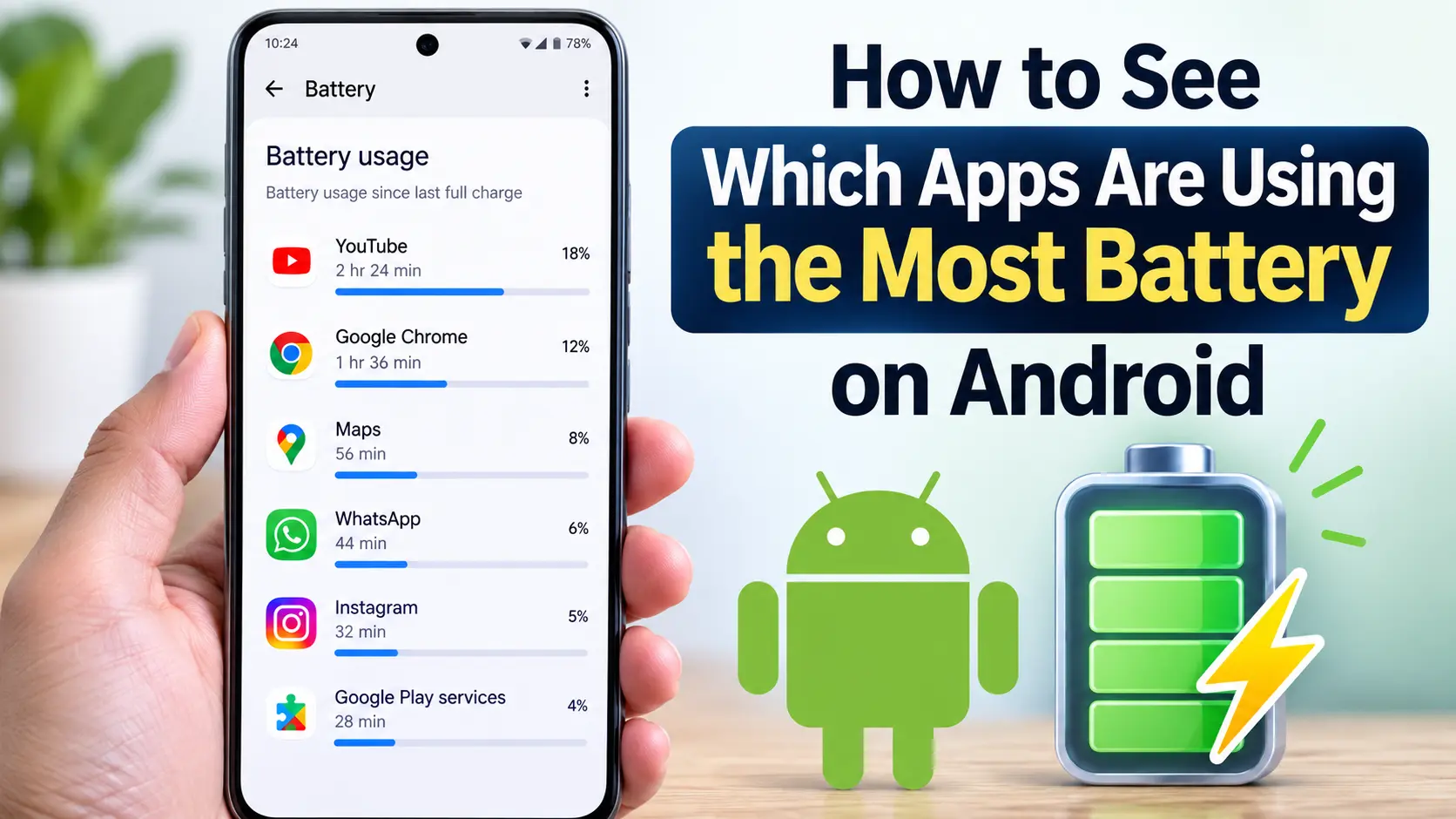
If your Android phone battery is draining faster than usual, one of the first things you should check is which apps are consuming the most power. An app running frequently in the background, using your location, syncing data, playing media, or repeatedly waking the phone can contribute to faster battery drain.
The good news is that Android includes built-in battery tools that can show you which apps are using the most battery. The exact menu names and available options can vary depending on your Android version and phone manufacturer, but the basic process is similar on most devices.
In this guide, you will learn How to See Which Apps Are Using the Most Battery on Android, how to understand the battery usage screen, what unusually high battery consumption means, and what you can do when a particular app is draining too much power.
Quick Answer
To see which apps are using the most battery on Android, open Settings and look for Battery, Battery usage, or a similarly named option. On many Android phones, you can then select Battery usage or App battery usage to see a list of apps ranked by their battery consumption.
A common path on recent Android devices is:
Settings → Battery → Battery usage
Depending on your phone, you may instead see:
Settings → Battery → Battery usage by app
or:
Settings → Battery → App battery usage
Look at the apps near the top of the list and compare their battery usage with how much you actually use them. If an app is consuming a significant amount of battery despite very little use, it may be worth checking its background activity, permissions, updates, or battery settings.
The exact percentages shown can differ between devices. Android may also provide separate information about screen usage, background activity, and battery consumption since the last charge or over a selected period.
Why Some Android Apps Use So Much Battery
Battery usage is not automatically a sign that an app is faulty. Some applications naturally require more power because of what they do.
For example, navigation apps can use GPS continuously while you are traveling. Video streaming apps can keep the display, processor, network connection, and speakers active. Social media apps may frequently synchronize content in the background.
Common reasons for high battery usage include:
- Frequent background activity
- Continuous location access
- Video or music playback
- Camera usage
- Mobile data or Wi-Fi activity
- Frequent synchronization
- Push notifications
- Bluetooth-related activity
- GPS navigation
- Poorly optimized or outdated apps
- Apps repeatedly restarting in the background
- High screen brightness caused by frequent app use
- Apps that keep the phone awake for extended periods
There is also an important difference between battery usage caused by active use and battery usage caused by background activity.
If you spend an hour watching videos, the video app may reasonably appear high on the battery list. That does not necessarily mean anything is wrong.
However, if an app you rarely open appears near the top and shows substantial background activity, it deserves closer attention.
How to See Which Apps Are Using the Most Battery on Android
The easiest approach is to use Android’s built-in battery settings. You generally do not need a third-party battery monitoring app.
Method 1: Check Battery Usage in Android Settings
Follow these steps:
- Open the Settings app on your Android phone.
- Scroll down and tap Battery.
- Look for Battery usage, Battery usage by app, or App battery usage.
- Open the battery usage screen.
- Review the apps listed there.
- Tap an individual app to see additional information when your phone provides it.
- Check whether the app has been active in the foreground, background, or both.
The wording can vary considerably between manufacturers. Samsung, Google Pixel, OnePlus, Xiaomi, Motorola, and other Android devices may organize battery information differently.
If you cannot immediately find the option, use the Settings search box and search for:
Battery usage
This is often faster than manually checking every Settings category.
How to Read the Battery Usage List
The battery screen may display apps with percentages showing their share of battery consumption.
For example, you might see:
- App A — 18%
- App B — 11%
- App C — 7%
- App D — 4%
These numbers should be interpreted in context.
An app at the top is not necessarily the cause of your battery problem. If you used that app for several hours, high battery consumption may be completely normal.
Instead, ask yourself:
- Did I actually use this app for a long time?
- Is the app active when I am not using it?
- Does it have permission to access my location?
- Is it performing frequent background tasks?
- Did the battery drain begin after I installed or updated it?
- Does the app normally need to perform this much work?
These questions can help distinguish normal usage from unusual battery activity.
Method 2: Check an Individual App’s Battery Settings
If one app appears to be using an unusually large amount of power, open its battery settings.
Depending on the device, you may be able to reach them through:
Settings → Apps → See all apps → [App Name] → App battery usage
The exact menu may be different on your phone.
Once you open the app’s battery settings, Android may provide options related to background activity or battery optimization.
You may see settings such as:
- Unrestricted
- Optimized
- Restricted
The names and available choices vary by Android version and manufacturer.
In general, Optimized is a sensible choice for many ordinary apps because Android can manage their background activity based on its battery management system.
Be careful about restricting apps that need timely background operation. Messaging, alarm, accessibility, wearable, navigation, or other important apps may behave differently if their background activity is heavily restricted.
Method 3: Compare Battery Usage With Your Actual App Usage
One of the most useful ways to identify a battery-draining app is to compare the battery statistics with your real usage.
Suppose you frequently use a video application for two hours every day and it appears at the top of the battery list. That may be expected.
Now suppose you rarely open a particular application, but it consistently appears high in the battery usage list. That is more interesting.
Check the app’s:
- Foreground activity
- Background activity
- Location activity
- Recent update history
- Notification activity
- Battery setting
A pattern over time is usually more useful than a single battery reading.
Method 4: Restart the Phone and Check Again
Sometimes an application temporarily behaves badly because of a software error or stuck background process.
A simple restart can clear temporary processes and give you a cleaner starting point.
To check whether this helps:
- Note which apps currently appear high in battery usage.
- Restart your Android phone.
- Use the phone normally for a while.
- Return to Settings → Battery → Battery usage.
- Check whether the same app is still consuming unusually high power.
If the problem disappears after restarting and does not return, the original battery drain may have been temporary.
If the same application repeatedly appears at the top without significant active use, continue troubleshooting it.
Method 5: Update the Problem App
An outdated application can sometimes cause excessive battery usage because of bugs, compatibility problems, or inefficient background activity.
Open the Google Play Store and check whether an update is available for the application.
To update apps:
- Open the Google Play Store.
- Tap your profile picture.
- Open Manage apps & device or the similarly named update section.
- Check for available updates.
- Update the affected application if an update is available.
After updating, use your phone normally and check the battery statistics again.
Do not assume every update will reduce battery consumption. An update can change an app’s behavior in either direction. The important thing is to compare battery performance before and after the update.
Method 6: Check Location Access for Battery-Hungry Apps
Location services can consume additional battery, particularly when an app repeatedly requests your location.
If an app appears to be using too much power, review its location permission.
You can usually find permissions through:
Settings → Apps → [App Name] → Permissions
Look for Location.
Depending on your Android version, you may have options such as:
- Allow all the time
- Allow only while using the app
- Ask every time
- Don’t allow
The exact options depend on the Android version and app requirements.
If an app does not need continuous location access, allowing location only while you use the app may reduce unnecessary background activity.
Do not disable location access blindly. Navigation, transportation, weather, emergency, fitness, and other applications may legitimately need location information.
Method 7: Restrict Background Battery Usage When Appropriate
If an app continues using a large amount of battery while you are not using it, Android may allow you to limit its background activity.
Open the app’s battery settings and review the available battery management options.
Before restricting an app, consider whether you need it to:
- Receive messages immediately
- Sync information in the background
- Track a device or wearable
- Provide reminders
- Run accessibility services
- Maintain a connection with another device
Restricting background activity can save battery, but it can also delay notifications or prevent some features from working as expected.
For apps that do not need frequent background activity, a more restrictive battery setting can be reasonable.
How Android Version and Phone Brand Affect Battery Settings
There is no single battery menu that looks exactly the same on every Android phone.
Google Pixel phones use Google’s version of Android, while Samsung and other manufacturers add their own interface and battery management features.
You may therefore see differences in:
- Menu names
- Battery usage graphs
- Battery percentage calculations
- Background activity information
- Battery optimization controls
- Adaptive battery features
- App restriction options
- Power-saving settings
For example, one phone may show Battery usage by app, while another may simply show Battery usage.
If the instructions above do not match your screen, open Settings and search for Battery, Battery usage, or the name of the application.
Avoid changing advanced battery settings simply because a guide shows a particular option. Android manufacturers can use different battery management systems, and the correct choice depends on your device and Android version.
Things to Check Before Trying Advanced Solutions
Before uninstalling apps or changing restrictive settings, perform a few basic checks.
Check Your Screen Usage
The screen is often one of the biggest sources of battery consumption during active phone use.
If your battery dropped quickly while you were watching videos, playing games, browsing websites, or using the camera, the app itself may not be the only reason.
Check Your Recent App Activity
Think about what you used during the period when the battery dropped.
A gaming app used continuously for an hour should normally consume more power than an app you opened for a few seconds.
Check Whether the Phone Is Still Syncing
Email, cloud storage, social networks, photo backup, and other services may perform background synchronization.
If a large upload or backup is occurring, temporary battery usage can increase.
Check for a Recent App Installation
If the battery problem began after installing a new application, investigate that application first.
You can compare the battery usage before and after installing it if your phone provides enough historical information.
Check Battery Health if Your Phone Provides It
Some phones provide battery health information or diagnostics.
Battery aging is different from an app-specific battery problem. If the battery itself has degraded significantly, reducing app usage may not completely solve the issue.
Common Mistakes to Avoid
Assuming the App at Number One Is Always the Problem
The highest percentage does not automatically identify a faulty app.
An application you actively use for hours can naturally consume a lot of battery.
Closing Every App Manually
Constantly opening the recent-apps screen and force-closing applications is not always an effective battery-saving strategy.
Android manages background processes itself. Focus on applications that demonstrate unusual battery activity rather than repeatedly closing everything.
Restricting Essential Apps
Aggressive battery restrictions can interfere with notifications, synchronization, alarms, navigation, or connected devices.
Only restrict an app when you understand what functionality you may lose.
Disabling Every Permission
Removing permissions from an application can cause features to stop working.
Review permissions based on what the app actually needs rather than disabling everything.
Installing Random Battery-Saving Apps
Third-party battery tools may request extensive permissions or run continuously in the background themselves.
Android’s built-in battery usage screen is the best place to start because it is already integrated into the operating system.
Factory Resetting the Phone Too Quickly
A factory reset is a major troubleshooting step and deletes user data from the device.
Do not reset your phone simply because one application appears high on the battery list.
If a reset ever becomes necessary, make sure important photos, contacts, documents, messages, and other data are backed up first.
When to Get Professional Help
Most app-related battery problems can be investigated through Android’s built-in settings. However, professional assistance may be appropriate if the problem continues after basic troubleshooting.
Contact the phone manufacturer or an authorized service center if:
- Battery drain is severe even when the phone is barely being used.
- The phone becomes unusually hot during light use.
- The battery percentage drops dramatically without an obvious reason.
- The device shuts down unexpectedly.
- The battery appears physically swollen or damaged.
- Charging behavior has changed significantly.
- Multiple apps show unusual battery behavior after normal troubleshooting.
Safety warning: If the phone’s battery is swollen, leaking, physically damaged, or becoming dangerously hot, stop using and charging the device and seek appropriate professional service. Do not attempt to open or puncture the battery yourself.
If only one application is causing the problem, you can also contact that application’s developer through its Google Play Store listing. This is especially useful when the issue started after an app update and other users are experiencing similar behavior.
Frequently Asked Questions
How do I see which apps are using the most battery on Android?
Open Settings → Battery → Battery usage or a similarly named battery option. Android will show battery consumption by app on supported devices. The exact menu and information can vary by Android version and phone manufacturer.
Why is an app using battery when I am not using it?
An app can perform background tasks such as synchronization, notifications, location requests, data processing, or communication with other services even when its screen is not open.
Open the app’s battery settings to see whether Android reports background activity. If appropriate, you can review its battery or background activity settings.
Which Android apps usually use the most battery?
There is no universal list because battery consumption depends heavily on how an app is used. Games, video streaming, navigation, camera applications, social media, and apps that frequently use location or mobile data can consume substantial battery during active or background use.
The battery usage screen on your own phone is more useful than a generic list because it reflects your actual usage.
Does restricting an app’s battery usage save battery?
It can reduce background activity for some apps, but the effect depends on what the application was doing in the background. Restricting an app can also delay notifications or affect features that depend on background operation.
Use battery restrictions selectively rather than applying them to every application.
Why does my battery drain even though no app appears unusually high?
Battery drain is not always caused by a single application. Screen usage, mobile network conditions, location services, Bluetooth, background synchronization, system activity, and battery age can all contribute.
If no individual app stands out, check the overall battery information and consider whether the battery itself may have degraded.
Should I uninstall an app that uses a lot of battery?
Not necessarily. If you use the app heavily, its high battery percentage may simply reflect that usage.
Consider uninstalling or replacing an app when it repeatedly consumes excessive battery despite little use, especially after checking its background activity, updating it, and restarting the phone.
Can a phone battery become weak because of one app?
An app that keeps the processor, network, screen, or other hardware active can cause faster battery depletion while it is running. However, frequent battery drain is not the same thing as physically damaging the battery.
If the phone consistently loses battery unusually quickly even after the suspected app is removed or restricted, investigate the device’s battery condition as well.
Final Thoughts
Knowing How to See Which Apps Are Using the Most Battery on Android gives you a practical starting point when your phone is losing power too quickly.
Start with the built-in Settings → Battery → Battery usage screen and identify which applications are consuming the largest share of power. Then compare those results with how much you actually use each app. A frequently used game, video app, navigation service, or social media application may naturally appear near the top, while an infrequently used app with substantial background activity deserves closer attention.
If one application looks suspicious, check its battery settings, permissions, background activity, and available updates. Restart the phone and monitor the battery again before taking more drastic action.
Most importantly, avoid making aggressive changes simply because an app has a high percentage. Battery statistics need to be interpreted in context. With the built-in Android tools and a little observation, you can usually identify whether an app, background activity, normal usage pattern, or the battery itself is responsible for the problem.