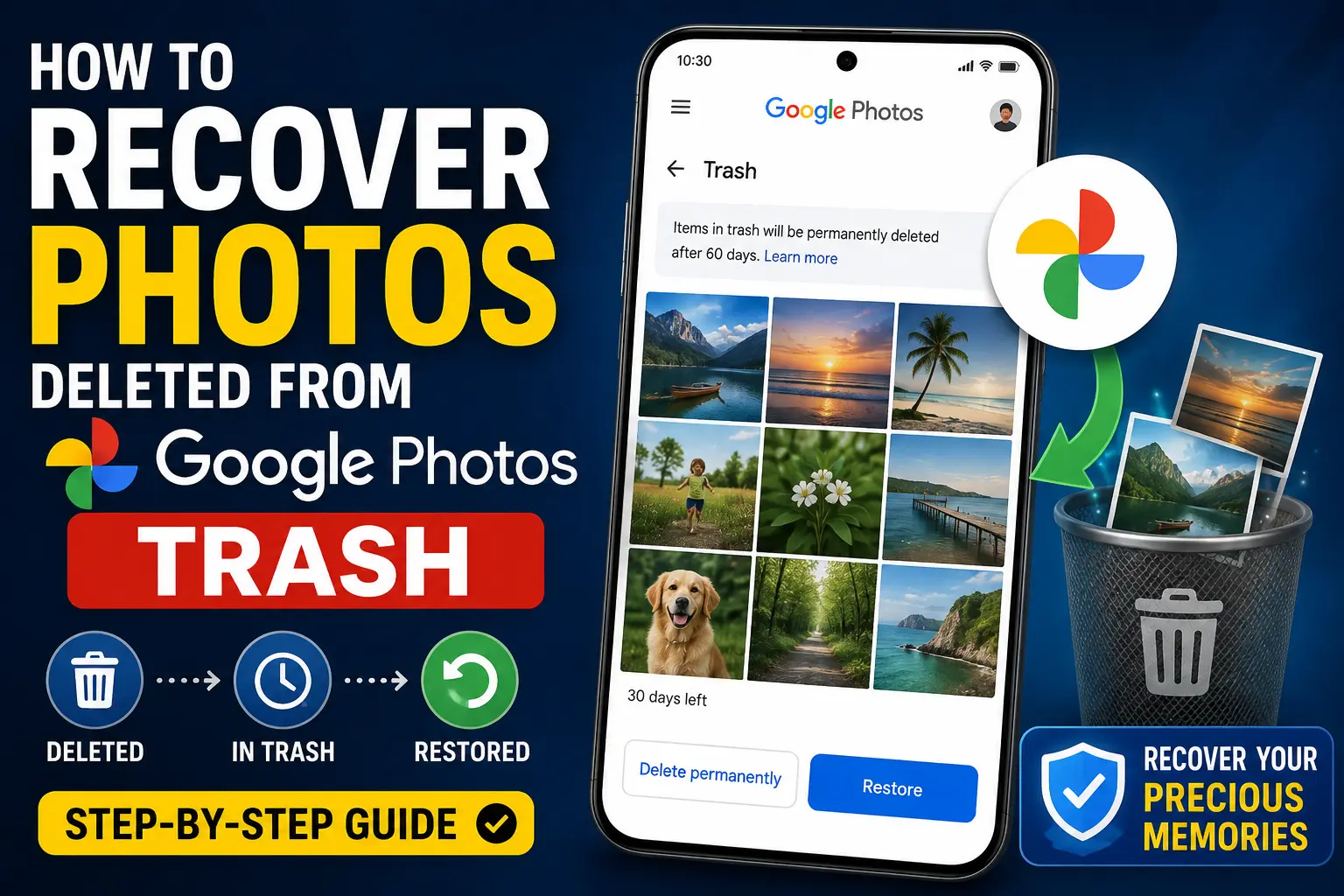
If you accidentally deleted important pictures from Google Photos and then emptied the Trash, you may be wondering how to recover photos deleted from Google Photos Trash. This situation can be stressful, especially when the photos contain family memories, work documents, travel pictures, or other files that cannot easily be recreated.
The first thing to understand is that Google Photos has a temporary Trash system. Photos and videos remain there for a limited period before they are permanently deleted. If you delete an item from Trash itself, Google Photos normally treats it as permanently deleted and does not provide a standard Restore button for bringing it back.
However, permanently deleting a photo from Google Photos does not necessarily mean every copy of that photo has disappeared. The original may still exist on your Android phone, iPhone, computer, SD card, another cloud service, a messaging application, or another device.
This guide explains what you can realistically do when trying to recover photos deleted from Google Photos Trash, including checking other copies, Android and iPhone storage, computer backups, SD cards, and cloud services.
Quick Answer
If a photo is still in Google Photos Trash, you can normally restore it by opening Google Photos → Collections → Trash, selecting the photo, and choosing Restore. The exact interface can vary by app version and device.
The situation is different if you have already selected Delete permanently or emptied the Trash. Google Photos generally does not provide a normal recovery option for items that have been permanently deleted from Trash. The available retention period also depends on whether the item was backed up.
For backed-up photos, Google Photos generally keeps deleted items in Trash for 60 days. For certain items that were not backed up, the Trash retention period can be 30 days. Google may change product behavior or eligibility over time, so check the current Google Photos help information if the dates shown in your account differ.
If the photo is gone from Trash, your best options are to look for another copy on your phone, computer, SD card, messaging apps, other cloud storage, or an existing backup.
Why Photos Are Deleted From Google Photos Trash
Google Photos does not keep deleted items in Trash forever.
When you delete a photo, it is normally moved to Trash rather than immediately removed from the service. This gives you an opportunity to change your mind and restore it.
After the applicable retention period, Google Photos can permanently delete the item.
There are also situations where a photo can disappear immediately from your recovery options.
For example, you may have:
- Manually emptied the Trash
- Selected Delete permanently
- Deleted the photo after the Trash retention period
- Deleted the photo before it was successfully backed up
- Removed the original from another storage location
- Deleted a local copy separately from the cloud copy
Understanding which situation occurred is important because the recovery options are different.
Can You Recover Photos Deleted From Google Photos Trash?
If you have already permanently deleted a photo from Google Photos Trash, Google Photos normally cannot restore it through the standard Restore feature.
That does not mean you should immediately give up.
Instead, search for another copy.
A photo may still exist in:
- Your Android phone’s Gallery or Photos app
- iPhone Photos app
- Recently Deleted folder
- An SD card
- Windows Recycle Bin
- Mac Trash
- Google Drive, if you separately stored a copy there
- OneDrive
- Dropbox
- Samsung Cloud or another manufacturer’s service
- Telegram or another messaging service
- Email attachments
- Social media uploads
- A computer backup
- An external hard drive
- Another phone or tablet
The most useful approach is to work through these possibilities systematically.
Method 1: Check Google Photos Trash Again
Before assuming the photo is permanently deleted, check Trash one more time.
Sometimes users accidentally look in the wrong Google Account or search the main photo library without checking Trash.
On the Google Photos website:
- Open Google Photos.
- Sign in to the Google Account that originally contained the photo.
- Open Trash from the navigation or Collections area, depending on the current interface.
- Look through recently deleted items.
- Select the photo if you find it.
- Choose Restore.
On the mobile app, the location of Trash can vary slightly depending on the current Google Photos version.
If the photo appears there, restoring it is much safer than using third-party recovery software.
What Happens After You Restore a Photo?
A restored photo normally returns to your Google Photos library and its original location where supported.
It may also become available again in albums or other areas associated with the photo, depending on how it was originally organized.
If you do not immediately see it, search by date, location, people, or other available information.
Method 2: Make Sure You Are Using the Correct Google Account
One surprisingly common reason people cannot find their photos is that they are signed into the wrong Google Account.
Many people have multiple accounts for personal use, school, work, or older phones.
To check:
- Open Google Photos.
- Tap your profile picture.
- Check the currently selected Google Account.
- Review other Google Accounts available on the device.
- Open Google Photos under each relevant account.
- Check the main library and Trash.
This is especially important if you recently changed phones.
The missing photo may not have been deleted from the account you are currently viewing.
Method 3: Check the Recently Deleted Folder on Your Phone
If you originally took the picture with your phone, there may be a separate copy stored locally.
Google Photos and your phone’s Gallery application are not always the same storage location.
On Android, open your manufacturer’s Gallery or Photos application and look for a folder such as:
- Trash
- Recycle Bin
- Recently Deleted
- Recently Removed
The exact name and retention period depend on the manufacturer and software version.
For example, Samsung devices can provide their own recycling or trash functionality separate from Google Photos.
If the photo is still there, restore it immediately and consider creating another backup.
Important Difference Between Google Photos and Gallery
Deleting a photo in one application can sometimes affect the underlying file, but the exact behavior depends on how the photo was stored, backed up, and deleted.
Therefore, do not assume that a photo missing from Google Photos must also be missing from your phone’s local storage.
Check both locations.
Method 4: Check Your iPhone’s Recently Deleted Album
If the missing photo originally came from an iPhone, open the Apple Photos app and check Recently Deleted.
The Apple Photos library is separate from Google Photos, even if you used Google Photos to back up your pictures.
If a copy remains in Recently Deleted, restore it before the retention period expires.
Also check whether the photo exists in iCloud Photos if you use Apple’s cloud storage.
Method 5: Check Google Photos on the Web
If you normally use the Google Photos mobile app, check the service from a web browser as well.
Open the official Google Photos website and sign in to the correct account.
Then check:
- Photos
- Trash
- Archive
- Albums
- Favorites
- Search results
Why check the web version?
Sometimes the problem is related to app synchronization, account selection, or temporary display issues.
If the photo appears on the web but not on your phone, you may have a synchronization or app-related issue rather than permanent deletion.
Method 6: Check Google Photos Archive
A photo may not actually be deleted.
It could have been moved to Archive.
Open Google Photos and look for the Archive section.
If you find the photo there, you can move it back to your regular photo library.
This is a simple check, but it can save you from using unnecessary recovery software.
Method 7: Check Your Android File Manager
If the photo was stored locally on your Android phone, a file manager may help you locate another copy.
Look through common folders such as:
- DCIM
- Camera
- Pictures
- Screenshots
- Downloads
- WhatsApp Images
- Telegram
- Other application-specific media folders
The exact folder structure depends on your phone and applications.
If you find the original file, copy it to another safe location.
For example, you could back it up to a computer or another trusted cloud service.
Do Not Keep Using the Phone Excessively If You Suspect Local Data Recovery
If the only remaining copy was stored on internal storage and you believe it was permanently deleted, continued use of the phone can potentially overwrite storage areas that contained deleted data.
Avoid installing many new applications or downloading large amounts of data before deciding whether professional recovery is necessary.
Modern smartphones also use encryption and storage technologies that can make traditional deleted-file recovery difficult or impossible.
Method 8: Check Your SD Card
If your phone used a microSD card, the deleted photo may have been stored there instead of internal storage.
Remove the card carefully if appropriate and connect it to a computer using a compatible card reader.
Then check:
- DCIM
- Camera
- Pictures
- Screenshots
- Other media folders
If the file is not visible but the photo was previously stored on the SD card, specialized data recovery software may sometimes help.
Warning Before Using SD Card Recovery Software
Do not save recovered files back to the same SD card.
Doing so can overwrite other recoverable data.
Ideally, create a copy or image of the storage first and save recovered files to a different drive.
For valuable or irreplaceable photos, professional data recovery may be safer than experimenting with multiple programs.
Method 9: Check Windows Recycle Bin
If you previously transferred the photos to a Windows computer, you may have another copy.
Open the Recycle Bin and search for the photo.
You can also search File Explorer for common image formats such as:
- JPG
- JPEG
- PNG
- HEIC
- WEBP
Try searching folders such as:
- Pictures
- Downloads
- Desktop
- Documents
- OneDrive
- Phone backup folders
If you find the file, copy it to a safe location before making further changes.
Method 10: Check OneDrive, Dropbox, and Other Cloud Services
Many people automatically back up photos to more than one service without realizing it.
Check any cloud storage accounts you have used, including:
- OneDrive
- Dropbox
- Amazon Photos
- iCloud Photos
- Manufacturer-specific cloud services
Search by date, filename, or folder.
If you previously transferred photos to a cloud service manually, Google Photos may not have been the only place where the pictures existed.
Method 11: Check WhatsApp and Other Messaging Apps
If you sent the photo to someone through WhatsApp, there may be another copy.
Check the relevant chat and media section.
You can also ask the recipient whether they still have the image.
Other messaging applications may also contain copies.
For example, check:
- Telegram
- Messenger
- SMS/MMS attachments
The quality may not always be identical to the original, but recovering a lower-resolution copy can still be valuable when the original is gone.
Method 12: Search Your Email
If you ever emailed the photo to yourself or another person, search your email account.
Try keywords such as:
.jpg.jpeg.png.heic- Photo
- IMG
- Camera
- The person’s name
- The event or location
Also check Sent, Archived, and other folders.
Email attachments can sometimes provide an overlooked backup of important pictures.
Method 13: Check Your Computer Backups
If you regularly back up your phone or manually copy photos to a computer, check those backups.
Possible locations include:
- External hard drives
- USB drives
- Windows File History
- Mac backups
- Phone backup folders
- NAS storage
- Cloud backup folders
Search older backups rather than only checking the newest one.
A backup from several months ago could contain photos that were deleted recently.
What About Google Takeout?
Google Takeout is useful for exporting data associated with supported Google services, but it should not be treated as a tool for restoring photos that have already been permanently deleted from Google Photos.
If the photo still exists in your Google Photos account, an export may help you preserve a copy.
If the photo has already been permanently deleted from Google’s systems, downloading a Google Takeout archive generally will not magically recreate it.
Therefore, use Takeout as a backup/export option rather than a guaranteed deleted-photo recovery method.
Can Google Support Recover Permanently Deleted Photos?
For ordinary Google Photos users, there is generally no standard support procedure that guarantees restoration of photos that have already been permanently deleted from Trash.
Google Photos’ Trash system is designed for temporary recovery.
If the item is still within the applicable retention period, use the Restore option.
If it has been permanently deleted, focus on finding another copy or backup.
Be cautious of websites or people claiming that they can directly recover permanently deleted Google Photos from Google’s servers for a fee.
Do not provide your Google password or verification codes to strangers.
Common Mistakes to Avoid
Mistake 1: Emptying Trash Too Quickly
If you are unsure about a deletion, do not empty Google Photos Trash immediately.
Trash is your easiest recovery option.
Mistake 2: Installing Random Recovery Apps
Be careful with Android applications that promise to recover every permanently deleted photo.
Some recovery applications have limited capabilities, require special permissions, or cannot recover files from modern encrypted internal storage.
Never grant sensitive permissions to an application simply because it claims to recover photos.
Mistake 3: Continuing to Use a Device After Local Deletion
If you are attempting local storage recovery, downloading applications, recording videos, taking thousands of new photos, or filling the storage can reduce the chance of recovering deleted data.
Mistake 4: Assuming Google Photos Is the Only Copy
Always check your phone, computer, messaging apps, cloud services, SD cards, and backups.
Mistake 5: Paying for Fake Recovery Services
Be skeptical of services that promise guaranteed recovery of permanently deleted Google Photos.
Google Photos is a cloud service, and third-party software cannot simply scan Google’s servers and restore files that Google has permanently deleted.
When to Get Professional Help
Professional data recovery may be worth considering if the photo was stored on a physical storage device such as:
- SD card
- USB drive
- External hard drive
- Computer hard drive
It can be particularly appropriate when the files are extremely important and you do not want to risk making the situation worse.
For an SD card or computer drive, stop writing new data to the affected storage and consider consulting a reputable recovery specialist.
For permanently deleted Google Photos, however, a traditional local data-recovery company cannot recover files directly from Google’s servers. Their usefulness is mainly related to physical storage that you control.
How to Prevent Losing Photos in the Future
The best way to avoid this problem is to maintain more than one copy of important photos.
Keep Google Photos Backup Enabled
Open Google Photos settings and confirm that backup is enabled for the folders you care about.
Do not assume that every folder on your phone is automatically backed up.
Screenshots, downloads, WhatsApp images, and other folders may have separate backup settings.
Keep an Additional Backup
For especially important photos, keep another copy on:
- Computer
- External drive
- Another reputable cloud service
- NAS
- Offline storage
A second backup provides protection if one service or device fails.
Avoid Immediately Emptying Trash
If you accidentally delete a photo, check Trash first and restore it before doing anything else.
Frequently Asked Questions
Can I Recover Photos Deleted From Google Photos Trash?
If the photos are still in Trash, you can normally restore them. If you have permanently deleted them from Trash or the retention period has expired, Google Photos generally does not provide a standard way to restore them. You should look for another copy or backup.
How Long Do Deleted Photos Stay in Google Photos Trash?
Google Photos generally keeps backed-up deleted photos and videos in Trash for up to 60 days. Certain items that were not backed up may have a 30-day retention period. The exact behavior can depend on the item and current Google Photos policies.
Can I Recover Permanently Deleted Photos From Google Photos Without Backup?
If a photo has truly been permanently deleted from Google Photos and there is no other copy or backup, recovery through Google Photos is generally not available. Check your phone, SD card, computer, messaging apps, email, and other cloud services for another copy.
Does Google Takeout Recover Permanently Deleted Photos?
No. Google Takeout is designed to export available data from supported Google services. It is not a tool that can normally restore photos that have already been permanently deleted from Google Photos.
Can a Photo Recovery App Recover Deleted Google Photos?
A recovery app cannot directly scan Google’s servers to restore photos that Google Photos has permanently deleted. Recovery software may sometimes help with locally deleted files on supported physical storage, such as an SD card, but results vary significantly.
Can I Recover Photos Deleted From Google Photos on Android?
If the photos are still in Google Photos Trash, restore them from there. If they are permanently deleted, check your Android Gallery Trash, internal storage, SD card, messaging applications, and other backups for another copy.
What If My Deleted Photo Is Not in Google Photos Trash?
First check that you are using the correct Google Account. Then check Archive, your phone’s Gallery or Recently Deleted folder, other cloud services, computers, SD cards, and messaging applications. If the photo was permanently deleted from Google Photos and no other copy exists, standard Google Photos recovery may not be possible.
Should I Use a Third-Party Google Photos Recovery Service?
Be extremely cautious. A third-party service cannot normally access Google’s internal storage and magically restore permanently deleted Google Photos. Never provide your Google password, recovery codes, or authentication codes to an unknown service.
Final Thoughts
If you are searching for how to recover photos deleted from Google Photos Trash, the most important thing is to determine whether the photos are actually permanently deleted.
If they are still in Trash, use Google Photos’ Restore option immediately. If they have been permanently deleted, Google Photos generally does not offer a normal recovery method, so your best chance is finding another copy.
Check the correct Google Account, Google Photos Archive, your phone’s Gallery or Recently Deleted folder, SD card, Windows computer, external drives, cloud services, messaging apps, email attachments, and old backups.
Avoid questionable recovery services and apps that promise guaranteed restoration from Google’s servers. For local storage such as SD cards or hard drives, professional recovery may sometimes be worthwhile.
Most importantly, prevent future losses by keeping Google Photos backup enabled for the folders you need and maintaining at least one additional copy of irreplaceable photos.