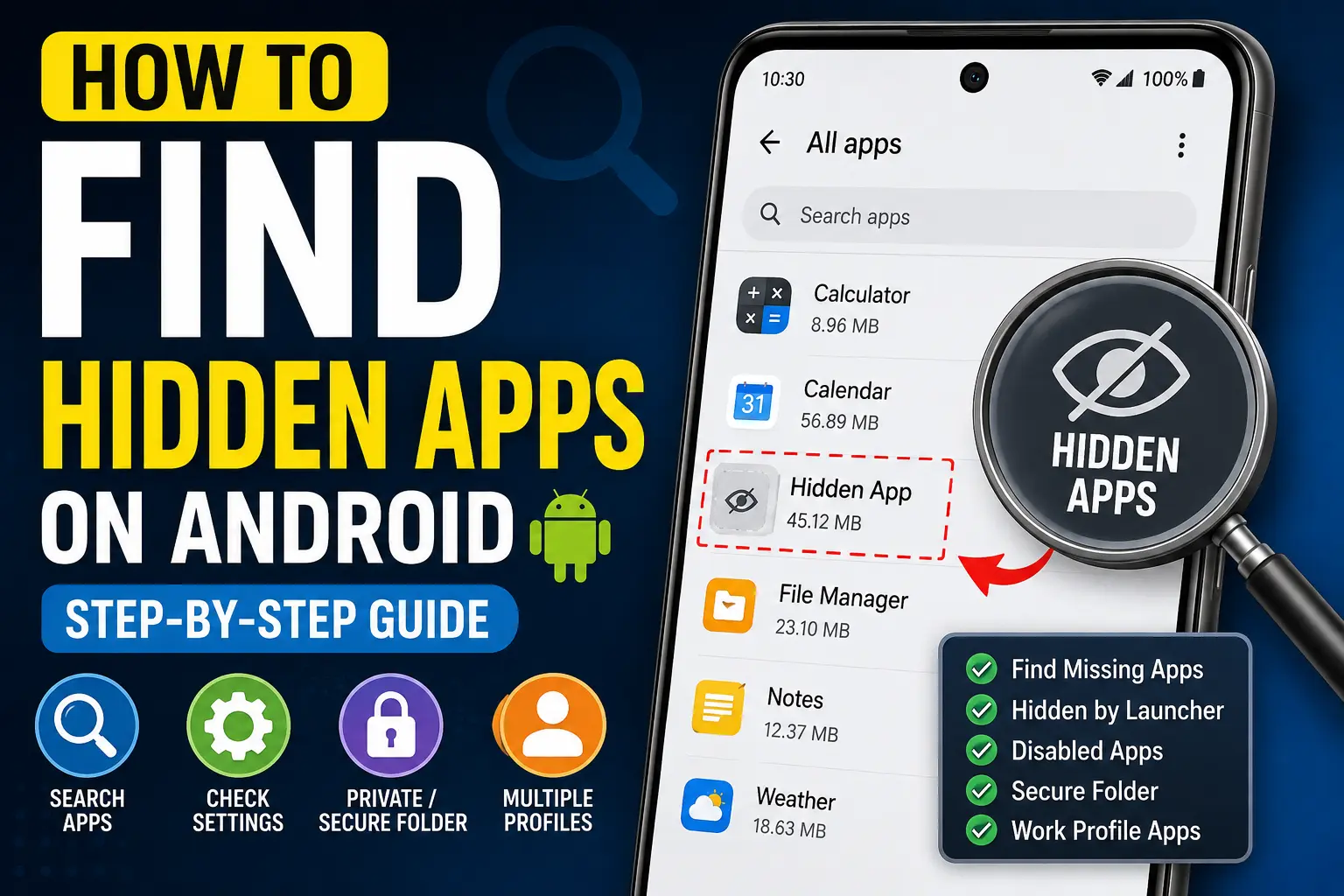
If an app seems to have disappeared from your Android phone, it may not actually be deleted. Android phones can hide apps in several different ways. An app may be hidden from the home screen or app drawer, disabled, placed inside a private or secure space, associated with a work profile, or simply located somewhere you are not looking.
This can be confusing, especially if you know the app is installed but cannot find its icon.
In this guide, you will learn How to Find Hidden Apps on Android using built-in Android settings, the app drawer, search tools, private spaces, manufacturer-specific features, and other practical checks. You will also learn how to determine whether an app is actually installed, disabled, hidden by a launcher, or protected inside a separate profile.
The exact steps can differ between Android versions and brands such as Samsung, Google Pixel, Xiaomi, OnePlus, Motorola, and others. Therefore, this guide explains the common methods as well as the important differences between devices.
Quick Answer
The easiest way to find hidden apps on Android is to open Settings → Apps and view the complete list of installed applications. On many Android phones, you can tap See all apps, App info, or a similarly named option. This list can reveal applications that do not appear on your normal home screen or app drawer.
You can also search for the app by name using the phone’s Settings search or app drawer search. If the application is not visible, check whether it has been disabled, hidden by the phone’s launcher, placed in a Private Space, Secure Folder, or another user/work profile.
If you are looking for an unfamiliar application rather than an app you previously installed, do not immediately assume it is malicious. Some entries are system components or services that do not have a normal app icon. You should identify an unfamiliar app before disabling or uninstalling it.
Why Apps Become Hidden on Android
There are several reasons an Android app may appear to be missing.
Understanding the reason makes it much easier to find it.
The App Is Hidden From the App Drawer
Some Android launchers allow users to hide selected apps. A hidden app may remain installed while its icon disappears from the normal app drawer and home screen.
This feature is commonly used to keep certain apps out of sight without uninstalling them.
The App Is Disabled
Android allows some applications to be disabled. A disabled app may disappear from normal app lists or stop behaving like a regular installed application.
This can happen intentionally or as part of troubleshooting.
The App Is Inside a Private or Secure Area
Some Android devices provide a separate protected area for apps and data.
Depending on the device and Android version, this may include features such as Private Space, Secure Folder, or another manufacturer-specific secure environment.
Apps installed in these areas may not appear alongside your ordinary applications.
The App Belongs to Another User or Work Profile
Android can support separate user profiles and work profiles. An application associated with another profile may not appear in your personal app list in the same way.
A work profile can also contain applications managed by an organization.
The App Has No Normal Launcher Icon
Not every installed Android package is designed to appear as a normal app icon.
System services, components, device-management tools, and other background packages can appear in the installed-app list without behaving like ordinary apps.
The App Icon Was Removed From the Home Screen
Removing an icon from the home screen does not necessarily uninstall the application.
The app may still be available in the app drawer.
This is one of the most common reasons people think an app has been hidden.
How to Find Hidden Apps on Android
There are several ways to investigate a missing application. Start with the simplest method and move to more advanced checks only when necessary.
Method 1: Check the Complete Apps List in Settings
The Android Settings app is usually the most reliable place to determine whether an application is installed.
Follow these steps:
- Open Settings on your Android phone.
- Tap Apps or Apps & notifications, depending on your Android version.
- Look for See all apps, All apps, App management, or a similar option.
- Open the complete application list.
- Scroll through the installed apps.
- If available, use the search icon or search field to find the app by name.
- Tap the application to open its App info page.
If the application appears here but you cannot find its icon, it may be hidden by the launcher, located in a separate profile, disabled, or otherwise configured not to appear normally.
The exact wording can differ significantly between Android manufacturers.
For example, a Samsung phone may organize app management differently from a Google Pixel, while Xiaomi, OnePlus, Motorola, and other manufacturers may use their own Settings interface.
The important part is to locate the complete list of installed applications.
Method 2: Search for the App Using Android Settings
If your phone contains a large number of applications, manually scrolling through the list can be inconvenient.
Instead, use the Settings search feature.
- Open Settings.
- Tap the search field or magnifying-glass icon.
- Type the name of the application.
- Look for results related to Apps, App info, or the application itself.
- Open the result if it appears.
This method can help when the application is installed but its launcher icon is not visible.
If the app appears in Settings but not in your app drawer, the next step is to investigate the launcher or a private/secure space.
Method 3: Search the App Drawer
Many Android phones have a search box in the app drawer.
To check:
- Open the app drawer by swiping up from the home screen or using your phone’s app drawer button.
- Tap the search field.
- Type the name of the missing application.
- Check whether the app appears.
- If it appears, open it or add its icon back to the home screen if your launcher provides that option.
If the app appears in the app drawer, it was probably not hidden at the system level. Its shortcut may simply have been removed from the home screen.
Method 4: Check Your Launcher Settings for Hidden Apps
Some Android launchers provide a dedicated Hide apps feature.
The location varies by manufacturer and launcher, so there is no universal Android path.
On phones that provide this feature, you may find it through settings related to:
- Home screen
- App drawer
- Launcher
- Apps screen
- Hide apps
For example, some Samsung devices provide a Hide apps on Home and Apps screens option through the home screen settings.
If you use a third-party launcher, such as a launcher downloaded from Google Play, the hiding feature may be controlled entirely by that launcher.
To investigate:
- Open your phone’s Home screen settings.
- Look for an option related to Hide apps.
- Open the hidden-app list if available.
- Review the applications selected there.
- Remove an app from the hidden list if you want it to appear normally again.
Do not assume every Android phone has this option. Some launchers simply do not provide a conventional hidden-app feature.
Method 5: Check Private Space
Some newer Android versions provide Private Space, which creates a separate area for apps that you want to keep apart from your main app environment.
When Private Space is locked, applications inside it can be hidden from the normal app experience.
If your phone supports Private Space, look in Settings for Private Space. You can also use the Settings search function and search for that term.
To investigate:
- Open Settings.
- Search for Private Space.
- Open the Private Space settings or section.
- Authenticate if Android asks you to do so.
- Check whether the missing application is installed there.
The exact behavior and availability depend on your Android version and device.
A particularly important point is that an app inside a protected space is not necessarily a suspicious app. Private spaces are legitimate Android features designed to separate selected apps and their data from the main profile.
Method 6: Check Samsung Secure Folder
Samsung Galaxy devices can provide Secure Folder, which is separate from the normal app environment.
Apps installed inside Secure Folder may not appear in your regular app drawer in the same way as applications installed outside it.
If you use a Samsung phone and cannot find an app, check whether it has been installed inside Secure Folder.
- Open Secure Folder if it is available on your device.
- Authenticate using the security method configured for the folder.
- Review the apps inside it.
- Check whether the missing application is located there.
Samsung’s menus and features can change between One UI versions, so use the Settings search feature if you cannot immediately find Secure Folder.
Method 7: Check for a Work Profile
If your Android phone is used for work or school, a work profile may contain separate applications.
Work-profile apps can have visual indicators that distinguish them from personal apps, although the exact appearance varies.
If an application seems to be missing:
- Open Settings.
- Search for Work profile.
- Check whether a work profile is active.
- Review the applications associated with that profile.
- If your organization manages the device, follow its instructions before changing work-profile settings.
Do not remove a work profile simply to find an application.
Warning: Removing a work profile can remove work-related applications and data associated with that profile. If the device belongs to your employer or school, contact the organization’s IT administrator before making changes.
Method 8: Check Whether the App Has Been Disabled
An application can sometimes be disabled rather than uninstalled.
To investigate:
- Open Settings.
- Go to Apps.
- Open the complete app list.
- Search for the application.
- Open its App info page.
- Look for an option such as Enable if the app is currently disabled.
If Android shows Enable, that is an indication the application is disabled.
Be careful when enabling system applications that you do not recognize. Some apps and services are important to the operation of Android or your manufacturer’s software.
If it is a normal application that you intentionally disabled earlier, enabling it may make it available again.
Method 9: Check Google Play Store
Google Play can also help determine whether an application is associated with your account and device.
Search for the application in the Play Store.
If the store shows an option to open the installed app, that can indicate the app is installed on the device.
If it offers Install, the application may not currently be installed on that device.
However, Play Store behavior can vary depending on the application, account, device compatibility, and installation method. Apps installed from outside Google Play may not provide the same information.
How to Identify Suspicious Hidden Apps
Finding a hidden application does not automatically mean your phone has malware.
Android includes many legitimate services and components that may not have obvious names or icons.
However, if you discover an application you do not recognize, investigate it before allowing it to continue running.
Check the App’s Information
Open:
Settings → Apps → [Unknown App]
Review the information Android provides, such as:
- App name
- Permissions
- Storage usage
- Mobile data usage
- Battery usage
- Installation information when available
- Notifications
- Special access or related settings
The exact information depends on the Android version and application.
Review Its Permissions
Pay particular attention to permissions that do not seem necessary for what the application does.
For example, a simple flashlight application requesting extensive access may deserve additional investigation.
However, permissions should be judged based on the app’s actual purpose. Some legitimate applications require sensitive permissions for important features.
Check Google Play Protect
Google Play Protect is Google’s built-in security service for Android devices and can check applications for potentially harmful behavior.
To check it:
- Open the Google Play Store.
- Tap your profile picture.
- Look for Play Protect.
- Open the security section.
- Review the available scan information.
The exact interface can change over time.
If Play Protect reports a problem, follow Google’s recommendations rather than randomly deleting system applications.
Things to Check Before Trying Advanced Solutions
Before changing system settings, take a few minutes to confirm what is actually happening.
Make Sure the App Was Not Simply Moved
The icon may have been moved to another home-screen page or folder.
Search the app drawer before assuming it has been hidden.
Confirm the App Name
Some applications have a different display name from the name you remember.
For example, an app may appear under a company or service name rather than the name shown in a shortcut.
Check Your Google Account
If you previously installed an application but recently changed phones, make sure you are checking the correct Google account in Google Play.
An app associated with another account may not appear in your expected Play Store history.
Check Whether the App Was Uninstalled
An app that does not appear in Settings, the app drawer, a private space, or another profile may simply no longer be installed.
Do not confuse an unavailable shortcut with an installed application.
Check for Multiple Profiles
If your phone has multiple users or a work profile, make sure you are checking the correct profile.
Applications can be separated between profiles.
Common Mistakes to Avoid
Mistaking a Missing Icon for a Hidden App
Removing an icon from the home screen does not uninstall the application.
Always check the app drawer and Settings before concluding that the app is hidden.
Uninstalling an App You Do Not Recognize Immediately
An unfamiliar application may be a legitimate Android system component, manufacturer service, carrier application, or security service.
Research and identify it before removing it.
Disabling System Services
Do not disable random packages simply because their names look unfamiliar.
Some system services are essential for Android features, connectivity, updates, security, or device functionality.
Removing a Work Profile Without a Backup
Warning: Removing profiles or accounts can remove associated data and applications.
If your phone contains work or school information, consult the administrator before changing profile settings.
Factory Resetting the Phone
A factory reset is not a normal method for finding a hidden app.
Warning: A factory reset can erase personal data from the device. Back up important photos, contacts, documents, messages, and other information before considering it.
A reset should only be considered for a broader device problem after safer troubleshooting methods have failed.
Assuming Every Hidden App Is Spyware
Some people search for hidden apps because they are worried about surveillance or malware.
An app being absent from the launcher does not prove that it is spying on you.
Look at permissions, device-management access, security warnings, unusual behavior, and other evidence before drawing conclusions.
When to Get Professional Help
You usually do not need a technician simply because an application is missing from the home screen.
However, professional or manufacturer support may be appropriate when:
- An unknown application repeatedly returns after removal.
- You cannot uninstall an application that appears suspicious.
- Your phone shows unexpected administrator or device-management settings.
- You experience repeated pop-ups or browser redirects.
- Battery or mobile data usage suddenly becomes abnormal.
- Android behaves differently after installing an unfamiliar application.
- You suspect the device has been compromised.
- A work-managed phone prevents you from changing relevant settings.
- The phone becomes unstable after changing system applications.
If the phone contains sensitive banking, business, personal, or authentication information and you suspect malware, avoid entering additional sensitive information until you understand what is happening.
For manufacturer-specific problems, contact the phone manufacturer’s official support channel or an authorized service center.
If an application itself appears problematic, check its official Google Play Store listing and developer support information.
Frequently Asked Questions
How can I see all hidden apps on Android?
Open Settings → Apps and look for See all apps, All apps, or a similar option. This is generally the best starting point because applications that are not visible in the launcher may still appear in Android’s application management list.
Also check launcher-specific hidden apps, Private Space, Secure Folder, and work profiles when applicable.
Why can’t I find an app on my Android phone?
The app may have been removed from the home screen, hidden by the launcher, disabled, placed inside a private or secure area, installed under another profile, or uninstalled.
Check the app drawer first, then use Settings → Apps to determine whether the application is still installed.
How do I find hidden apps on a Samsung phone?
On a Samsung Galaxy phone, check Settings → Apps to view installed applications. You can also check the home screen settings for the Hide apps feature and look inside Secure Folder if you use it.
Samsung’s exact menu names can vary with One UI versions, so searching Settings for Hide apps or Secure Folder can be useful.
Can hidden apps be found in Android Settings?
In many cases, yes. An app hidden from the launcher can still appear in the installed-app list under Android Settings.
However, apps in separate profiles or secure environments may need to be checked within those environments as well.
How do I know if an unknown app is dangerous?
An unfamiliar app is not automatically dangerous. Check its app information, permissions, installation source, behavior, battery and data usage, and Google Play Protect status.
Avoid deleting system components simply because you do not recognize their names. If an app has suspicious behavior or cannot be removed normally, consider getting professional assistance.
Can someone hide an app on my Android phone?
Some Android launchers and device features allow applications to be hidden from the normal app drawer. Private or secure spaces can also separate applications from the main phone environment.
However, seeing a hidden app does not by itself prove that someone intentionally placed it there.
If you are concerned about unauthorized access, review your device security settings, screen lock, Google account security, installed apps, and profiles.
How do I unhide an app on Android?
If your launcher has a Hide apps feature, open its home-screen or launcher settings and remove the application from the hidden list.
If the app is disabled, open its App info page in Settings and look for Enable. If it is inside a private or secure space, open that space and manage the app from there.
The exact procedure depends on your phone and Android version.
Are hidden apps still using storage and battery?
If an app is installed, it can occupy storage even if its icon is hidden. Whether it uses battery or performs background activity depends on the app, its permissions, its configuration, and Android’s background management.
An app being hidden from the launcher does not automatically mean it is inactive.
Final Thoughts
Learning How to Find Hidden Apps on Android is much easier when you approach the problem systematically.
Start by checking the app drawer and then open Settings → Apps to see whether the application is actually installed. If it appears in Settings but not in the normal app drawer, investigate your launcher settings for hidden apps.
If you still cannot find it, check device-specific features such as Private Space, Samsung Secure Folder, or a work profile. Also check whether the application has been disabled.
If you discover an unfamiliar app, do not immediately uninstall or disable it. First check its permissions, app information, behavior, and security status. Android contains many legitimate system components that may not look like ordinary applications.
For most missing-app situations, the combination of Settings → Apps, app drawer search, launcher settings, and private or secure profile checks will identify where the application is located. If the problem involves suspicious behavior, persistent unknown applications, or device-management restrictions, use your manufacturer’s official support or an authorized technician rather than making risky system changes.