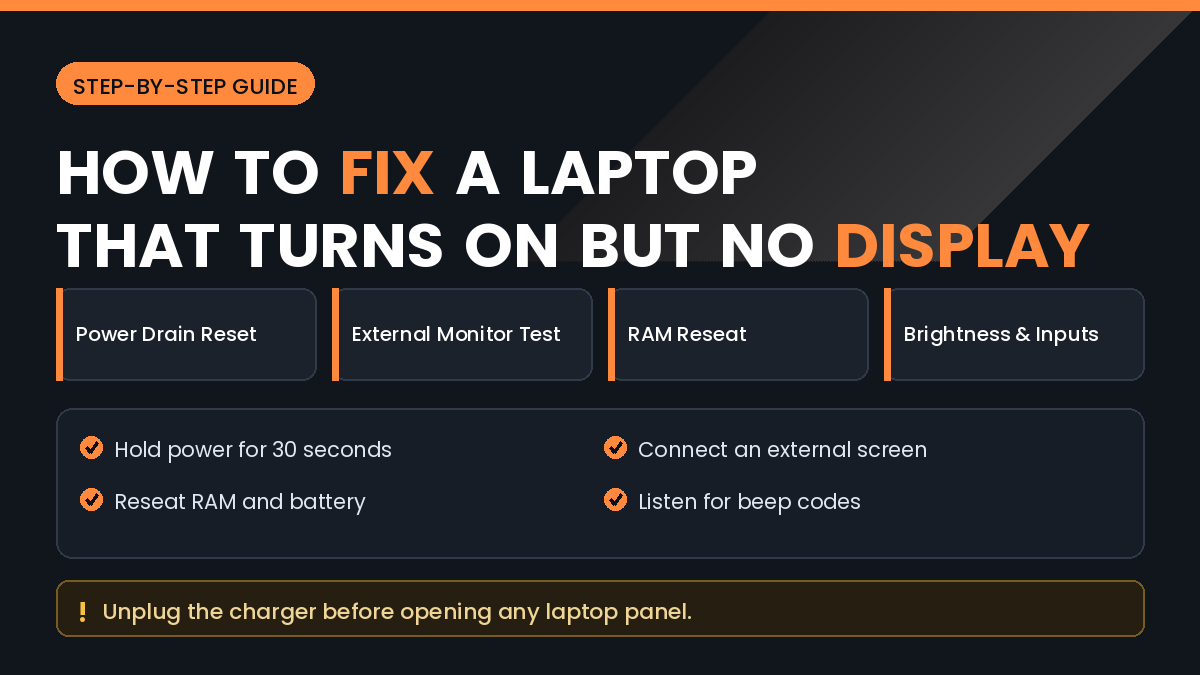
A laptop that powers on but shows nothing on screen is one of the most confusing faults to diagnose. The fans spin, the keyboard lights up, the power button glows, and yet the display stays completely black.
The encouraging part is that this symptom is frequently caused by something simple. Loose memory, a stuck power state, or a display setting sending output to a monitor that is not there account for a large share of cases.
In this guide, you will learn How to Fix a Laptop That Turns On But Shows No Display, working from the safest checks through to the ones that require opening the machine.
Quick Answer
Start with a hard power reset. Disconnect the charger, remove the battery if it is removable, then hold the power button for about thirty seconds before reconnecting and starting the laptop.
Next, connect an external monitor. If the external screen shows a picture, the computer is working and the problem is the display panel, its cable, or the backlight.
If the external screen is also blank, the fault is more likely memory, the graphics chip, or the motherboard. Reseating the RAM is the most productive next step.
Listen and look for diagnostic signals. Beep patterns and blinking power lights encode specific fault codes that narrow the problem considerably.
Why This Happens
A laptop can reach a state where the processor is running but nothing is being sent to the screen. That gap is where this fault lives.
Common causes fall into a few groups. Power delivery can get stuck in a bad state, memory can lose contact with its slot, the display cable can work loose, or the backlight can fail while the panel itself still works.
Software plays a part too. A failed graphics driver update or a display configuration pointing to a disconnected monitor can leave the built-in screen dark.
Because the causes are so different, testing in a logical order saves far more time than guessing.
How to Fix a Laptop That Turns On But Shows No Display
Work through these in order. The early steps are free and cannot damage anything.
Method 1: Perform a Hard Power Reset
This clears residual charge and resets the power controller, which resolves a genuine share of black screen faults.
Step by Step
- Shut the laptop down completely if it responds, or hold the power button until it powers off.
- Unplug the charger.
- Remove the battery if your model allows it.
- Disconnect all USB devices, cards, and external displays.
- Hold the power button for 30 seconds.
- Reinsert the battery and connect the charger.
- Power on without any peripherals attached.
On laptops with a sealed battery, look for a small pinhole reset button on the underside. A gentle press with a paperclip performs the same function.
Method 2: Check the Screen Is Actually Dark
Sometimes the computer is running normally and only the backlight has failed.
Step by Step
- Power the laptop on in a dark room.
- Shine a torch at an angle across the screen.
- Look closely for a faint image or a visible cursor.
- Press the brightness up key several times.
- Check whether a brightness slider is set to minimum.
If you can see a dim image under torchlight, the panel is working and the backlight or its inverter has failed. That is a repair rather than a settings problem, but it is far less serious than a dead motherboard.
Method 3: Test With an External Monitor
This single test splits the problem in half and is the most valuable diagnostic step available.
Step by Step
- Connect a monitor or TV using HDMI, DisplayPort, or USB-C.
- Turn the external display on and select the correct input.
- Power on the laptop.
- Press the display switch key combination, usually a function key with a screen icon.
- Try the Windows key with P to cycle display modes.
- Watch for any picture on the external screen.
If the external display works, the laptop itself is healthy. The fault is in the panel, the display cable running through the hinge, or the backlight.
If nothing appears on either screen, continue to the hardware checks below.
Method 4: Listen for Diagnostic Signals
Laptops communicate faults through sound and light when they cannot use the screen.
Pay attention to:
- Beep patterns during startup
- A blinking power or caps lock light in a repeating rhythm
- Fans spinning at full speed continuously
- The absence of any hard drive activity
Count the pattern carefully, then search your exact model together with that pattern. Manufacturers publish code tables, and a matching entry usually names the failing component directly.
Continuous full-speed fans with no display often point to a memory or processor fault rather than a screen problem.
Method 5: Reseat the RAM
Memory modules can lose contact through heat cycling or a knock, and this is one of the most common causes of a blank screen.
Before You Open the Laptop
Warning: Disconnect the charger and remove the battery before opening any panel. Opening the case may affect your warranty, so check your coverage first.
Step by Step
- Power off and disconnect everything.
- Ground yourself by touching an unpainted metal surface.
- Remove the access panel on the underside.
- Locate the memory modules held by side clips.
- Release the clips and remove each module.
- Check the gold contacts for dust or discolouration.
- Reinsert firmly at an angle, then press down until the clips engage.
- If you have two modules, test with one at a time in each slot.
- Reassemble and test.
Testing modules individually identifies both a faulty module and a faulty slot, which a single combined test cannot do.
Method 6: Reset the BIOS and Check Boot Order
A corrupted BIOS setting can prevent normal startup even when hardware is fine.
Many laptops support a BIOS reset by holding a specific key combination at power on, or by removing the small coin cell battery on the motherboard for a few minutes.
Some manufacturers also provide a BIOS recovery mode triggered by holding a key combination while connecting power. This can restore firmware from a USB drive.
Check your model’s support page for the exact procedure, since these combinations differ significantly between brands.
Things to Check Before Trying Advanced Solutions
Confirm the Laptop Is Really Powering On
Lights and fans can appear briefly without a real startup. Listen for the sound of a normal boot and watch for storage activity.
Try a Different Charger
An underpowered or failing charger can allow lights to come on without supplying enough power to complete startup.
Remove All Peripherals
A faulty USB device, a docking station, or a memory card left in a slot can halt startup before the display initialises.
Check for Recent Changes
If the fault began after a driver update, a Windows update, or a hardware upgrade, that change is the most likely cause and the first thing to reverse.
Common Mistakes to Avoid
Do Not Force the Case Open
Plastic clips break easily and hidden screws sit under rubber feet on many models. Look up a disassembly guide for your exact model first.
Do Not Work on a Powered Machine
Always disconnect the charger and battery before touching internal components. Working live risks both the hardware and yourself.
Do Not Ignore Static Precautions
Static discharge can damage memory and the motherboard permanently. Ground yourself before handling components.
Do Not Assume the Screen Is Dead
Many people replace a panel that was fine, when the real fault was a loose cable or a failed backlight. Test with a torch and an external monitor first.
Do Not Repeatedly Force Power Off
Hard shutdowns during startup attempts can corrupt the operating system, adding a second problem to the first.
When to Get Professional Help
Some faults need equipment and skills beyond a home repair.
Consider professional repair when:
- The laptop was dropped or exposed to liquid
- There is a burning smell or visible damage on the board
- An external monitor also stays blank after reseating memory
- Diagnostic codes point to the graphics chip or motherboard
- The machine is under warranty
- The data on it is important and you would rather not risk further attempts
If your data matters more than the machine, tell the technician that clearly. A repair shop can often remove the drive and copy your files before attempting any board-level work.
Frequently Asked Questions
Why does my laptop turn on but the screen stays black?
Common causes include a stuck power state, loose memory, a disconnected display cable, a failed backlight, or a graphics fault.
Will a hard reset delete my files?
No. A hard power reset only discharges residual power and does not touch your data.
What does it mean if the external monitor works?
It means the computer is functioning and the problem is limited to the built-in display, its cable, or the backlight.
Can bad RAM cause a black screen?
Yes, and it is one of the most frequent causes. Reseating or testing modules individually often resolves it.
What do the beep codes mean?
Each manufacturer uses its own pattern. Count the beeps and check your model’s support documentation for the matching code.
Can a Windows update cause this?
A failed graphics driver update can. Booting into safe mode and rolling the driver back usually fixes it.
Is it worth repairing an older laptop?
Compare the quoted repair cost against the value of a replacement. Memory and cable repairs are usually worthwhile, while motherboard replacement often is not.
Can I recover my files if the laptop cannot be fixed?
Usually yes. The storage drive can be removed and read in an external enclosure, provided it was not encrypted without a recovery key.
Final Thoughts
Diagnosing How to Fix a Laptop That Turns On But Shows No Display is a process of elimination rather than a single fix.
The hard power reset and the external monitor test together resolve or identify most cases, and neither carries any risk.
If both screens stay blank, reseating the memory is the highest-value hardware step, and diagnostic beep or light patterns will point you toward the real fault.
Know when to stop. Liquid damage, burning smells, and board-level faults are not home repairs, and further attempts can turn a recoverable machine into a lost one.
Whatever the outcome, get your data off the drive early. A working backup turns a hardware failure into an inconvenience rather than a disaster.