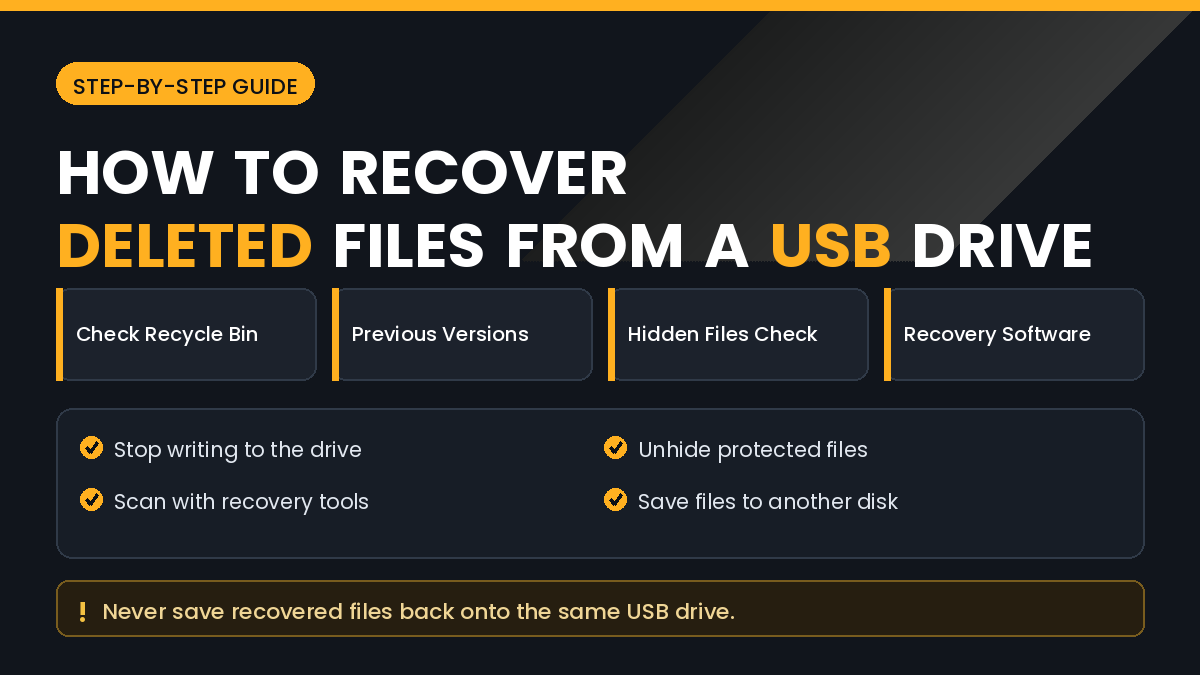
USB flash drives are convenient precisely because they are simple, but that simplicity comes with a risk. Files deleted from a flash drive do not go to the Recycle Bin, so they disappear instantly and without warning.
That instant disappearance makes people assume the files are gone forever. In reality, deletion usually removes the pointer to the file rather than the file itself, which means recovery is often possible if you act carefully.
In this guide, you will learn How to Recover Deleted Files from a USB Flash Drive, including the free checks worth trying first, how recovery software works, and the single mistake that destroys most recoverable data.
Quick Answer
The most important step is to stop using the flash drive immediately. Do not copy anything onto it, do not format it, and do not save recovered files back onto the same drive.
Next, check whether the files are simply hidden rather than deleted. Enable hidden file display in your file manager, since malware and safe-removal errors frequently hide files instead of removing them.
If the files are truly deleted, connect the drive to a computer and run reputable recovery software, saving every recovered file to your internal hard drive instead.
If the drive itself is not recognised, is physically damaged, or makes the computer freeze, stop and consider a professional service before trying anything further.
Why Deleted USB Files Can Often Be Recovered
A file system works like an index. When you delete a file, the system removes its entry from that index and marks the space as available for reuse.
The actual data usually stays in place until something new is written over it. Until that happens, recovery software can scan the raw storage and rebuild the file.
This is why the amount of use after deletion matters far more than the amount of time. A drive left untouched for a month can recover better than one used heavily for an hour.
It also explains why formatting is not always fatal. A quick format rebuilds the index but frequently leaves file data intact underneath.
How to Recover Deleted Files from a USB Flash Drive
Try these methods in order, beginning with the ones that carry no risk.
Method 1: Check for Hidden Files
Files that appear deleted are sometimes only hidden. This happens after an unsafe removal, a file system error, or an infection picked up from a shared computer.
Step by Step on Windows
- Open File Explorer and select the flash drive.
- Click the View menu.
- Enable Hidden items.
- Open Options, then the View tab.
- Uncheck the option that hides protected operating system files.
- Look again at the drive contents.
If your files reappear as faded icons, they were hidden rather than deleted. Copy them to your computer, then restore their normal attributes.
A command prompt attribute reset can also help. Running an attribute command against the drive letter clears hidden and system flags applied by malware.
Method 2: Check the Recycle Bin and Recent Files
Files deleted directly from a USB drive skip the Recycle Bin, but not every file was deleted directly.
Worth checking:
- The Recycle Bin, in case the file was copied to the desktop first
- Your Downloads folder
- The recent documents list in Word, Excel, or your PDF reader
- Temporary and autosave folders used by Office applications
Office programs in particular keep autosave copies that survive long after the original file is gone.
Method 3: Restore a Previous Version
If the drive contents were ever included in a backup, an older copy may exist on your computer.
Step by Step
- Right-click the folder where the files were normally stored.
- Select Properties.
- Open the Previous Versions tab.
- Look for a dated snapshot from before the deletion.
- Select it and choose Restore or Open.
This works only when File History or a similar backup feature was enabled beforehand. It is worth thirty seconds to check.
Method 4: Use Recovery Software
When the file is genuinely deleted, recovery software is the realistic option. These tools scan the raw drive for file signatures the index no longer references.
Before You Scan
- Connect the drive directly to a rear USB port, not a hub
- Close programs that might write to the drive
- Make sure you have free space on your internal disk for recovered files
- Decide in advance which file types you need
General Recovery Process
- Install the recovery software on your computer, never onto the USB drive.
- Launch the program and select the flash drive.
- Start with a quick scan.
- Review the results and preview files where possible.
- Run a deep scan if the quick scan misses your files.
- Select only the files you actually need.
- Choose a destination folder on your internal hard drive.
- Recover and verify that the files open correctly.
Deep scans can take a long time on larger drives. Let the scan finish rather than cancelling partway, since results are often incomplete until the end.
Recovered file names are frequently lost. Do not panic if files appear with generic names, because the content is usually intact.
Method 5: Create a Disk Image First
If the drive is unreliable or you have only one chance, imaging is the safer approach.
An image is a complete copy of the drive stored as a single file on your computer. You then run recovery against the image instead of the failing hardware.
This protects you in two ways. The drive is read once rather than repeatedly, and you can retry recovery as many times as you like without touching the original.
Most serious recovery tools include an imaging feature for exactly this reason.
Method 6: Check Whether the Drive Needs Repair
Sometimes files are inaccessible because the file system is damaged rather than because the files were deleted.
Signs of file system damage include a prompt to format the drive, a drive showing zero bytes, or folders that open empty despite reported usage.
A file system check can repair the index, but it can also discard data it cannot resolve. Because of that risk, image the drive first whenever the files matter.
Never agree to format a drive that holds files you still need, even when the prompt appears repeatedly.
Things to Check Before Trying Advanced Solutions
Confirm You Are Looking at the Right Drive
Drive letters change between computers. Make sure the drive you are scanning is the one that held the files.
Try Another Computer or Port
A drive that seems dead on one machine sometimes mounts perfectly on another. Faulty ports and outdated drivers cause more problems than people expect.
Check for a Second Copy
Files stored on a flash drive are usually transferred from somewhere. Check the computer that originally created them, email attachments, and any cloud folder you use.
Common Mistakes to Avoid
Do Not Save Recovered Files to the Same Drive
This is the single most damaging mistake. Writing recovered data onto the source drive overwrites the very files still waiting to be recovered.
Do Not Format When Prompted
Windows often suggests formatting a damaged drive. Accepting that prompt makes recovery significantly harder.
Do Not Run Repeated Deep Scans Blindly
Each scan puts stress on an already fragile drive. Image the drive instead if you expect to try several times.
Do Not Trust Guaranteed Recovery Claims
Be sceptical of software promising to recover every deleted file from any drive instantly. No tool can guarantee results on overwritten data.
Do Not Ignore Physical Warning Signs
A drive that gets hot, has a loose connector, or is not detected at all may have a hardware fault. Continued attempts can cause permanent loss.
When to Get Professional Help
Professional recovery makes sense when the data is valuable and the drive is not behaving normally.
Consider a professional service when:
- The drive is physically broken or the connector is bent
- The computer does not detect the drive at all
- The drive was exposed to water or heat
- The files have business, legal, or academic importance
- Software scans return nothing usable
Choose an established recovery lab that provides a written assessment before charging. Ask about their policy for failed recoveries, and avoid anyone guaranteeing success before examining the drive.
Frequently Asked Questions
Where do deleted USB files go?
Nowhere visible. Files deleted from removable drives bypass the Recycle Bin, though the underlying data usually remains until overwritten.
Can I recover files after formatting a USB drive?
Often yes, especially after a quick format. A full format overwrites the drive and makes recovery far less likely.
Is free recovery software safe to use?
Several reputable free tools exist. Download only from the official website, since search results frequently list repackaged versions bundled with unwanted software.
Why are my recovered files corrupted?
Corruption usually means part of the file was already overwritten. Recovering sooner and avoiding writes to the drive improves the outcome.
Can I recover files from a drive that asks to be formatted?
Usually yes. Decline the format prompt, image the drive if possible, then scan it with recovery software.
Does deleting with Shift and Delete change anything?
Not on a USB drive, since those files never reach the Recycle Bin in the first place.
How long do deleted files stay recoverable?
There is no fixed period. Recoverability depends on how much has been written to the drive since the deletion.
Can I recover files from a dead USB drive?
Not with software alone. A drive that is not detected needs hardware-level work from a recovery lab.
Final Thoughts
Knowing How to Recover Deleted Files from a USB Flash Drive comes down to one principle: protect the drive from any further writing.
Start with the free checks. Hidden files, autosave copies, and previous versions solve a real share of cases in under five minutes and carry no risk at all.
When you move to recovery software, install it on your computer, save recovered files to your internal disk, and let scans finish completely.
If the drive shows physical symptoms or holds data you cannot afford to lose, stop early and speak to a recovery lab rather than experimenting.
Going forward, treat flash drives as transport rather than storage. Keep a second copy of anything important in cloud storage or on a normal hard drive, because flash drives fail without warning.