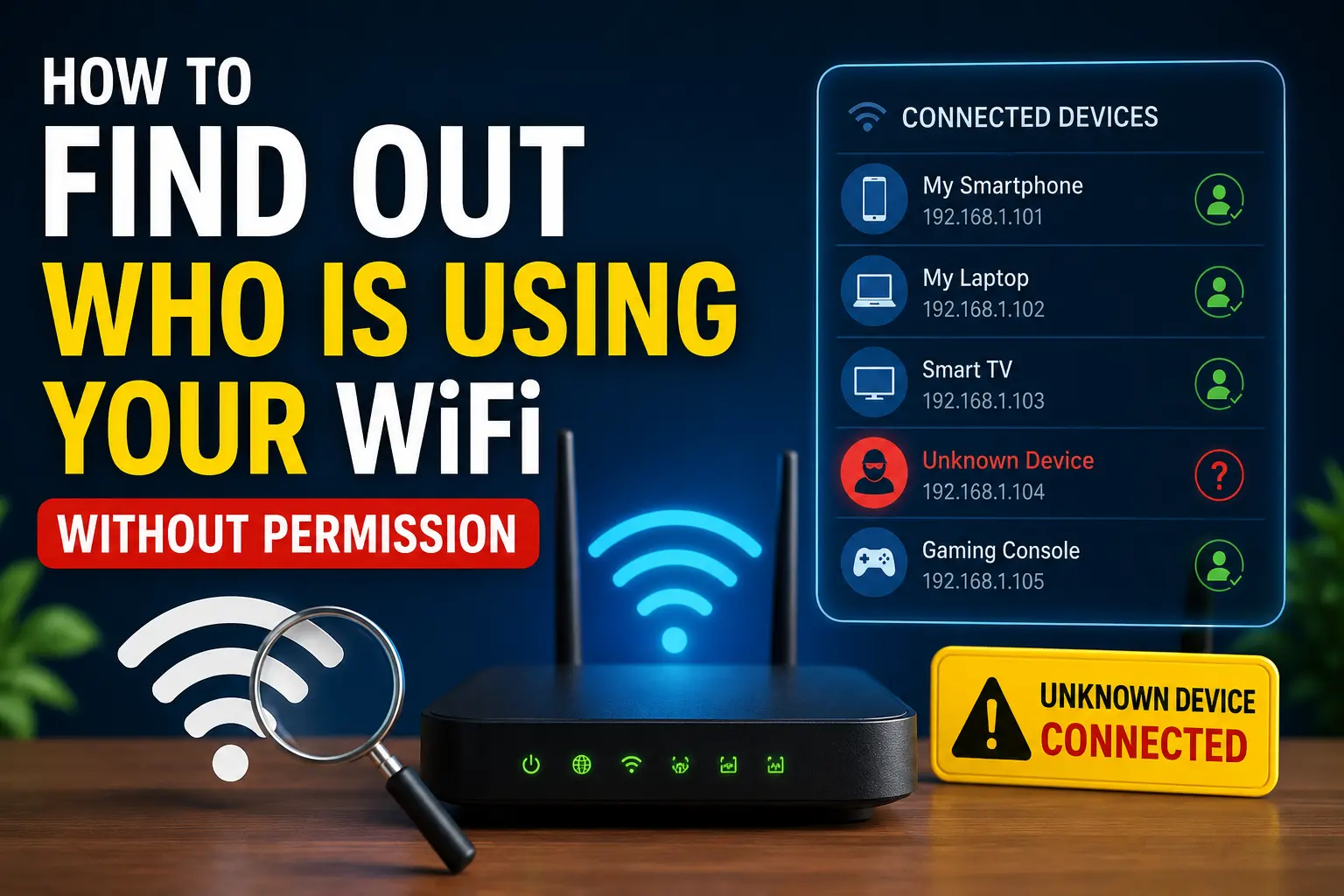
If your WiFi suddenly feels slower than usual, your monthly data usage has increased, or you notice unfamiliar devices connected to your network, you may wonder how to find out who is using your WiFi without permission. The good news is that you usually do not need expensive equipment or advanced technical knowledge to investigate.
Most modern routers provide a list of devices currently connected to the network. You can also use your router’s mobile app, check connected-device information from a computer, or use a reputable network-scanning app to identify unfamiliar devices.
However, seeing an unknown device does not automatically mean someone has hacked your WiFi. It could be your smart TV, printer, streaming device, old phone, gaming console, or another device that you forgot about. The important thing is to identify the device before taking action.
In this guide, you’ll learn how to check connected devices, recognize unfamiliar devices, remove unauthorized users, secure your WiFi password, and prevent unwanted connections in the future.
Quick Answer
The easiest way to find out who is using your WiFi without permission is to log in to your router’s administration page or open its official mobile app and look for a section such as Connected Devices, Clients, Attached Devices, Device List, Network Map, or DHCP Clients.
You will normally see information such as:
- Device name
- IP address
- MAC address
- Connection type
- Connection status
- Sometimes the manufacturer
Compare the list with the phones, computers, TVs, tablets, printers, cameras, smart speakers, and other devices in your home.
If you find a device you cannot identify, do not immediately assume it belongs to an intruder. First disconnect your own devices one at a time and refresh the router’s device list. If the unfamiliar device remains connected, investigate its manufacturer and MAC address.
If you confirm that an unauthorized person is using your WiFi, change the WiFi password, use WPA2 or WPA3 security where available, and review your router’s settings.
Why Someone Might Be Using Your WiFi
There are several reasons an unfamiliar device can appear on your WiFi network.
Someone Knows Your WiFi Password
This is one of the most common possibilities. If you shared your password with friends, family members, neighbors, or guests, they may still have it saved on their devices.
A person does not necessarily need to know your current password if their device was already connected and your router has not been reconfigured.
Your Password Is Easy to Guess
Simple passwords based on your name, phone number, address, birthday, or common words are easier to guess.
A strong WiFi password should be long and difficult to predict.
You Have Forgotten About an Old Device
Before assuming someone is stealing your WiFi, check your own devices.
You might find:
- An old smartphone
- A rarely used laptop
- Smart TV
- Printer
- Security camera
- Smart speaker
- Gaming console
- Streaming stick
- Smart home hub
- Tablet
Some devices may remain connected even when you are not actively using them.
Guests Still Have Access
If you gave your WiFi password to guests in the past, their phones may still automatically connect when they return.
This is one reason using a separate guest network can be useful.
How to Check Who Is Connected to Your WiFi
The most reliable method is checking your router.
Method 1: Check the Router’s Connected Device List
Your router keeps track of devices communicating with it.
Start by connecting your phone or computer to your home WiFi.
Then:
- Open a web browser.
- Enter your router’s local administration address.
- Sign in using your router administrator credentials.
- Look for a section called Connected Devices, Clients, Device List, Attached Devices, Network Map, or something similar.
- Review the devices currently connected.
- Look for devices you do not recognize.
The exact menus vary between router manufacturers and firmware versions, so the names may be different.
Common router addresses include local addresses such as 192.168.1.1 or 192.168.0.1, but your router may use a different address.
Do not randomly enter credentials from websites. Use the administrator information supplied with your router or the credentials you previously configured.
Method 2: Use Your Router’s Official App
Many modern routers provide a smartphone app.
Depending on the manufacturer, the app may let you:
- View connected devices
- Pause internet access
- Change the WiFi password
- Create a guest network
- See device details
- Manage parental controls
- Update router settings
Open the official app and look for a device-management or network section.
If you see an unfamiliar device, note its name and manufacturer before blocking it.
Method 3: Check Your Internet Provider’s App
Some internet service providers provide their own router-management applications.
Depending on the provider and equipment, the app may display the devices connected to your home network.
Look for options such as:
My Network → Devices → Connected Devices
The exact names will vary.
If your provider manages your router remotely, its app may be the easiest way to identify devices.
How to Identify an Unknown Device on Your WiFi
Finding an unfamiliar device is only the first step.
The next challenge is determining whether it actually belongs to someone else.
Check the Device Name
Router lists sometimes display recognizable names such as:
- John’s iPhone
- Samsung Galaxy
- Windows-PC
- Living-Room-TV
- HP Printer
However, some devices may appear with technical names or random identifiers.
Do not automatically treat a strange name as malicious.
Check the Manufacturer
Some routers show the manufacturer associated with the device’s network hardware.
For example, you may see a manufacturer associated with Apple, Samsung, Dell, HP, Sony, or another company.
This can provide a useful clue.
If you own a Samsung phone and the unknown device is identified as Samsung, it may simply be your phone.
Check the IP Address
A connected device usually receives a local IP address from your router.
For example, you might see something like:
192.168.1.15
The IP address identifies the device within your local network, but it does not normally tell you the person’s physical identity.
An IP address alone cannot reliably tell you who is using the device.
Check the MAC Address Carefully
A MAC address is a network identifier associated with a device’s network interface.
Routers often display it alongside connected-device information.
However, modern phones and other devices may use private or randomized MAC addresses for privacy. This means the identifier shown by your router may not always match an identifier you expect to see elsewhere.
Therefore, do not rely on the MAC address alone.
The Easiest Way to Confirm an Unknown Device
If you see several devices and cannot identify one, use a simple process.
First, make a list of everything in your home that connects to WiFi.
Then:
- Turn off WiFi on your phone.
- Disconnect your laptop.
- Turn off your smart TV.
- Disconnect tablets and game consoles.
- Temporarily disconnect smart home devices where practical.
- Refresh the router’s connected-device list.
- Compare the remaining devices.
You may discover that the “unknown” device was actually something you had forgotten.
For example, you might turn off your television and suddenly see one device disappear from the router list. That device was probably the TV.
This approach is safer than immediately blocking devices you do not recognize.
How to Find WiFi Users on Android
Android itself can provide some useful network information, but the exact options vary between manufacturers and Android versions.
You can start by checking:
Settings → Network & internet → Internet
The wording may be different on Samsung, Xiaomi, OnePlus, Google Pixel, Oppo, Vivo, and other devices.
Your phone’s WiFi settings generally tell you information about the network your phone is connected to, but they may not provide a complete list of every device using the router.
For a complete network-wide device list, the router’s administration page or official router app is usually more useful.
You can also use a reputable network-scanning application to discover devices on your local network. Before installing one, check its developer, permissions, reviews, and privacy policy.
How to Check WiFi Users on Windows 10 or Windows 11
Windows can help you investigate your network, but the router remains the best source for the complete list of devices.
On Windows:
- Connect your computer to your home WiFi.
- Open your router’s administration interface.
- Sign in.
- Open the connected-device or client list.
- Compare the listed devices with your computers and other equipment.
You can also check your own computer’s network information using Windows settings or command-line tools, but that primarily tells you about your PC and network configuration rather than giving you a complete explanation of who owns every connected device.
For this reason, do not rely only on Windows to determine whether someone else is using your WiFi.
What If the Unknown Device Is an iPhone or Android Phone?
Phones can be particularly confusing because they may use privacy features that change their network identifier.
You may see a device that appears unfamiliar even though it belongs to someone in your household.
Ask everyone who has access to the network to check their phones.
Also check:
- Tablets
- Work phones
- Guest phones
- Old phones
- Smartwatches
- Streaming devices
If a family member recently changed phones, the router may show the new device with a name you do not recognize.
How to Remove Someone From Your WiFi
If you have confirmed that a device does not belong to you or anyone authorized to use your network, you have several options.
Method 1: Change the WiFi Password
Changing the password is usually the most effective solution.
Log in to your router and find the wireless or WiFi settings.
Create a new strong password that is difficult to guess.
A good password should:
- Be reasonably long
- Avoid personal information
- Avoid common words
- Not be reused from important accounts
- Be difficult for guests or neighbors to guess
After changing the password, your legitimate devices will usually need to reconnect using the new password.
Method 2: Use WPA2 or WPA3 Security
Check your router’s wireless security settings.
If your router supports WPA3, it may be preferable for compatible networks. WPA2 is still widely used on devices and routers that do not support WPA3.
Avoid outdated security options when your router provides newer alternatives.
Do not change security settings blindly if doing so could make your older devices unable to connect.
Method 3: Block the Device
Some routers allow you to block or pause a particular device.
This can be useful if you want to immediately stop its internet access.
However, blocking one device is not always the best long-term solution.
If someone knows your WiFi password, they may be able to reconnect using another device.
Changing the WiFi password is generally more effective when you believe your password has been shared without authorization.
Should You Change Your Router’s Admin Password?
Yes, especially if you have never changed the default administrator password.
Your WiFi password and router administrator password are two different things.
The WiFi password controls access to the wireless network.
The router administrator password controls access to the router’s settings.
Someone who gains access to the router’s administrator interface may be able to change important network settings.
Use a unique administrator password and keep it private.
Common Mistakes to Avoid
Mistake 1: Blocking Every Unknown Device
A device with a strange name is not necessarily an attacker.
It could be a printer, television, camera, phone, or another smart device.
Identify it before blocking it.
Mistake 2: Assuming an IP Address Reveals the Person
A local IP address does not tell you the identity of the person using the device.
It is simply part of your network’s addressing system.
Mistake 3: Using Random “WiFi Hacker” Apps
Avoid applications that claim they can magically reveal the identity of your neighbor or hack nearby WiFi networks.
Use reputable network-management and scanning tools only for networks you own or are authorized to administer.
Mistake 4: Forgetting Smart Devices
Smart home products are easy to overlook.
If you have cameras, speakers, bulbs, plugs, TVs, appliances, or other connected equipment, include them when identifying devices.
Mistake 5: Reusing an Old Password
If you previously shared your WiFi password with many people, changing it to another weak password may not solve the underlying problem.
Use a strong, unique password.
How to Prevent Unauthorized WiFi Access
Once you have secured your network, take a few additional steps.
Use a Strong WiFi Password
Do not use easily guessed personal information.
A long passphrase can be easier to remember while still being difficult to guess.
Create a Guest Network
If your router supports guest WiFi, use it for visitors.
This allows guests to access the internet without giving them your primary network credentials.
The exact isolation features depend on your router.
Keep Router Firmware Updated
Router manufacturers sometimes release firmware updates that address security problems and improve reliability.
Check the manufacturer’s official instructions for updating your model.
Disable Features You Do Not Need
Review router features and turn off unnecessary services where appropriate.
Do not change advanced settings unless you understand their purpose.
Check Connected Devices Regularly
You do not need to inspect your router every day.
However, checking the device list occasionally can help you notice unfamiliar equipment.
When to Get Professional Help
If you continue seeing suspicious devices after changing your WiFi password and securing the router, investigate further.
Professional assistance may be appropriate if:
- You suspect the router has been compromised.
- Router settings keep changing unexpectedly.
- You cannot access the administrator account.
- Unknown devices repeatedly reconnect.
- Your network behaves unusually after securing it.
- You manage a business or other sensitive network.
Your internet provider or router manufacturer may be able to help with router-specific problems.
If you suspect a broader cybersecurity incident, a qualified cybersecurity professional can investigate the network more thoroughly.
Frequently Asked Questions
Can I See Exactly Who Is Using My WiFi?
Usually, you can see the devices connected to your router, but not the person’s name or identity. The router may show a device name, IP address, MAC address, or manufacturer. You must use those details to determine whether the device belongs to someone you know.
How Can I Tell If My Neighbor Is Using My WiFi?
Check your router’s connected-device list and compare it with all devices in your home. If you find an unfamiliar device that remains connected after your own devices are disconnected, it may be unauthorized. Changing your WiFi password is the safest practical response if you believe someone else has access.
Can Someone Use My WiFi Without Me Knowing?
Yes. If someone has your WiFi password, they may connect without you noticing unless you regularly check the router’s device list. This is why using a strong password and reviewing connected devices occasionally is useful.
Does an Unknown Device Mean My WiFi Has Been Hacked?
Not necessarily. The device could belong to you, a family member, a guest, or a smart home product. Identify the device before assuming your network has been compromised.
How Do I Remove an Unknown Device From My WiFi?
You can use your router’s device-management feature to block the device if supported. If you believe someone has your password, changing the WiFi password is usually a better long-term solution because it forces devices to authenticate again.
Can I Find Someone’s Name From Their IP Address?
No. A local IP address normally identifies a device’s network connection, not the person’s identity. You should not assume that an IP address reveals who is using a device.
Will Changing My WiFi Password Kick Everyone Off?
Changing the WiFi password normally requires previously connected devices to reconnect using the new credentials. This means you may need to reconnect your own phones, computers, TVs, and smart devices afterward.
Should I Use a Guest WiFi Network?
A guest network can be a good option for visitors and devices that do not need access to your main network. The exact isolation and security features depend on your router.
Final Thoughts
Learning how to find out who is using your WiFi without permission does not require advanced hacking skills. In most cases, your router already provides the information you need through its connected-device list or official management app.
The most important step is to identify unfamiliar devices carefully rather than immediately assuming they belong to an attacker. Check your phones, computers, smart TVs, printers, cameras, gaming systems, and other connected equipment first.
If you confirm that an unauthorized device is using your network, change the WiFi password, use a strong security method such as WPA2 or WPA3 where supported, secure the router’s administrator account, and consider using a guest network for visitors.
Regularly reviewing connected devices and keeping your router updated can also help you maintain better control over your home network.