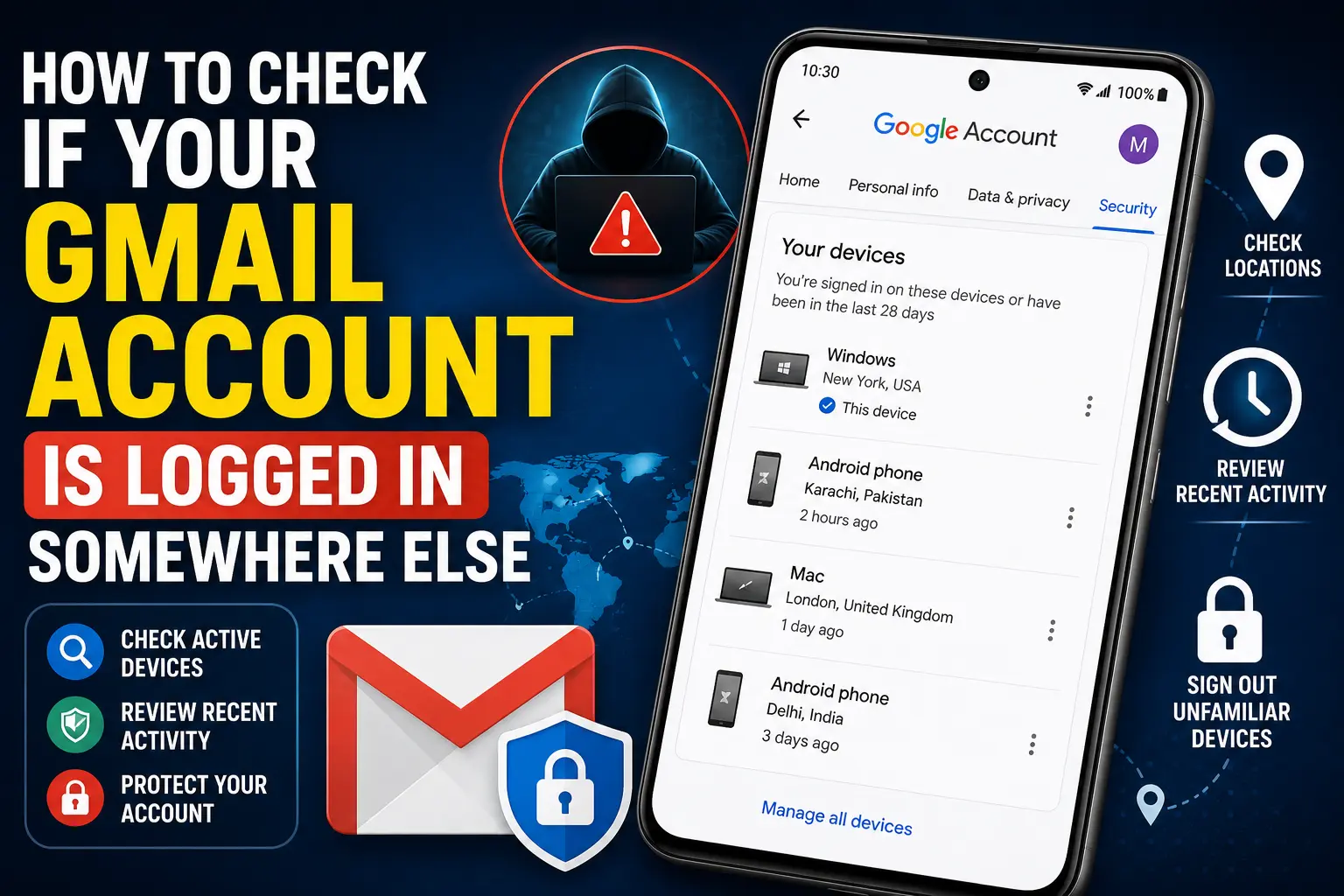
Your Gmail account contains much more than email. It may also provide access to Google Drive, Google Photos, YouTube, Contacts, Google Calendar, saved passwords, Android services, and other Google products. Because of this, discovering an unfamiliar device or login can be a serious security concern.
If you think someone else may have access to your Gmail account, you do not need to guess. Google provides several built-in tools that can help you review devices, recent account activity, security events, and Gmail sessions.
In this guide, you will learn How to Check if Your Gmail Account Is Logged in Somewhere Else, how to identify unfamiliar devices, how to sign out of a device you do not recognize, how to review Gmail’s recent activity information, and what to do if you believe someone has accessed your account without permission.
The names and appearance of some Google settings can change over time, but the main security tools remain available through your Google Account.
Quick Answer
The quickest way to check whether your Gmail account is logged in somewhere else is to open your Google Account → Security → Your devices → Manage all devices. Google shows devices and sessions associated with your account, including devices where your Google Account is currently or was recently active.
You can also open Gmail on a computer and scroll to the bottom of the inbox. Look for Last account activity and select Details. Gmail can show information about recent access, including access type, approximate IP information, and activity times.
If you see a device, location, or session you do not recognize, do not ignore it. Open the device details and sign it out when appropriate. Then change your Google Account password, review recent security activity, check recovery information, and enable two-step verification if it is not already enabled.
One important point is that an unfamiliar location does not automatically mean someone has stolen your account. IP addresses can sometimes show a location that is different from your actual location, especially when you use mobile networks, VPNs, corporate networks, or other internet connections.
Why Your Gmail Account May Appear Logged in Somewhere Else
There are several legitimate reasons your Gmail account can appear on multiple devices.
You may have signed in on:
- Your Android phone
- An old Android phone
- A Windows PC
- A Mac
- A Chromebook
- A tablet
- A work computer
- A family computer
- A browser you used temporarily
- Another device where you previously added your Google Account
Google can also show more than one session for the same physical device.
For example, you may see multiple entries related to a computer because different browsers, applications, or sessions have interacted with your Google Account.
You Forgot to Sign Out of an Old Device
One of the most common explanations is an old device that you no longer use.
If you upgraded from one Android phone to another, sold a laptop, or stopped using an old tablet, your account may still appear associated with that device.
This is why regularly reviewing your Google Account’s device list is useful.
Someone Else Has Access to Your Password
If another person knows your Gmail password, they may be able to sign in from another device.
This is more concerning if you also notice:
- Security alerts you did not trigger
- Password changes you did not make
- Unfamiliar recovery information
- Emails you did not send
- Deleted or archived messages you did not touch
- Unknown devices
- Suspicious forwarding settings
- Unfamiliar third-party applications
These signs should be investigated immediately.
The Location Looks Different Because of Your Internet Connection
The location associated with a login is not always your exact physical location.
Mobile carriers, VPN services, corporate networks, and internet service providers can route traffic through servers in other cities or regions.
Therefore, an unfamiliar city alone is not enough to prove unauthorized access.
Look at the complete activity, including the device, browser, time, and other security information.
How to Check if Your Gmail Account Is Logged in Somewhere Else
The most reliable approach is to check your Google Account’s device activity and then verify Gmail’s recent account activity.
Method 1: Check Your Google Account’s Device List
Google provides a Your devices section that lets you review devices associated with your account.
To check it:
- Open your Google Account.
- Go to the Security section.
- Find Your devices.
- Select Manage all devices.
- Review the devices and sessions shown.
- Select a device to view more information.
- Look for devices you no longer use or do not recognize.
You can also access Google’s account security page by going to your Google Account and opening Security.
The device list may show information such as a device type, approximate location, recent activity, and other identifying details.
The exact information displayed can vary depending on the device and account activity.
What to Look for in the Device List
Do not focus on only one detail.
For each unfamiliar entry, consider:
- Do I own this device?
- Have I used this type of device recently?
- Did I recently reinstall a browser?
- Did I sign in on a new phone?
- Is the listed time consistent with my activity?
- Does the device name make sense?
- Could this be an old device I forgot about?
If you are confident that a device does not belong to you, select it and use the available Sign out option.
Important Warning Before Signing Out
Signing out of an unfamiliar device is generally a safe security action, but do not confuse it with deleting the device itself.
If the device belongs to you and you are unsure why it appears, investigate first.
If you know that you no longer own the device, signing out is a sensible step.
Method 2: Check Gmail’s Last Account Activity
Gmail provides another useful security view, especially when you want to investigate access to Gmail itself.
This method is easiest on the Gmail website using a computer.
- Open Gmail.
- Open your inbox.
- Scroll to the bottom of the page.
- Look for Last account activity.
- Select Details.
- Review the recent activity information.
The details page can provide information about recent Gmail access, including:
- Access type
- IP address information
- Date and time
- Recent activity
- Other session information
Access types can include browser activity and other methods of accessing Gmail.
This information can be particularly useful when you are trying to determine whether someone has accessed your mailbox.
Why Gmail’s Activity Details Matter
The Google Account device list gives you a broader view of account sessions, while Gmail’s account activity information focuses more specifically on Gmail access.
Using both views can provide a clearer picture.
For example, suppose you see an unfamiliar browser session in Gmail and an unfamiliar device in your Google Account security page. If the timing is similar, you have stronger evidence that the activity deserves investigation.
However, do not treat every unfamiliar IP address as proof of hacking. Internet addresses can change and may not correspond exactly to your physical location.
Method 3: Review Google’s Recent Security Activity
Google also provides security-related activity for your account.
To review it:
- Open your Google Account.
- Select Security.
- Look for Recent security activity.
- Review recent events.
- Look for actions you do not recognize.
- Open an event if Google provides additional information.
- Follow Google’s security instructions if an event appears suspicious.
Security activity can help identify events such as new sign-ins, password changes, recovery changes, or other important account-security actions.
This is different from simply checking which devices are present.
A device list tells you about account sessions, while security activity can show important security events involving your account.
What to Do If You Find an Unknown Device
Finding an unfamiliar device does not automatically mean your Gmail account has been hacked.
First, try to identify it.
If you are certain that the device is not yours, take action.
Step 1: Sign Out of the Unknown Device
Open your Google Account’s Security → Your devices → Manage all devices section.
Select the unfamiliar device or session and use the available Sign out option.
This helps remove the account session from that device.
Step 2: Change Your Google Account Password
If you believe someone else may know your password, change it.
To change your password:
- Open your Google Account.
- Go to Security.
- Find the password section.
- Select the option to change your password.
- Create a new, strong password.
- Save the change.
Avoid using the same password on other websites.
If the password you used for Gmail was also used on another website and that website has experienced a data breach, changing the Gmail password becomes especially important.
Step 3: Review Your Recovery Information
Your recovery phone number and recovery email can help you regain access to your account.
Open your Google Account security settings and review the recovery information.
Make sure:
- The recovery email belongs to you.
- The recovery phone number is yours.
- You recognize any security-related changes.
If unfamiliar recovery information was added, treat it as a serious security warning.
Step 4: Enable Two-Step Verification
Two-step verification adds another security layer beyond your password.
When enabled, signing in may require an additional verification method.
Google supports different verification options, and the available choices can depend on your account and devices.
To review the setting:
- Open your Google Account.
- Go to Security.
- Find How you sign in to Google or the two-step verification section.
- Review the available options.
- Follow Google’s instructions to enable or manage two-step verification.
Two-step verification is particularly important if you use Gmail for banking notifications, password recovery, business accounts, or other sensitive information.
How to Check Gmail Login Activity on Android
You can investigate your Google Account from an Android phone without using a computer.
The exact menus can differ between Android versions and manufacturers.
A common approach is:
- Open Settings.
- Tap Google.
- Select your Google Account.
- Open Manage your Google Account.
- Tap Security.
- Find Your devices.
- Select Manage all devices.
- Review the listed phones, computers, tablets, and sessions.
You can also open a browser on your Android phone and access your Google Account directly.
If you see an old phone that you no longer own, review it and sign out if necessary.
How to Check Gmail Login Activity on iPhone
Although Gmail is commonly used on Android, you can also manage the same Google Account from an iPhone.
To check your account:
- Open the Gmail app or a web browser.
- Sign in to your Google Account.
- Open your Google Account settings.
- Select Security.
- Find Your devices.
- Tap Manage all devices.
- Review the devices and sessions.
The account security information belongs to your Google Account, so it is not limited to Android devices.
If you use the Gmail app on iPhone, make sure you are checking the correct Google Account if you have multiple accounts.
How to Check Gmail Login Activity on Windows 10 and Windows 11
You do not need a special Windows program to check Gmail account sessions.
Use a web browser such as Chrome, Edge, Firefox, or another supported browser.
- Open your browser.
- Go to Gmail and sign in.
- Open your Google Account.
- Select Security.
- Open Your devices and choose Manage all devices.
- Review the listed devices.
- Return to Gmail and check Last account activity at the bottom of the inbox.
- Select Details to review Gmail access information.
If you find an unfamiliar session, investigate it before deciding whether it belongs to you.
How to Check Gmail Sessions in Google Chrome
Chrome can be signed into a Google Account and can synchronize information across devices.
This means you should not only check Gmail itself. You should also review your Google Account’s device and security activity.
If you use Chrome on several computers:
- Open Chrome.
- Confirm which Google Account is being used.
- Open your Google Account security settings.
- Review Your devices.
- Check the browser and device information.
- Sign out of devices you no longer use.
If you use a shared or public computer, avoid leaving your Google Account signed in.
For public computers, use the browser’s private browsing mode when appropriate and always sign out when finished.
Things to Check Before Trying Advanced Security Changes
Before changing passwords or removing devices, take a moment to verify the activity.
Check Your Recent Sign-Ins
Think about where you recently used Gmail.
You may have logged in from:
- A new laptop
- A friend’s computer
- A work computer
- A hotel or travel device
- A new smartphone
- A tablet
- A browser you rarely use
This can explain an unfamiliar session.
Check the Device Type
A listed Android phone may simply be an older phone you forgot to remove.
Likewise, a Windows device may be your home or work computer.
Check the Time
Compare the activity time with your own schedule.
If you were asleep and never use a particular device, the event deserves closer investigation.
Check Your Other Google Services
Because Gmail is connected to your Google Account, unusual activity may not be limited to Gmail.
Review whether there are unexpected changes involving:
- Google Drive
- Google Photos
- YouTube
- Contacts
- Google Calendar
- Account recovery information
- Third-party applications
Do not assume that a Gmail security issue affects only your inbox.
Check Email Forwarding Settings if You Suspect Unauthorized Access
An attacker who gains access to Gmail may attempt to maintain access by changing mailbox settings.
If you suspect unauthorized access, review Gmail settings for unfamiliar forwarding addresses or filters.
Warning: Do not delete legitimate filters or forwarding rules without understanding what they do. Business accounts and automated workflows may depend on them.
Common Mistakes to Avoid
Assuming Every Unknown Location Means a Hacker
Google’s displayed location may be approximate.
A mobile network or VPN can make your activity appear to originate from another city or region.
Check the device, time, access type, and other security information before concluding that your account was compromised.
Ignoring Old Devices
Old phones and computers can remain associated with your Google Account.
Review the device list periodically and sign out of devices you no longer use.
Only Checking Gmail
Your Google Account controls much more than Gmail.
Always check the broader Google Account security page if you suspect unauthorized access.
Keeping the Same Password After a Suspected Breach
If you believe someone knows your password, simply signing out one device may not be enough.
Change the password and review your account security settings.
Using the Same Password Everywhere
If your Gmail password is reused on other websites, a compromise elsewhere can put your Google Account at risk.
Use a unique password for your Google Account.
Ignoring Recovery Information
An attacker who changes recovery information can make an account compromise more difficult to resolve.
Review your recovery email and phone number after suspicious activity.
Sharing Verification Codes
Never give Google verification codes to someone who contacts you and claims to be helping secure your account.
Treat unexpected requests for passwords or security codes as suspicious.
When to Get Professional Help
Most Google Account security problems can be handled through Google’s built-in security tools.
However, additional help may be appropriate if:
- You cannot regain control of the account.
- Someone has changed your password or recovery information.
- Suspicious devices repeatedly appear.
- Emails are being sent without your permission.
- Important Google files have been modified or deleted.
- Your account is being used to send spam.
- You believe malware on your computer or phone may have captured your password.
- Your account contains important business or financial information and unauthorized access is suspected.
For account access problems, use Google’s official account recovery and security resources.
If you suspect malware on your Windows computer or Android phone, secure that device as well. Changing your Gmail password from a compromised device may not solve the underlying problem.
If your account is connected to a workplace or school through Google Workspace, contact the organization’s administrator when appropriate.
Frequently Asked Questions
How can I check if someone else is using my Gmail account?
Open your Google Account and go to Security → Your devices → Manage all devices. Review the devices and sessions shown there.
You should also check Gmail’s Last account activity → Details section for recent Gmail access.
Look for devices, times, browsers, and activity that you do not recognize.
Can I see where my Gmail account is logged in?
Google can show devices and sessions associated with your Google Account, along with available information such as device type and recent activity.
Gmail’s account activity details can also provide information about recent Gmail access and IP addresses.
Keep in mind that location information may be approximate and should not be treated as an exact physical address.
How do I log someone out of my Gmail account?
Open your Google Account, go to Security → Your devices → Manage all devices, select the device or session you do not recognize, and use the available Sign out option.
If you believe the person knows your password, also change your password and review your account security settings.
How can I tell if my Gmail has been hacked?
Possible warning signs include unfamiliar devices, security alerts you did not trigger, password or recovery-information changes you did not make, unexpected emails sent from your account, and suspicious Gmail settings.
One unfamiliar location by itself does not prove that your account has been hacked because IP-based location information can be inaccurate.
Does Gmail show the exact location of a login?
Gmail and Google may provide approximate location or IP-related information, but this should not be treated as an exact physical location.
Internet traffic can pass through networks in different cities or regions, particularly when using mobile networks, VPNs, corporate networks, or other routing systems.
What should I do if I find an unknown device on my Google Account?
First, determine whether the device could belong to you or be an old device you forgot about.
If you are certain it is not yours, sign it out. Then change your Google Account password, review recent security activity and recovery information, and enable two-step verification if it is not already active.
Will changing my Gmail password log out every device?
Changing your Google Account password can affect existing sessions, but Google may handle different sessions and devices differently. Do not rely on a password change alone if you are investigating a specific suspicious session.
Review Your devices after changing the password and sign out of devices you do not recognize.
How often should I check my Google Account devices?
There is no required schedule, but reviewing your account’s devices when you replace a phone, stop using a computer, or notice unusual account activity is a useful security habit.
You should also review the list immediately if you receive an unexpected Google security alert or notice suspicious activity.
Final Thoughts
Knowing How to Check if Your Gmail Account Is Logged in Somewhere Else can help you detect and respond to suspicious account activity before it becomes a bigger problem.
Start with Google Account → Security → Your devices → Manage all devices to review devices and sessions associated with your account. Then check Gmail’s Last account activity → Details for information about recent Gmail access.
If you find a device you do not recognize, investigate it carefully rather than assuming the worst. An old phone, a work computer, a different browser, or a mobile network can explain activity that initially looks unfamiliar.
If the activity genuinely appears unauthorized, sign out the unknown device, change your Google Account password, review recovery information and recent security events, and enable two-step verification. Also inspect Gmail settings and other Google services for changes you did not make.
The most important step is to act quickly when multiple warning signs appear. Your Google Account can provide access to much more than email, so keeping its devices, passwords, recovery options, and security settings under regular review is an important part of protecting your digital information.