The feeling that someone else can see what is on your phone is deeply unsettling. Messages that appear read before you open them, accounts logging in from unfamiliar places, or settings changing on their own all point in the same direction.
Sometimes the explanation is harmless. Sometimes it is not. Either way, there is a clear process for taking control back, and it works whether the cause is a monitoring app, a compromised account, or an old shared login.
In this guide, you will learn How to Stop Someone from Accessing Your Phone Remotely, working from the checks that reveal what is happening through to the steps that lock everything down.
Quick Answer
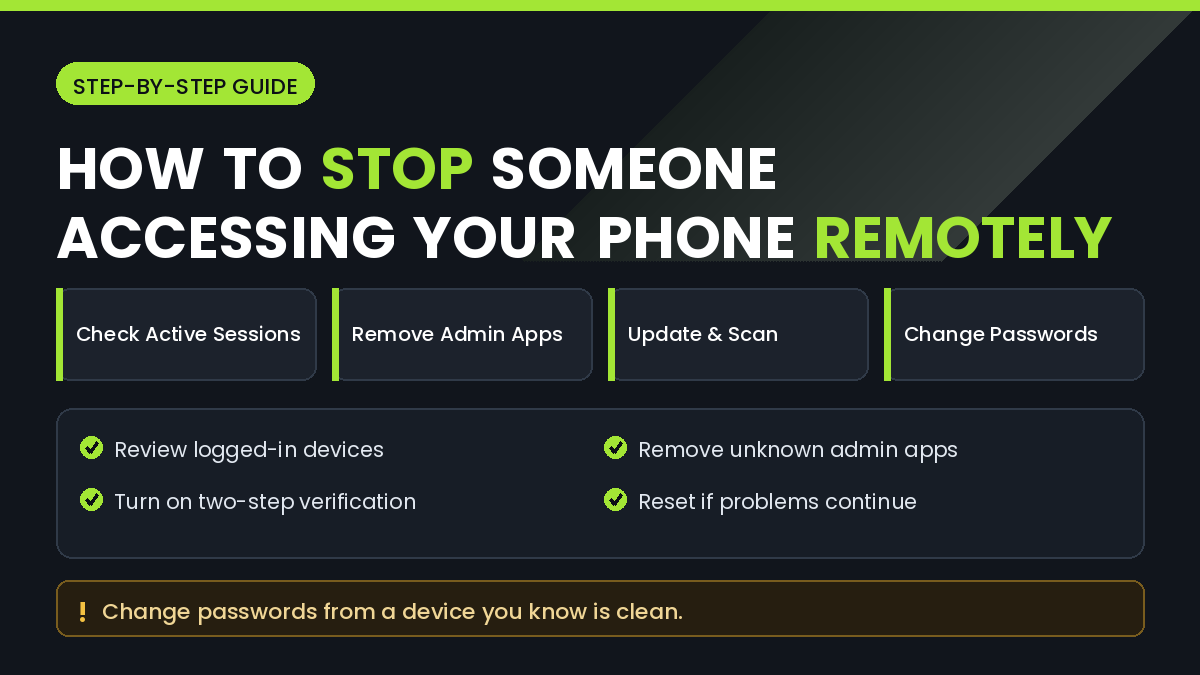
Begin by reviewing active sessions on your accounts. Google and Apple both list every device signed in, and signing out unknown devices removes remote access to your data immediately.
Next, check for apps with device administrator or accessibility permissions. Monitoring software relies on these, and removing the permission usually disables the app.
Then change your account passwords from a device you trust, and turn on two-step verification everywhere it is offered.
If problems continue after all of this, a factory reset is the reliable answer, followed by a careful setup that does not restore the same problematic apps.
Why Remote Access Happens
Remote access to a phone almost always comes through one of a small number of routes.
The most common is account access rather than the phone itself. If someone knows your Google or Apple password, they can see synced photos, contacts, messages, and location without touching your device.
The second is an installed app with excessive permissions. Monitoring and parental control apps are designed to run quietly and report activity elsewhere.
The third is a legitimate feature left enabled, such as a remote support tool, screen sharing, or a linked web session that was never signed out.
Understanding which route applies matters, because closing one does nothing about the others.
How to Stop Someone from Accessing Your Phone Remotely
Method 1: Review Active Sessions on Your Accounts
This is the fastest way to cut off access to your data.
Step by Step
- Open your Google Account security settings from a browser.
- Find the section listing your devices.
- Review every device shown, along with its last activity.
- Select anything you do not recognise.
- Choose Sign out.
- Repeat for your Apple account, email accounts, and social apps.
Pay attention to locations and dates rather than only device names, since names can be edited to look familiar.
After signing devices out, change the account password. Signing out alone does not stop someone who still knows the password from returning.
Method 2: Check Device Administrator and Accessibility Apps
Monitoring apps need elevated permissions to function, and these permissions are visible if you know where to look.
Step by Step
- Open Settings.
- Search for Device admin apps.
- Review the list and deactivate anything unfamiliar.
- Go back and search for Accessibility.
- Look at which apps have accessibility services enabled.
- Turn off anything you did not deliberately set up.
- Uninstall those apps afterwards.
Accessibility permissions are powerful because they allow an app to read screen content and simulate input. Very few legitimate apps need them.
An app that cannot be uninstalled normally is usually still holding device admin rights. Remove the admin permission first, then uninstall.
Method 3: Review Installed Apps and Permissions
Go through your full app list rather than just the home screen, since monitoring apps often hide their icons.
Step by Step
- Open Settings, then Apps.
- Choose the option to show all apps, including system apps.
- Look for names that seem generic or unfamiliar.
- Check each suspicious app’s permissions.
- Pay attention to location, microphone, camera, and SMS access.
- Uninstall anything you did not install and do not need.
Also open the Privacy dashboard if your phone has one. It shows which apps recently used the camera, microphone, and location, which quickly exposes unexpected activity.
Method 4: Check Linked Sessions and Forwarding Rules
Access is often maintained through links rather than the phone.
Check and clear:
- WhatsApp linked devices
- Messages for web sessions
- Telegram active sessions
- Email forwarding rules and filters
- Social media connected apps
- Any remote support app installed previously
Email forwarding deserves particular attention. A quiet forwarding rule sends copies of everything to another address indefinitely, and it survives password changes.
Review recovery email addresses and phone numbers on each account too, since an attacker often adds their own.
Method 5: Update and Secure the Device
Once access is cut, close the doors that allowed it.
Step by Step
- Install all pending system updates.
- Update every app from the official store.
- Run a scan with the built-in Play Protect feature.
- Set a strong screen lock that others do not know.
- Turn on two-step verification for your main accounts.
- Review saved passwords and change any that were reused.
Change passwords from a device you are confident is clean. Changing them on a compromised phone can simply hand over the new password.
Use a different password for each important account. Reuse is how a single breach becomes several.
Method 6: Factory Reset as a Clean Break
If unexplained behaviour continues, a reset removes anything installed on the device.
Before You Reset
- Back up photos and files you need
- Note your account credentials
- Confirm you can pass any account verification afterwards
- Plan to reinstall apps manually rather than restoring everything
The last point matters most. Restoring a full backup can reinstall the same problematic app you just removed.
Set the phone up fresh, install only the apps you actually use, and sign in to accounts one at a time after their passwords have been changed.
Things to Check Before Assuming the Worst
Consider Ordinary Explanations
Battery drain, overheating, and slow performance are usually caused by age, updates, or a poorly behaved app rather than surveillance.
Check Family Sharing Settings
Family accounts and parental controls provide legitimate visibility that can look like monitoring. Review those settings before concluding anything.
Check Who Knows Your Passcode
Physical access is the simplest route of all. If someone knows your screen lock, no software is needed.
Review Shared Subscriptions
Shared cloud storage and shared streaming accounts can reveal activity in ways that surprise people. This is not remote access to the phone itself.
Common Mistakes to Avoid
Do Not Change Passwords on the Suspect Device
If the phone is compromised, the new password can be captured immediately. Use a computer or another phone you trust.
Do Not Install Random Security Apps
Be cautious of apps promising to detect all spyware instantly. Many collect data themselves, and the built-in protection plus manual review is usually more effective.
Do Not Confront Before You Are Secure
If someone close to you is responsible, alerting them before you have secured your accounts can lead to retaliation or evidence being removed.
Do Not Ignore the Router
A compromised home network can affect every device. Change the router administrator password and Wi-Fi key as part of the process.
Do Not Restore a Full Backup After Reset
Restoring everything can reinstall the problem. Rebuild the phone selectively instead.
When to Get Professional Help
Some situations go beyond technical cleanup.
Seek help when:
- You believe you are being monitored by someone who may become hostile
- Money has been taken from linked accounts
- Your identity documents or private images were accessed
- The monitoring continues after a factory reset
- The situation involves a domestic or workplace safety concern
Where personal safety is a factor, contact local support services or law enforcement rather than handling it alone, and consider preserving evidence before removing anything. For financial loss, notify your bank immediately, since speed affects what can be reversed.
Frequently Asked Questions
Can someone access my phone remotely without installing anything?
They can access synced data through your accounts without touching the phone. Controlling the device itself normally requires an installed app.
Does a factory reset remove monitoring software?
Yes, in almost all cases, provided you do not restore a backup that contains the same app.
How can I tell if my phone is being monitored?
Warning signs include unexplained battery drain, unfamiliar apps with high permissions, unexpected data usage, and account sessions you do not recognise.
Do antivirus apps detect monitoring software?
Sometimes. Many monitoring apps present themselves as legitimate parental tools, so manual permission review is more reliable.
Can someone read my messages remotely?
Yes, if they have access to your account, a linked web session, or an app with message permissions. Reviewing linked devices closes this.
Will changing my password stop remote access?
It helps, but only if you also sign out other sessions and remove any app that granted access in the first place.
Is airplane mode a solution?
Only temporarily. It cuts the connection but changes nothing about the underlying access.
Should I get a new phone?
Rarely necessary. A factory reset with a careful setup and secured accounts achieves the same result at no cost.
Final Thoughts
Working out How to Stop Someone from Accessing Your Phone Remotely means addressing accounts and the device together, because fixing one alone leaves the door open.
Start with active sessions and linked devices, then remove apps holding device admin or accessibility permissions, then change passwords from a device you trust.
Email forwarding rules and recovery addresses deserve a careful look, since these quietly maintain access long after a password change.
If anything still feels wrong, reset the phone and rebuild it selectively rather than restoring a backup that may carry the problem forward.
When safety is involved, treat it as more than a technical issue and reach out for proper support. Securing a device is straightforward, but personal safety deserves real help.