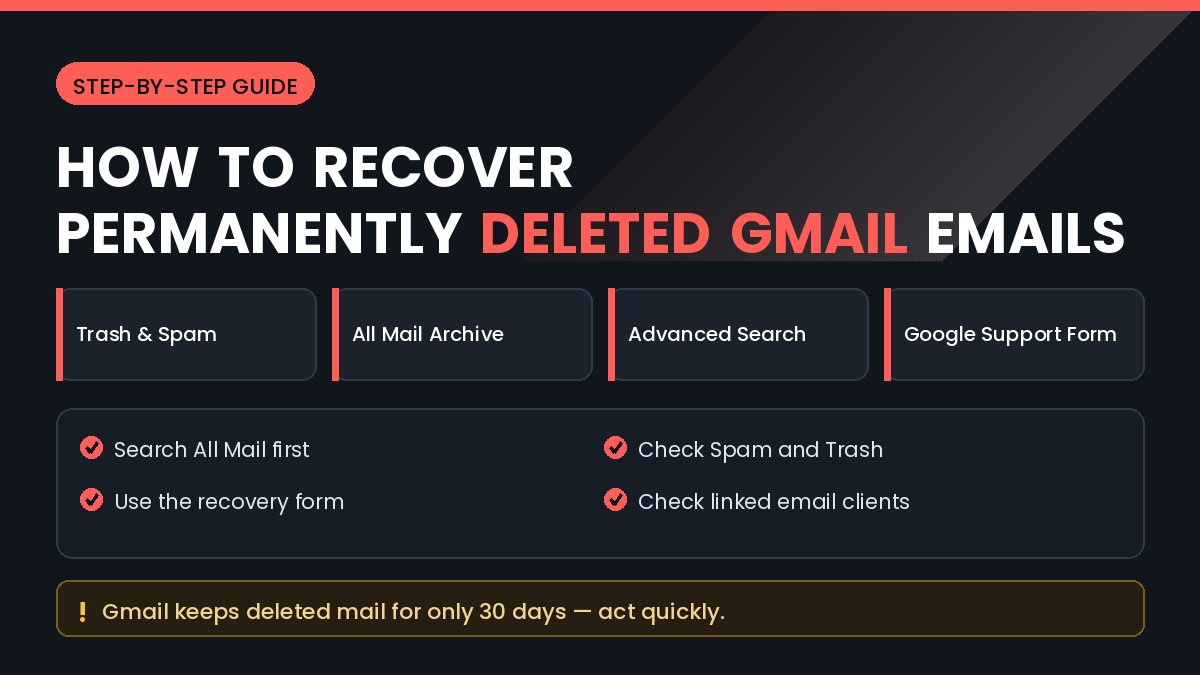
Gmail makes deleting easy, sometimes too easy. A quick clear-out of the inbox can remove an invoice, a booking confirmation, or a message you genuinely needed to keep.
The word permanently is often less final than it sounds. Gmail keeps deleted mail in several places, and messages that appear gone are frequently sitting somewhere you have not checked.
In this guide, you will learn How to Recover Permanently Deleted Emails from Gmail, including the archive most people forget about, the official recovery request, and the time limits that decide what is still possible.
Quick Answer
Before assuming an email is deleted, search All Mail. Archiving removes a message from the inbox without deleting it, and this is by far the most common explanation for a missing email.
If it is not there, check Trash and Spam. Gmail keeps deleted messages in Trash for around 30 days before removing them.
If Trash is already empty, use Google’s missing mail recovery form. This can restore messages deleted within a short recent window in some cases.
Speed matters more than anything else here. Recovery odds drop sharply after the 30-day trash period expires.
Why Deleted Gmail Messages Can Sometimes Be Recovered
Gmail uses labels rather than folders. A message is not physically moved when you archive it, it simply loses the inbox label while staying in All Mail.
Deleting applies a trash label instead, and Gmail keeps that message for about thirty days before actually removing it.
Even after that, Google’s systems may retain a copy briefly for operational reasons. That short window is what the missing mail recovery form is designed to address.
The distinction that matters is between hidden, deleted, and purged. Hidden messages are trivially recoverable, deleted ones are recoverable within the window, and purged ones usually are not.
How to Recover Permanently Deleted Emails from Gmail
Method 1: Search All Mail
Start here every time. It is fast and resolves a large share of cases.
Step by Step
- Open Gmail in a browser.
- Click the search box at the top.
- Type a distinctive word, a sender name, or part of the subject.
- Open the search options and set the scope to All Mail.
- Run the search.
- If found, open the message and move it back to your inbox.
You can also use search operators directly. Typing an operator that includes all folders, or restricting by sender or date, narrows large mailboxes quickly.
Search across Trash and Spam as well, since default searches sometimes exclude them.
Method 2: Check Trash and Spam
These two folders are separate and both worth opening.
Step by Step
- In the Gmail sidebar, expand the folder list using More.
- Open Trash.
- Sort or search within it for your message.
- Select the message and choose Move to, then Inbox.
- Repeat the process in the Spam folder.
Filters sometimes send legitimate mail straight to Spam, where it is deleted automatically after thirty days. If you find a pattern of this, review your filters afterwards.
Method 3: Use the Missing Mail Recovery Form
Google provides an official form for messages that have vanished from all folders.
Before You Submit
- Note the approximate date the message was deleted
- Have the sender address ready if you know it
- Be signed in to the affected account
- Understand that recovery is not guaranteed
Step by Step
- Sign in to the Gmail account in question.
- Open Google’s support section for missing mail.
- Locate the recovery request form.
- Complete the details about what is missing.
- Submit the request.
- Check your inbox for a response.
Responses usually arrive within a day or two. Recovered messages are typically restored directly to the account rather than sent as attachments.
Submit once and wait. Repeated submissions do not speed up the process.
Method 4: Check Other Devices and Email Clients
If you ever configured Gmail in another program, a local copy may still exist.
Worth checking:
- Outlook or Thunderbird on a computer
- The Mail app on a phone or tablet
- A work laptop where the account was added
- An old device that has been offline
Crucially, keep that device offline or disconnected from the network before opening it. Reconnecting can sync the deletion and remove the local copy too.
Once you find the message, forward it to a different address or save it as a file before allowing the device to sync.
Method 5: Check Google Takeout Exports
If you have ever exported your Google data, that archive contains your mail as it existed at export time.
Look through your downloads folder and any external drive for a Takeout archive. These files are often large and easy to forget.
The mail export is stored in a standard mailbox format that can be opened with a desktop email client or a dedicated viewer.
This only helps if an export already exists, since creating one now captures only current mail.
Method 6: Ask the Sender or Recipient
The simplest route is often the most reliable one.
Every email exists in at least two accounts. If you deleted an incoming message, the sender still has it in their sent folder.
If you deleted something you sent, the recipient likely still has it. A short request to forward it back takes moments.
For invoices, receipts, and confirmations, the issuing company can usually resend from their own system as well.
Things to Check Before Trying Advanced Solutions
Confirm You Are in the Right Account
People with several Google accounts frequently search in the wrong one. Check the account shown in the top corner.
Check Your Filters
A filter set up long ago may be deleting messages automatically. Review your filter list for rules that delete or archive on arrival.
Check for a Delegated or Shared Account
If someone else has access to the mailbox, they may have deleted the message. Review recent account activity for other sessions.
Look at Account Activity
If deletions were unexpected, check recent security activity. Unexpected mass deletion can indicate a compromised account rather than a mistake.
Common Mistakes to Avoid
Do Not Empty Trash While Searching
Clearing Trash during a search removes your best remaining option. Leave it alone until you are finished.
Do Not Sync an Offline Device Too Soon
If an old device holds a local copy, keep it offline until you have saved the message elsewhere.
Do Not Trust Third-Party Recovery Tools
Be cautious of services claiming they can recover any permanently deleted Gmail message. Many simply request access to your account, which is a serious risk.
Do Not Delay
The thirty-day trash window is the single biggest factor in whether recovery succeeds. Every day of delay reduces the chance.
Do Not Grant Full Account Access to Apps
Recovery tools requesting complete mailbox access can read everything you have. Review connected apps in your account settings and remove any you do not recognise.
When to Get Professional Help
Most personal cases are solved with the steps above, but organisational accounts have more options.
Consider escalating when:
- The account is part of a Google Workspace organisation
- The email is needed for a legal or contractual matter
- A large volume of mail disappeared at once
- You suspect the account was accessed by someone else
- Financial records or tax documents were affected
A Workspace administrator can restore deleted mail for users within a retention window, which is longer and more capable than anything available on a personal account. Contact your IT administrator before attempting anything yourself, and involve a lawyer where legal records are concerned.
Frequently Asked Questions
How long does Gmail keep deleted emails?
Messages stay in Trash for about thirty days, after which they are removed automatically.
Can I recover emails deleted years ago?
Not from Gmail directly. Your remaining options are a local copy on an old device, a Takeout export, or the other party’s mailbox.
Does archiving delete an email?
No. Archiving only removes the inbox label, and the message remains in All Mail permanently.
Does the missing mail form always work?
No. It helps in some recent cases but offers no guarantee, especially outside the trash window.
Can a Workspace admin recover deleted mail?
Yes, within the organisation’s retention period. This is one of the main advantages of a managed account.
Why did my emails disappear suddenly?
Common causes include an aggressive filter, a syncing client deleting mail, or unauthorised account access.
Are recovered emails restored to the inbox?
Usually they return to the account and can be found through search, though not always in the inbox itself.
Does deleting on my phone delete from the server?
Yes, for a normally configured Gmail account. Deletion syncs across every device using the account.
Final Thoughts
Learning How to Recover Permanently Deleted Emails from Gmail starts with recognising that most missing messages were never deleted at all.
Search All Mail first, then Trash and Spam. These three checks take two minutes and resolve the majority of cases.
When the message is genuinely deleted, the recovery form is worth trying, and offline devices or old exports are the strongest remaining options.
Throughout, protect the account itself. Avoid third-party tools that demand full mailbox access, and review connected apps while you are in the settings.
For the future, archive rather than delete, and forward critical documents such as invoices and receipts to a second location so a single mistake cannot remove them entirely.