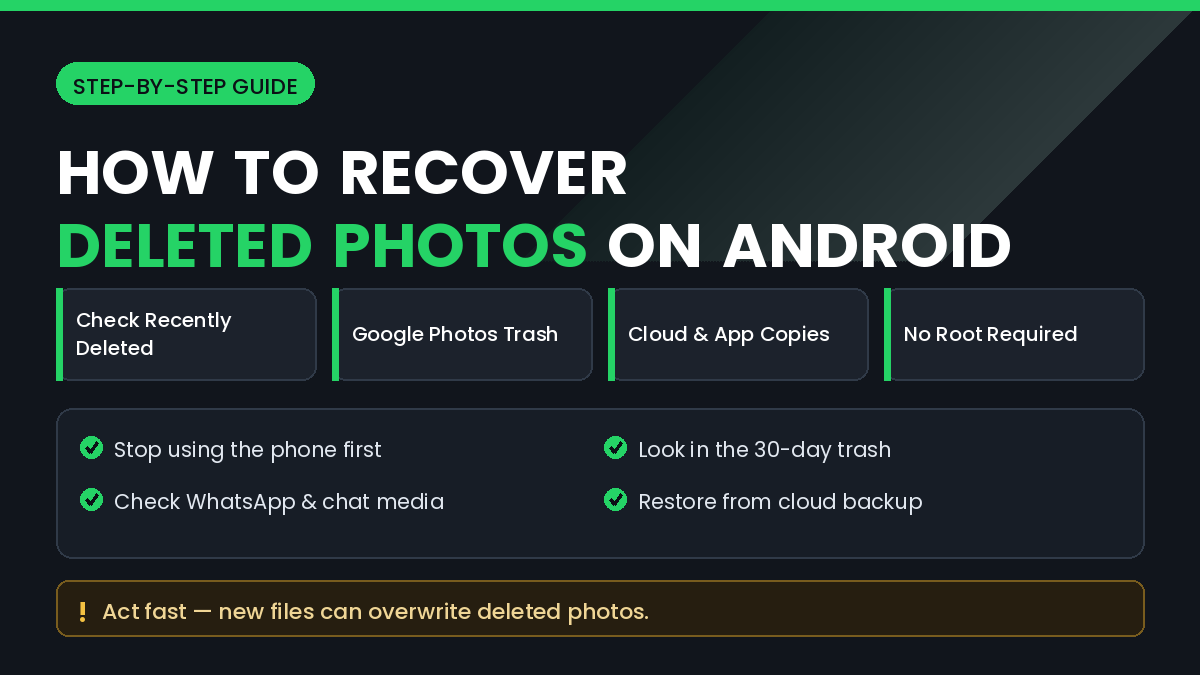
Deleting a photo by accident is one of the most common phone mistakes, and it usually happens at the worst possible moment. A cleanup session, a shared device, or a mistaken tap can remove pictures you never intended to lose.
The good news is that a deleted photo is often still recoverable, and in most cases you do not need to root your phone or install anything unusual. Android and Google now keep several safety copies that many people never think to check.
In this guide, you will learn How to Recover Deleted Photos on Android Without Root, including where Android stores recently deleted images, which cloud services keep hidden copies, and what to avoid so you do not destroy the files you are trying to save.
Quick Answer
The fastest way to recover deleted photos on Android is to open your Gallery app and check the Recently Deleted or Trash folder. Most Android phones keep deleted images there for around 30 days before removing them permanently.
If the trash folder is empty, open Google Photos and check its own Bin. Google Photos keeps a separate trash from your phone gallery, so a photo missing from one may still exist in the other.
If neither location has the photo, check messaging apps, cloud storage, and any app that may have received a copy. A picture you shared once often still exists somewhere else.
Before doing anything else, stop taking new photos, stop downloading files, and avoid installing large apps. New data can overwrite the storage space where the deleted photo still sits.
Why Deleted Photos Can Often Be Recovered
When you delete a photo, Android usually does not erase it immediately. Instead, it moves the file into a hidden trash folder and marks it for deletion at a later date.
This is why a recently deleted image can be restored with a single tap, while a photo deleted several months ago is much harder to find.
Even after the trash is emptied, the underlying data may remain on the storage chip until the space is reused. The file is no longer visible to the system, but the raw data can survive for a while.
This is also why speed matters so much. Every new photo, video, app update, or download reduces the chance that the old data is still intact.
How to Recover Deleted Photos on Android Without Root
Work through these methods in order. The earlier methods are the safest and the most likely to succeed.
Method 1: Check the Gallery Trash or Recently Deleted Folder
Almost every modern Android gallery app includes a recycle bin. Samsung, Xiaomi, Oppo, Vivo, Realme, and stock Android all offer some version of this feature.
Step by Step
- Open your Gallery app.
- Tap the menu icon, usually three lines or three dots.
- Look for Trash, Bin, or Recently Deleted.
- Browse the list of removed images.
- Select the photos you want back.
- Tap Restore.
Restored photos normally return to their original album. If you cannot find them afterwards, sort your gallery by date rather than by recently added.
Method 2: Check the Google Photos Bin
Google Photos maintains its own trash folder that works separately from your phone gallery. Many people delete a photo from the gallery without realising a backed-up copy still exists in Google Photos.
Step by Step
- Open the Google Photos app.
- Tap your profile picture, then open Photos settings if needed.
- Go to Library, then Bin or Trash.
- Look through the deleted items.
- Select the photos you need.
- Tap Restore.
Items in the Google Photos bin are usually kept for 60 days if the photo was backed up, and 30 days if it was only stored on the device.
Make sure you are signed in with the correct Google account. People who use more than one account often search in the wrong one.
Method 3: Check Cloud Storage and Backup Apps
If you use any cloud service, a copy of the photo may already be sitting safely online. Deleting a photo on the phone does not always delete the cloud copy.
Check the accounts you actually use:
- Google Drive
- Samsung Cloud
- Mi Cloud or your manufacturer cloud
- Dropbox
- OneDrive
- Any camera app with its own backup setting
Cloud services also keep their own trash folders, so check those as well before assuming the file is gone.
Method 4: Look Inside Messaging and Social Apps
Photos you shared with someone are stored a second time inside the app that sent them. This is one of the most overlooked recovery routes.
Check the media folders of:
- Messenger
- Telegram
- Instagram direct messages
- Email attachments you sent to yourself
Open the conversation where the photo was shared and scroll to the media section. If the image still loads, save it back to your gallery.
You can also open a file manager and browse to the app media folders, where sent and received images are often stored as separate copies.
Method 5: Use a File Manager to Find Hidden Copies
Some photos remain on the device but stop appearing in the gallery because of a missing thumbnail or a hidden folder marker.
Step by Step
- Open Files, My Files, or another file manager.
- Enable the option to show hidden files.
- Browse to internal storage.
- Check folders such as DCIM, Pictures, Downloads, and app media folders.
- Look for files ending in .jpg, .jpeg, .png, or .heic.
- Move any found images into your main Pictures folder.
If a folder contains a file named .nomedia, that file tells the gallery to ignore the folder. Renaming or removing it can make hidden photos visible again.
Method 6: Try Reputable Recovery Software Without Root
Some desktop recovery programs can scan an Android phone or its SD card without rooting. Results vary widely, and honest expectations matter here.
What generally works:
- Recovering photos from a removable SD card connected to a computer
- Recovering images from a phone that exposes storage as a normal drive
- Recovering files deleted very recently
What generally does not work without root:
- Deep scans of protected internal storage on modern Android versions
- Photos deleted many months ago
- Files overwritten by newer data
If you use recovery software, always save recovered files to a different drive, never back onto the source storage.
Things to Check Before Trying Advanced Solutions
Simple checks solve a surprising number of cases.
Confirm the Photo Was Actually Deleted
Sometimes a photo has been moved, archived, or hidden rather than deleted. Check the Archive section in Google Photos and any locked or private folder on your phone.
Check Every Google Account
If your phone has more than one account signed in, the photo may be backed up under an account you rarely open.
Ask Whoever Received the Photo
If you sent the image to someone, they may still have it. This is often faster and more reliable than any recovery tool.
Common Mistakes to Avoid
Do Not Keep Using the Phone Normally
Taking new photos, recording video, or downloading large files can overwrite the space where deleted images still sit. Pause normal use until you finish checking.
Do Not Empty the Trash While Searching
Clearing the bin during a recovery attempt removes your easiest option. Leave it alone until you are sure you have what you need.
Do Not Trust Guaranteed Recovery Claims
Be cautious of apps or websites claiming they can recover every deleted photo instantly, or restore images from any phone regardless of age. No method can guarantee complete recovery.
Do Not Grant Unnecessary Permissions
Some recovery apps request far more access than they need. Avoid apps that ask for contacts, messages, or account access to recover photos.
Do Not Root the Phone Casually
Rooting can void your warranty, weaken device security, and in some cases wipe the phone entirely. Do not root simply because an app recommends it.
When to Get Professional Help
Professional data recovery may be worth considering when the photos are genuinely irreplaceable and simpler options have failed.
Consider professional help when:
- The phone has suffered physical or water damage
- The device will not boot normally
- Storage is failing or the phone freezes constantly
- The photos have real personal or legal importance
- You are not comfortable using recovery tools yourself
Choose an established local service rather than an unknown website promising guaranteed results. Protect your screen lock and Google account details, and only hand over the device to a technician you trust.
Frequently Asked Questions
Can I recover deleted photos on Android without root?
Yes, in many cases. The gallery trash, Google Photos bin, cloud backups, and messaging app copies all work without root and cover most everyday deletions.
How long do deleted photos stay in the trash?
Most Android gallery apps keep deleted photos for about 30 days. Google Photos generally keeps backed-up items for 60 days.
Can I recover photos deleted a year ago?
Usually not from the device itself. Your best chance is a cloud backup, an email attachment, or a copy held by someone you shared the photo with.
Do photo recovery apps really work?
Some help with recently deleted files on SD cards. Many overpromise, and modern Android storage restrictions limit what any app can scan without root.
Will a factory reset help recover photos?
No. A factory reset removes data and makes recovery far less likely. Never reset a phone while trying to recover files from it.
Can I recover photos from a broken SD card?
Sometimes. Connect the card to a computer with a card reader and try recovery software. If the card is not detected at all, professional help may be required.
Why do my restored photos not appear in the gallery?
The gallery may need to rescan storage. Restart the phone, or clear the cache of the gallery app so it rebuilds its index.
Does deleting from Google Photos delete from my phone?
If backup and sync is enabled, deleting in one place can remove the photo in both. Always check both bins before assuming a photo is gone.
Final Thoughts
Learning How to Recover Deleted Photos on Android Without Root mostly comes down to checking the right places quickly, in the right order.
Start with the gallery trash, then the Google Photos bin, then your cloud accounts. These three checks solve the large majority of accidental deletions and take only a few minutes.
If those fail, look for second copies in messaging apps, hidden folders, and shared conversations. A photo that travelled anywhere usually left a copy behind.
Recovery software is a last resort rather than a first step, and it works best on removable storage and recent deletions.
For the future, turn on automatic backup for the photos that matter to you, and check occasionally that it is actually running. A working backup is far easier than any recovery attempt.